
In this article, we will cover how to select categories as a member and how to enable sub category selection for the members inside the admin.
The form category sort order is based on the selection in the "Default Category Sort Order" setting: Default Category Sort Order
Important
- The Top Category is selected in the Contact Details form.
- The Sub Categories and Sub-Sub Categories are selected in the Listing Details (Additional Details) form.
- A different approach can be found here: How To Select Categories As A Member In One Member Form.
Login as a Member
Log in using the member credentials or log in as a member in the Admin Dashboard: Login As Member
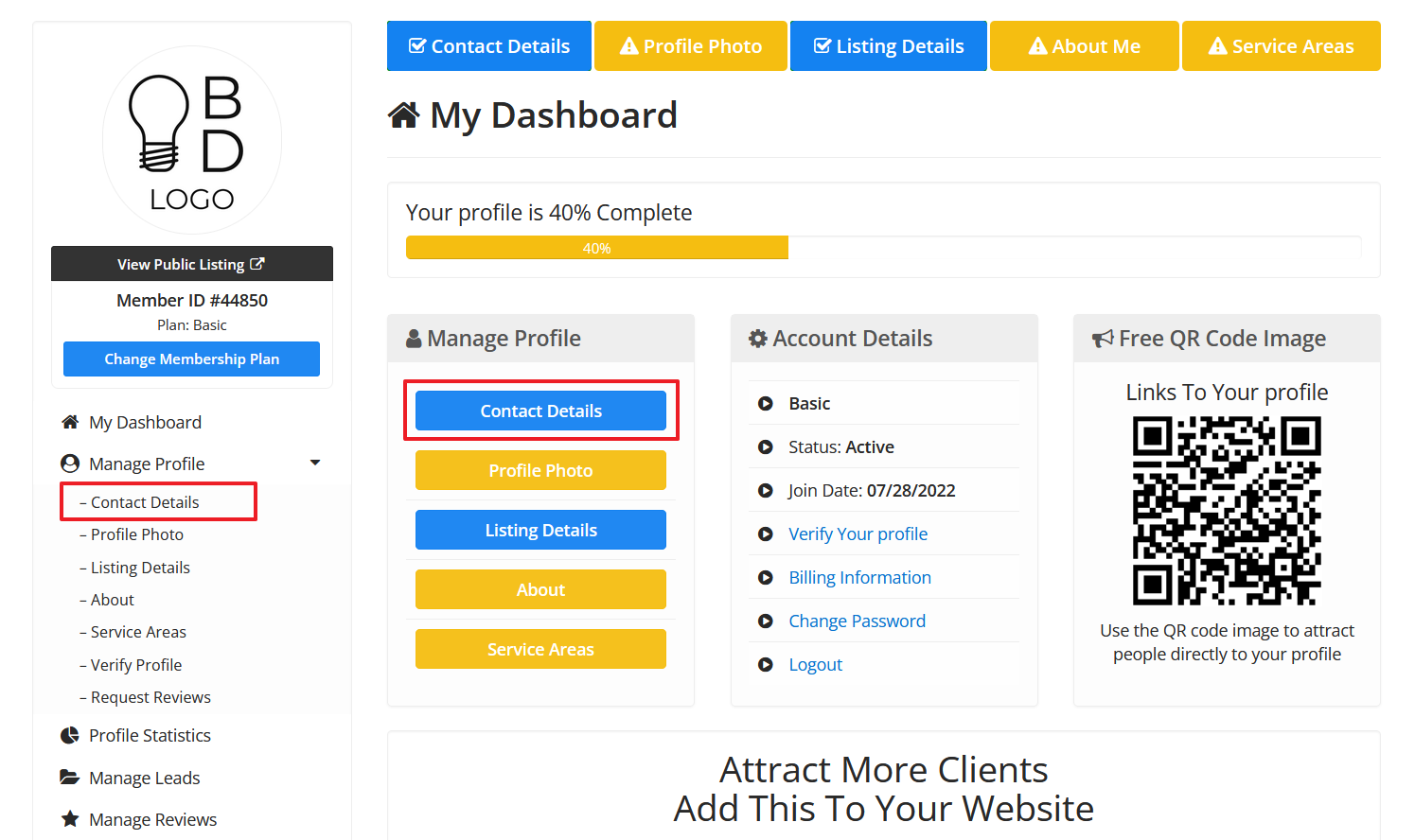
Once logged in as a member, click on the Contact Details Form:
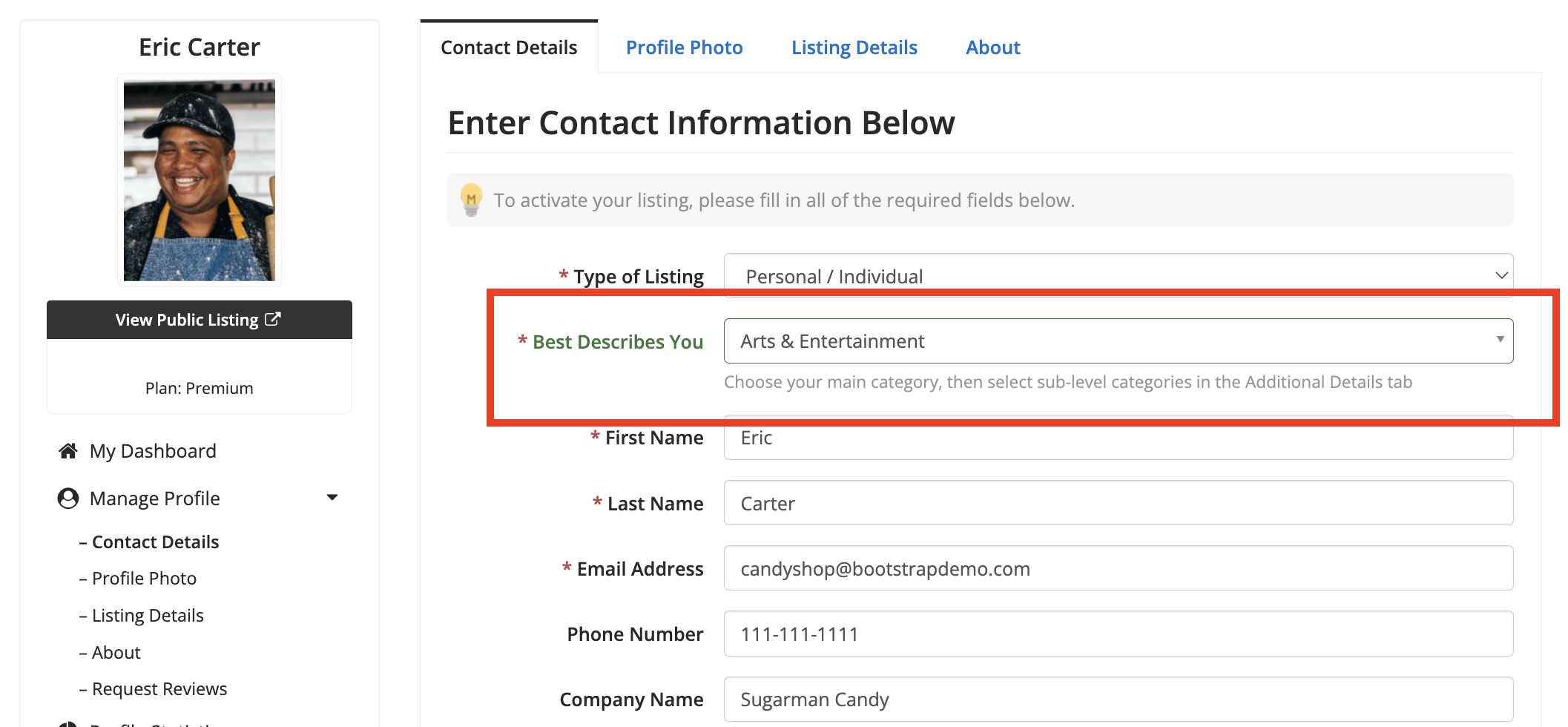
There is going to be a form field called Top Category, or Best Describes You. Now, select the one that suits the member's business:
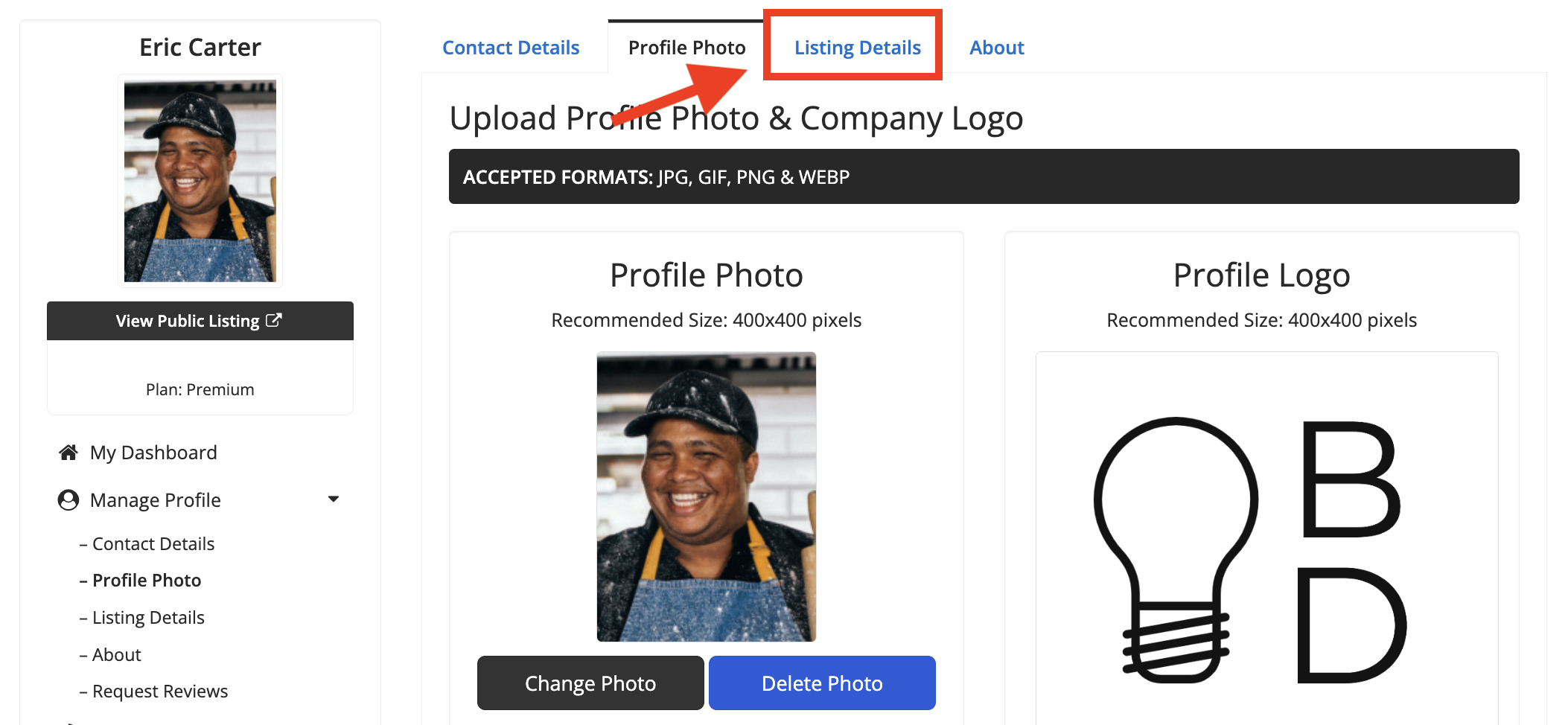
Scroll down the form and click on Save & Continue. This will redirect to the Profile Photo tab automatically. From there, click on the Listing Details (Additional Details) tab:
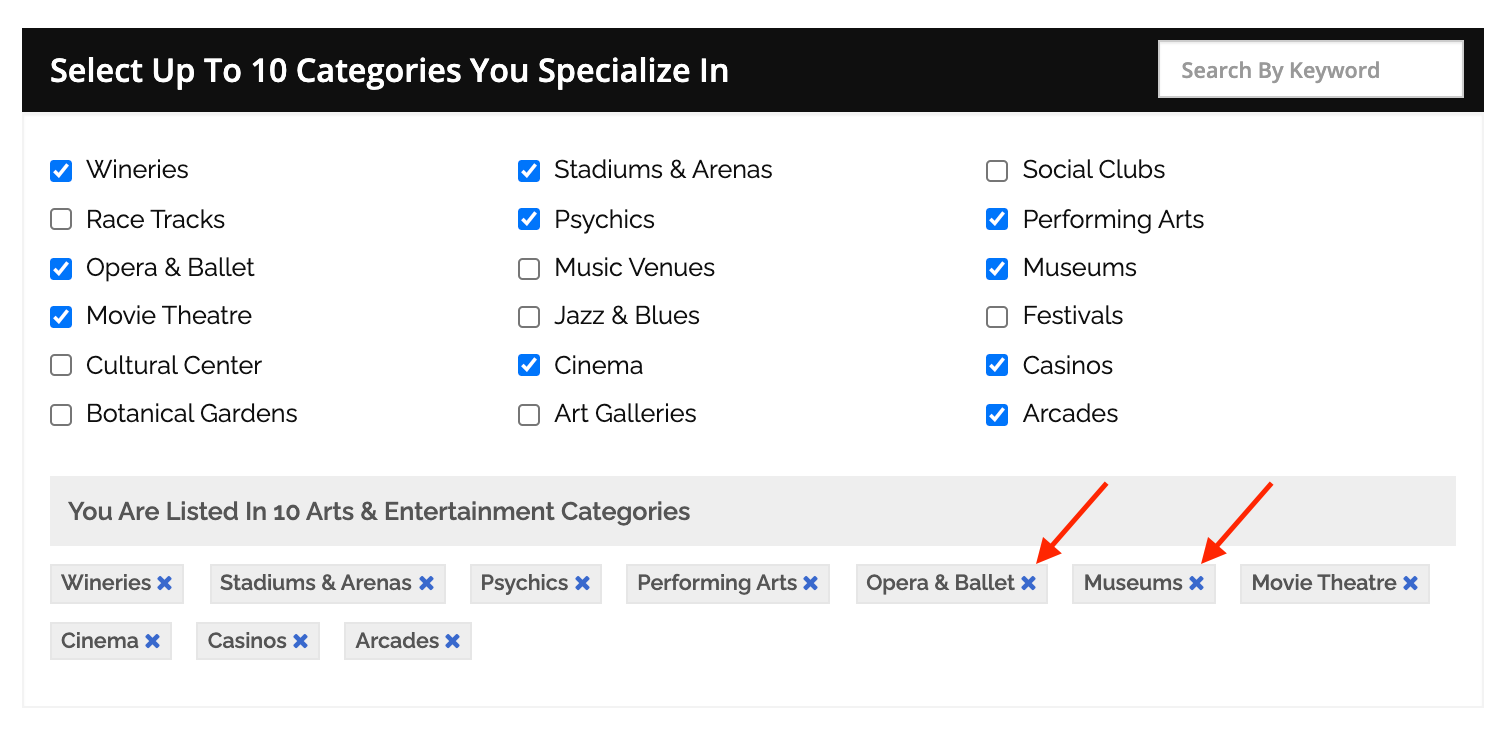
Members can select multiple sub-categories that they Specializes in:
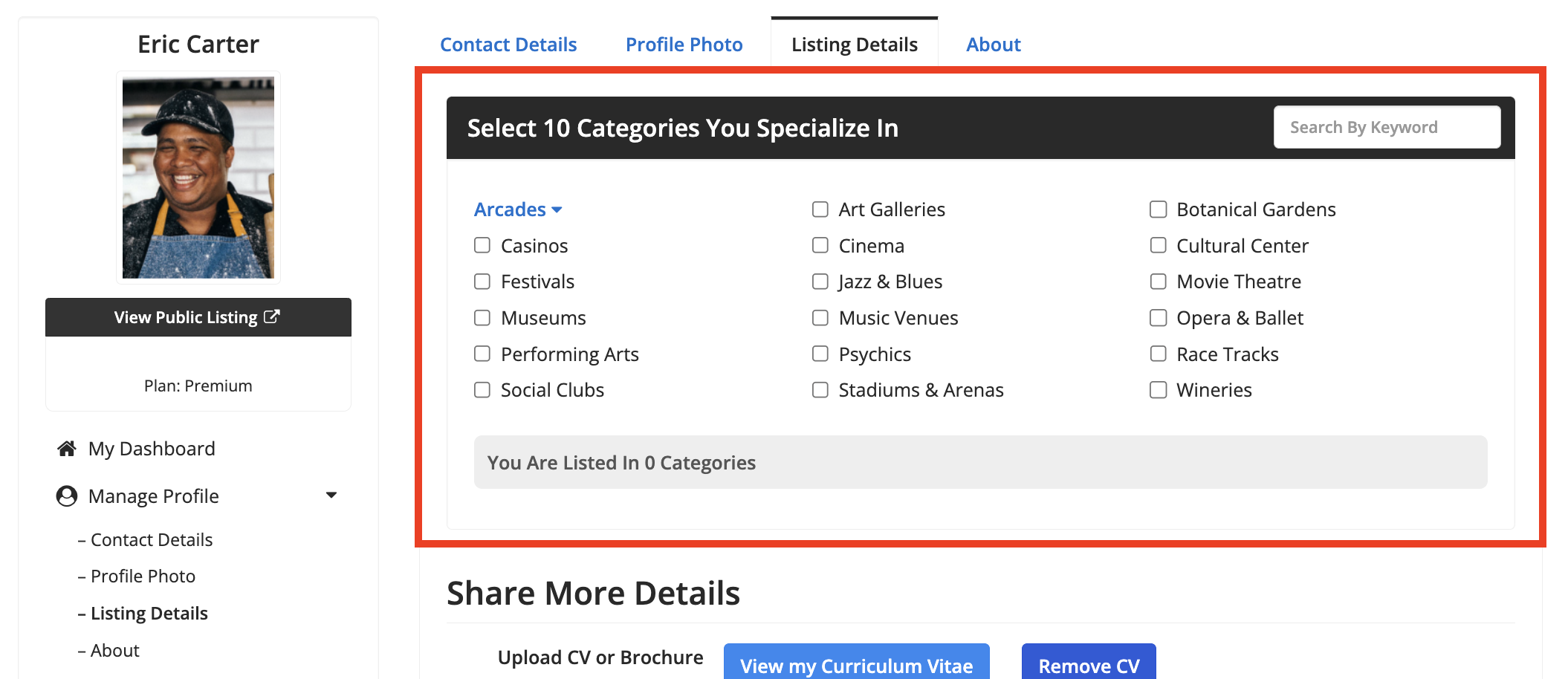
Members can "Search by Keyword" if there are a lot of categories on this form.
Once the Sub or Sub-sub category has been selected, it will appear as a tag below the "You Are Listed.." message:
Clicking on the "X" on these tags will also deselect the category from the selected options:
Scroll down and click on Save & Continue.
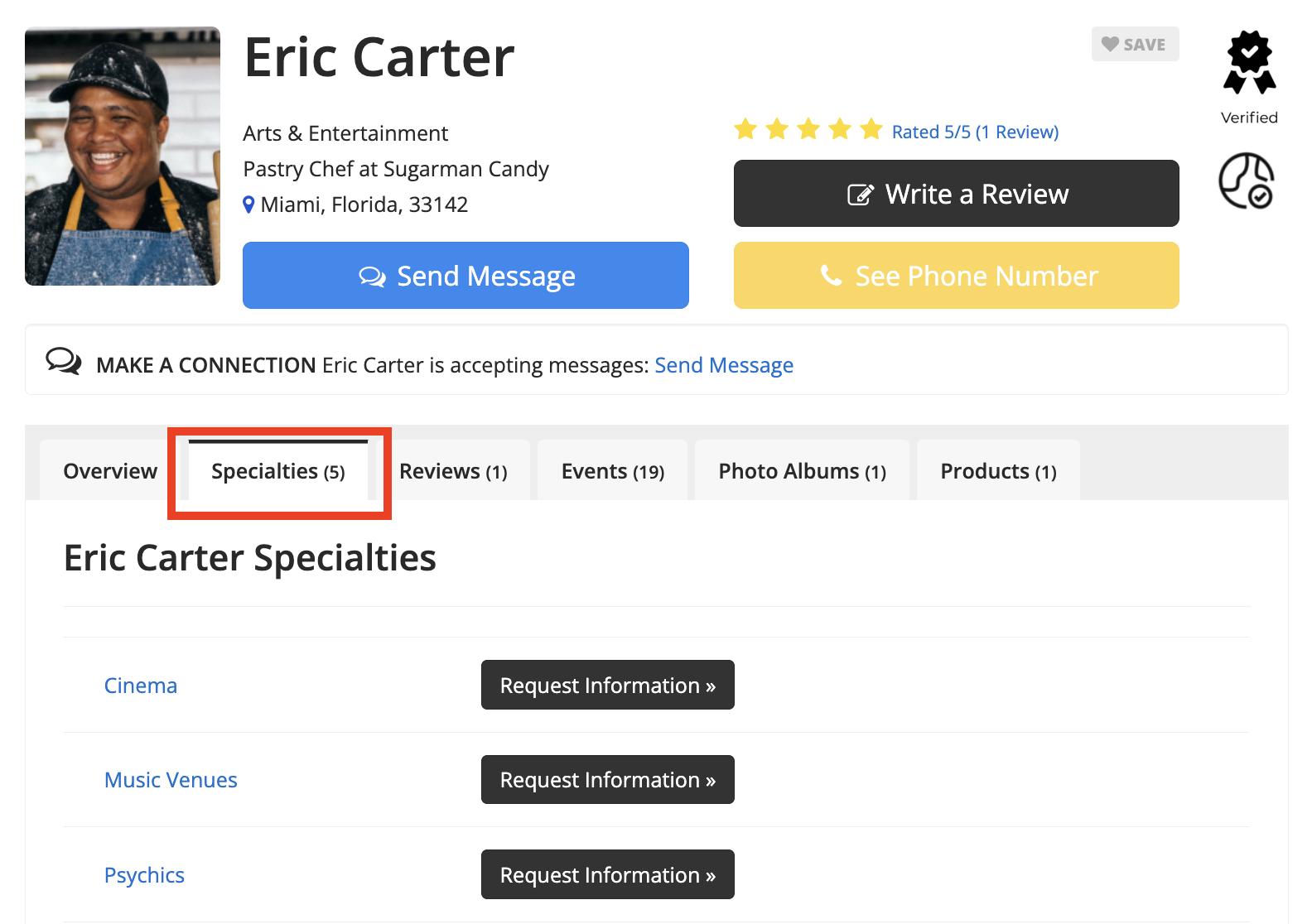
The specialties will appear inside their own tab on the profile page:
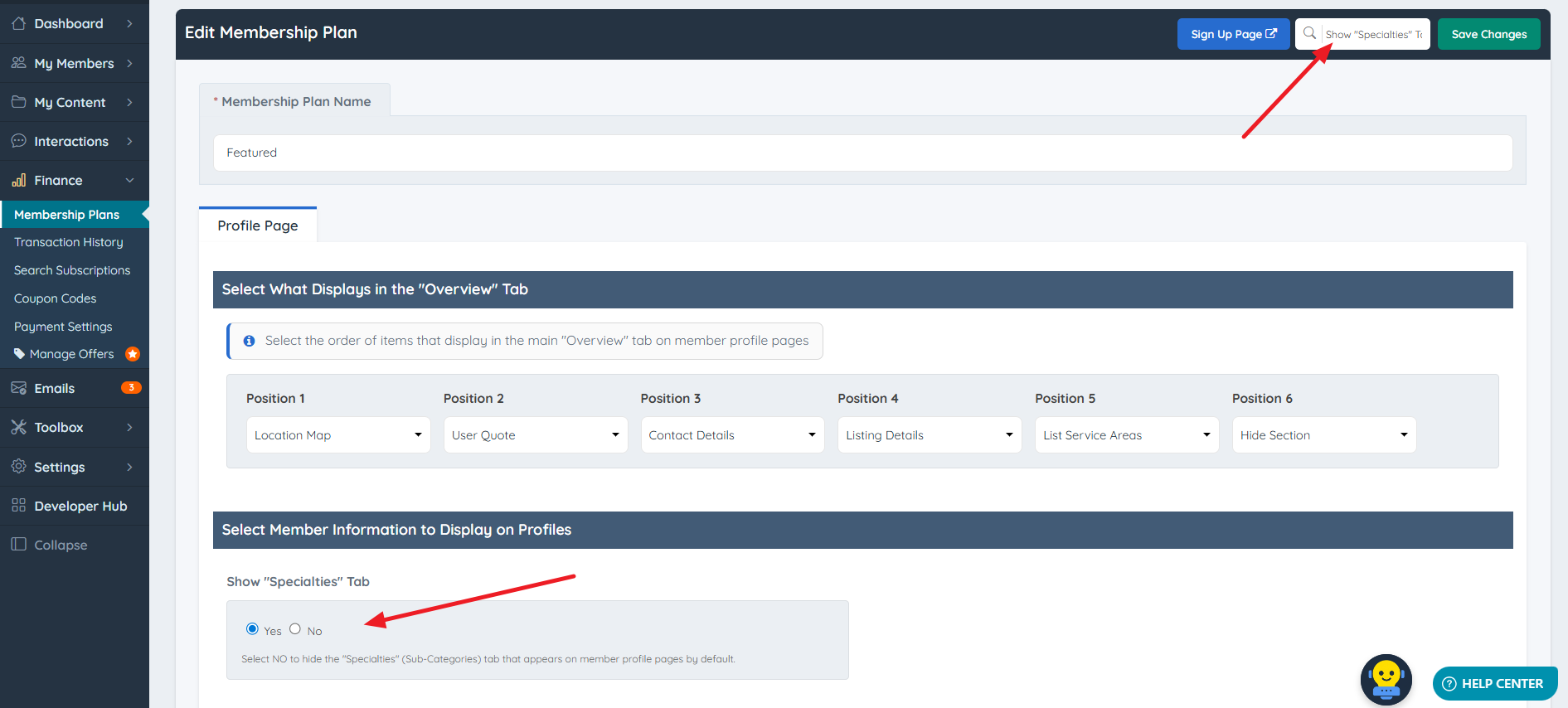
Note: The Specialties tab must be enabled for the specific Membership Plan to appear on live profiles. This setting is located under Finance » Membership Plans » Edit » Profile Page » Show "Specialties" Tab.
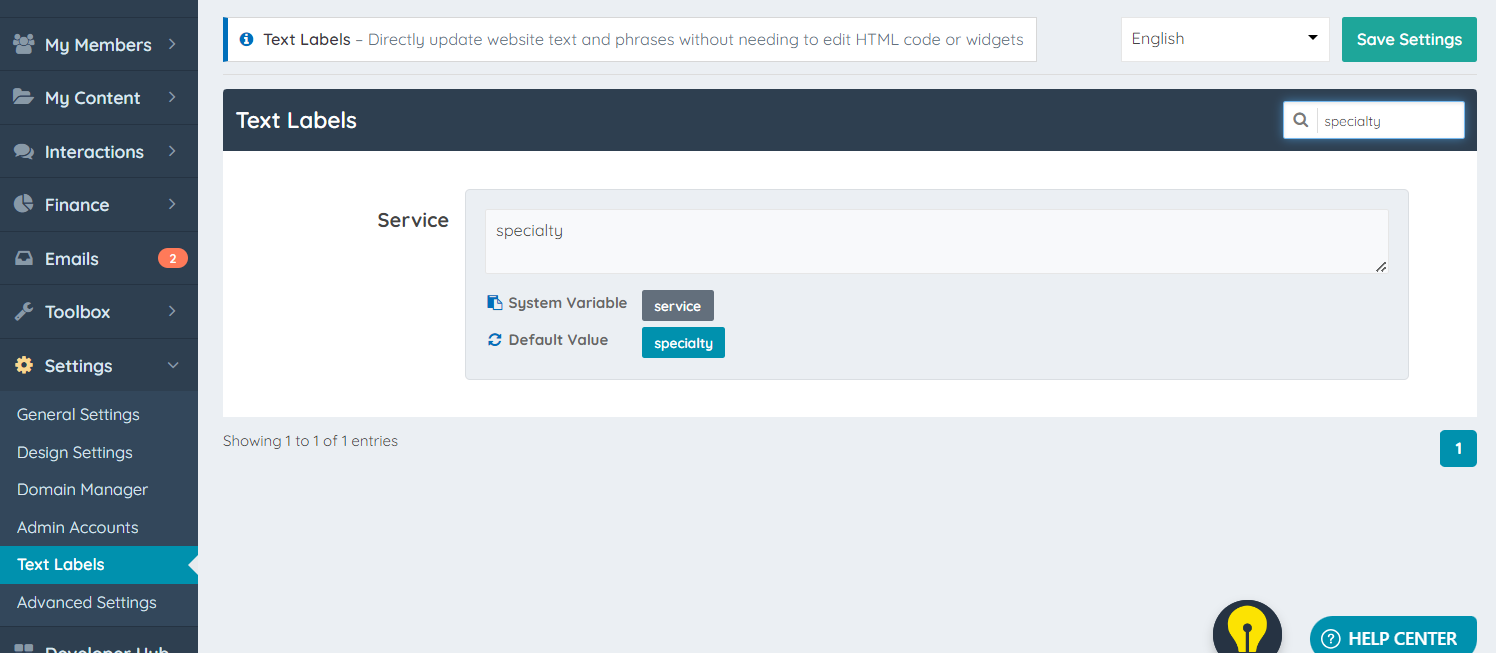
The "Specialty/Specialties" wording is a text label that can be changed:
Enabling Category Selection for Members
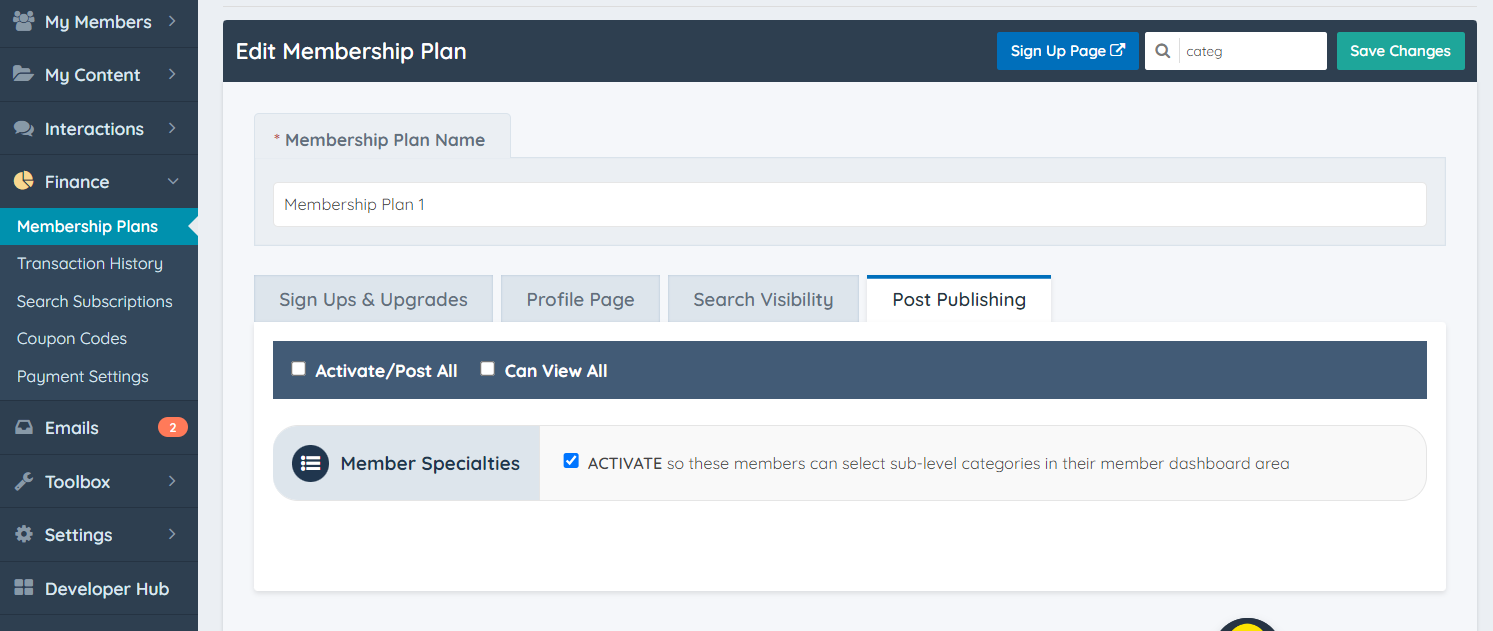
To enable sub-category selection, navigate to Finance » Membership Plans » Edit and configure the settings within the following distinct tabs:
- Search Visibility Tab: Locate Max. Sub-Level Categories Member Can Select to define selection limits (enter 'all' or 'unlimited' if preferred).
Value Option 'all': Automatically assigns the member to every single available sub-category on the website without requiring manual selection.
Value Option 'unlimited': Empowers the member to manually select an unrestricted number of sub-categories from their dashboard.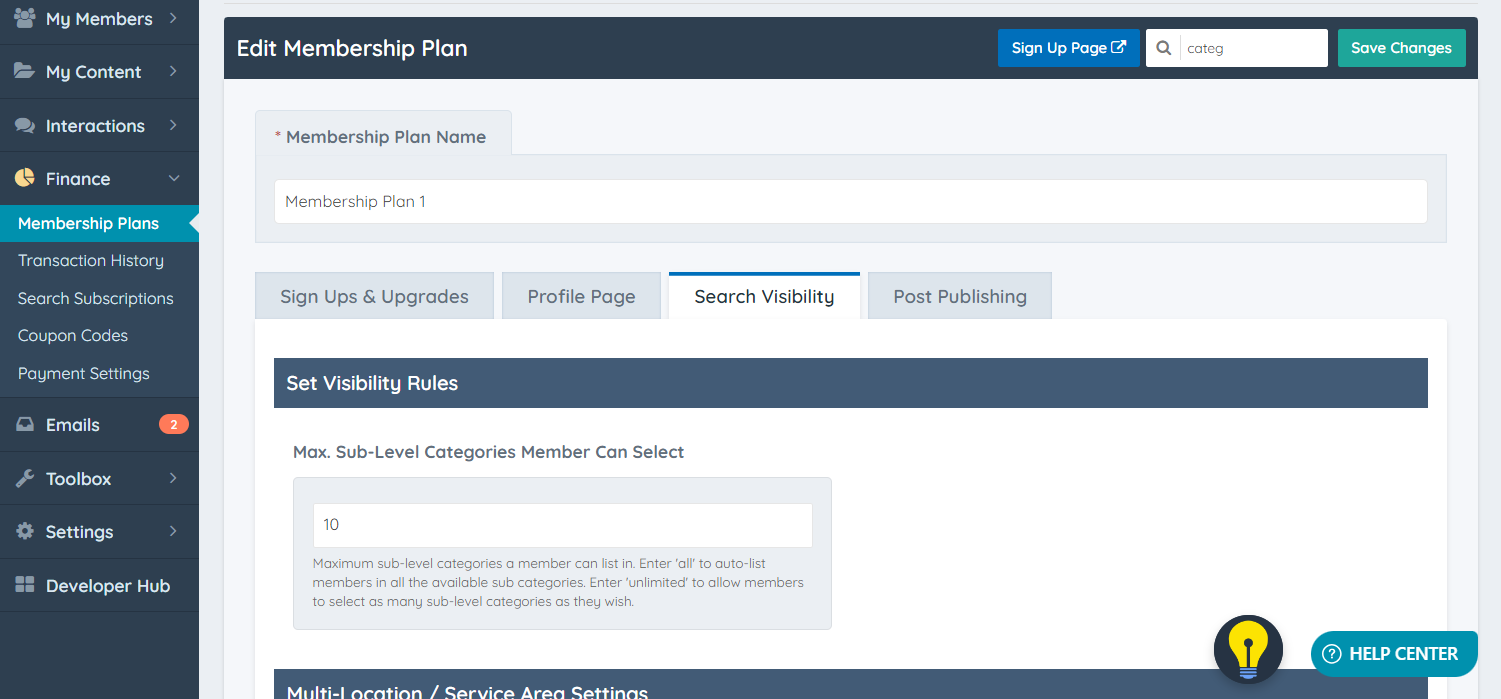
- Post Publishing Tab: Locate the Member Specialties checkbox and toggle to ACTIVATE to allow category selections inside the member dashboard.
Choose Which Categories Display on Member Profiles
By default sub and sub-sub categories will display on member's profiles, once these have been selected by the member in the Additional Details form. There is a setting that can narrow down which subs and sub-sub categories appear on the profile.
» Choose Which Types of Sub & Sub-Sub Categories Display on Member Profiles
