
We have an add-on called "Downloadable PDF Invoices" that allows all members to view or download their invoices from their accounts.
To check if this functionality was installed on the website, follow these steps:
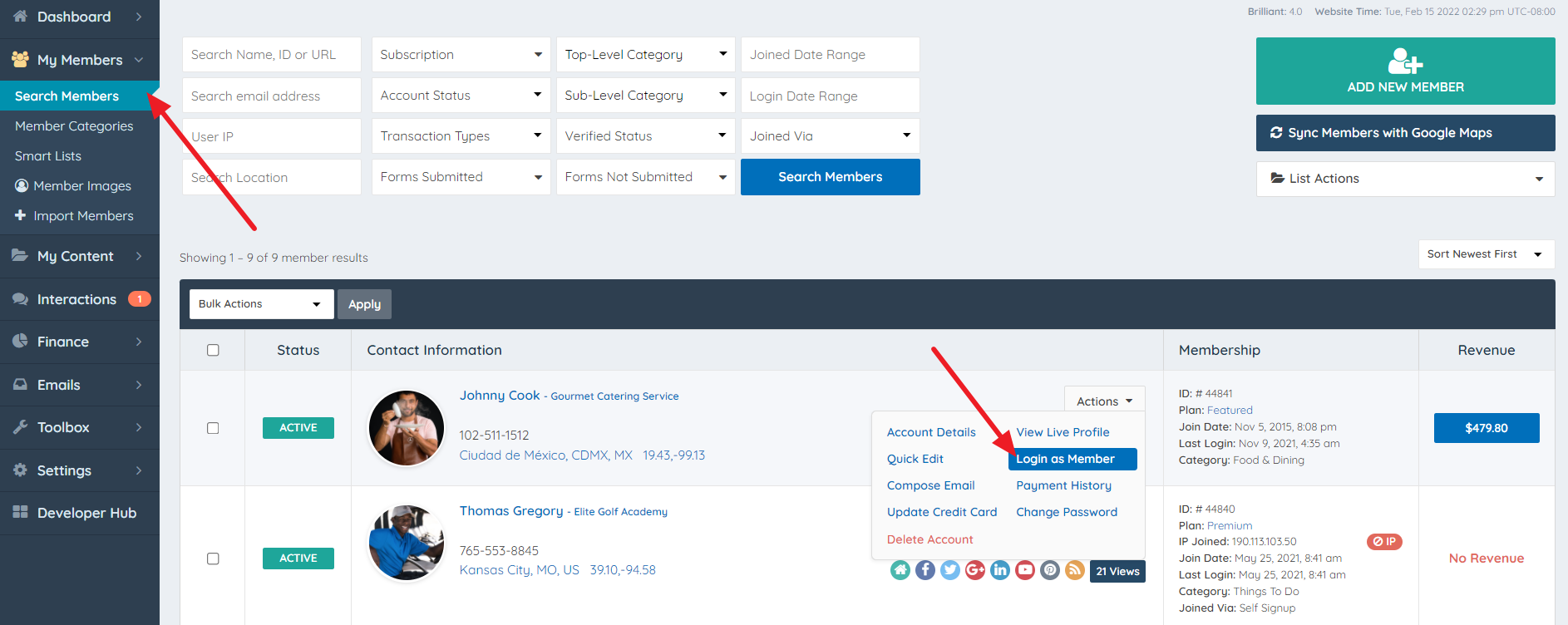
1. Go to admin and click on "My Members >> Search Members"
2. Click on "Actions"
3. Click on "Login as a member"
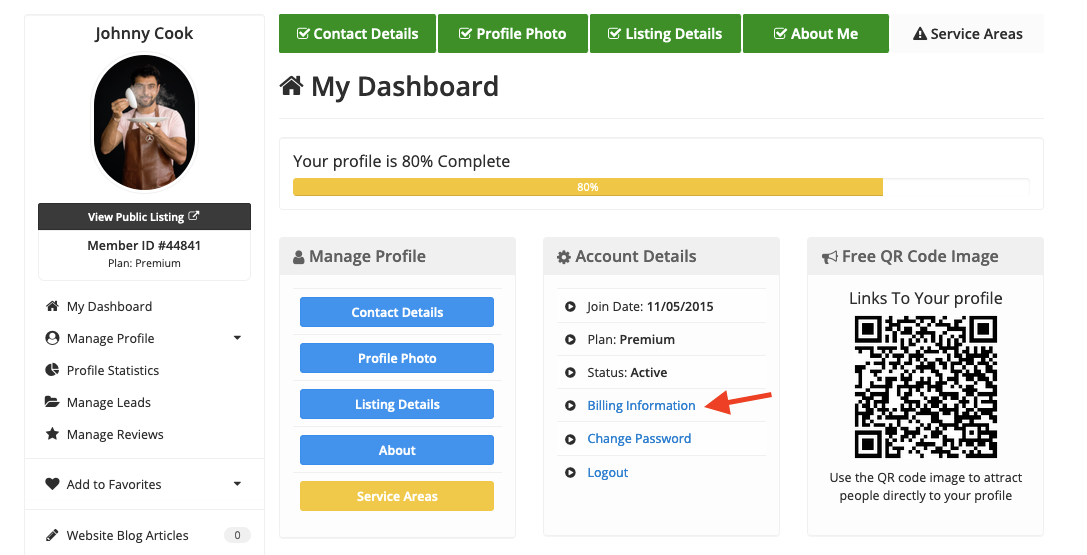
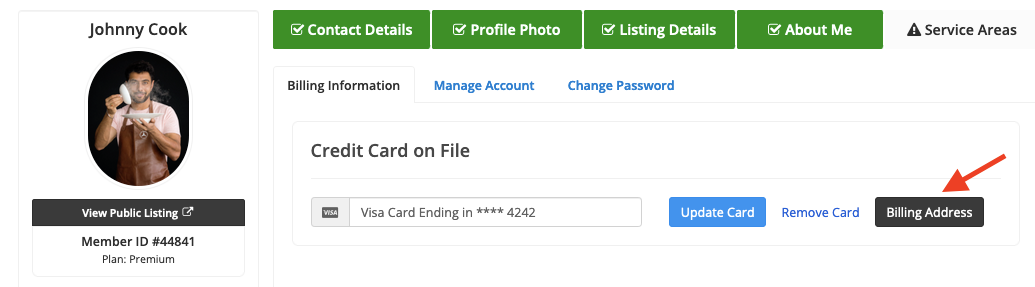
4. Go to the "Billing Information" section:
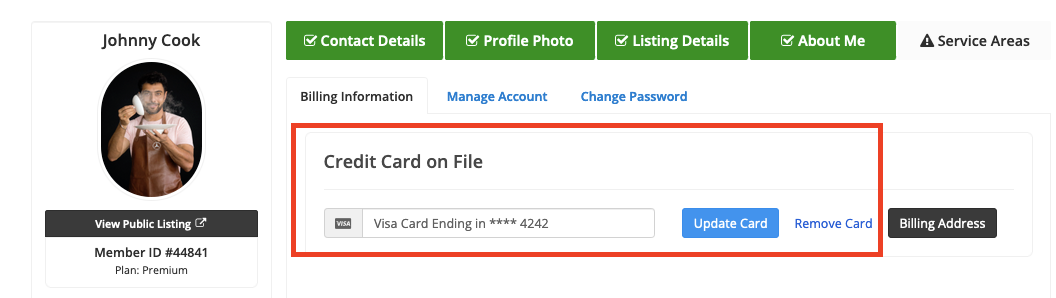
5. Within the Billing Details tab, the credit card module will display the last 4 digits of the credit card on file or the "Add Credit Card" button.
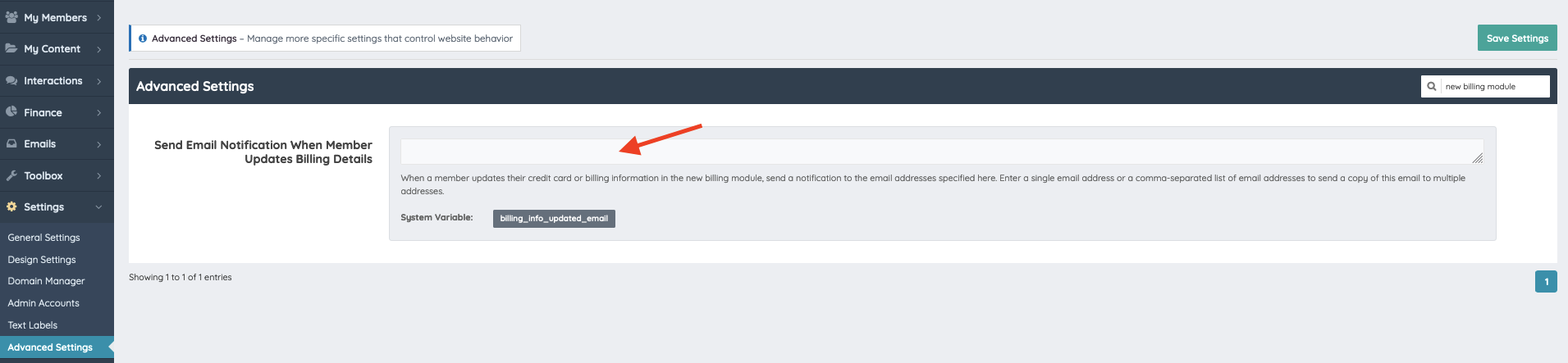
When a member updates their credit card or billing information, the system will send a notification to the email addresses specified in this advanced setting: "Send Email Notification When Member Updates Billing Details".
Enter a single email address or a comma-separated list of email addresses to send a copy of the email to multiple addresses.
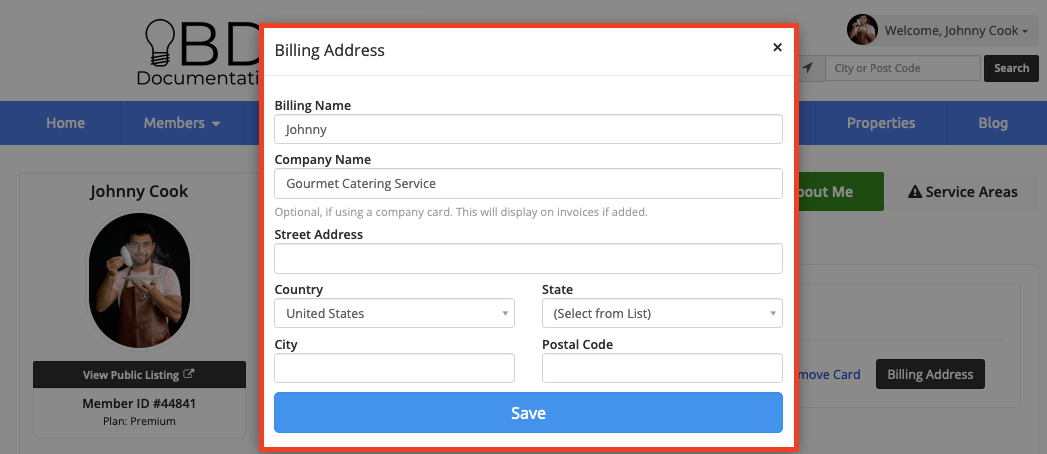
6. Also, there is the "Billing Address" button. This address will be reflected on their invoices only; it won't modify the listing address.
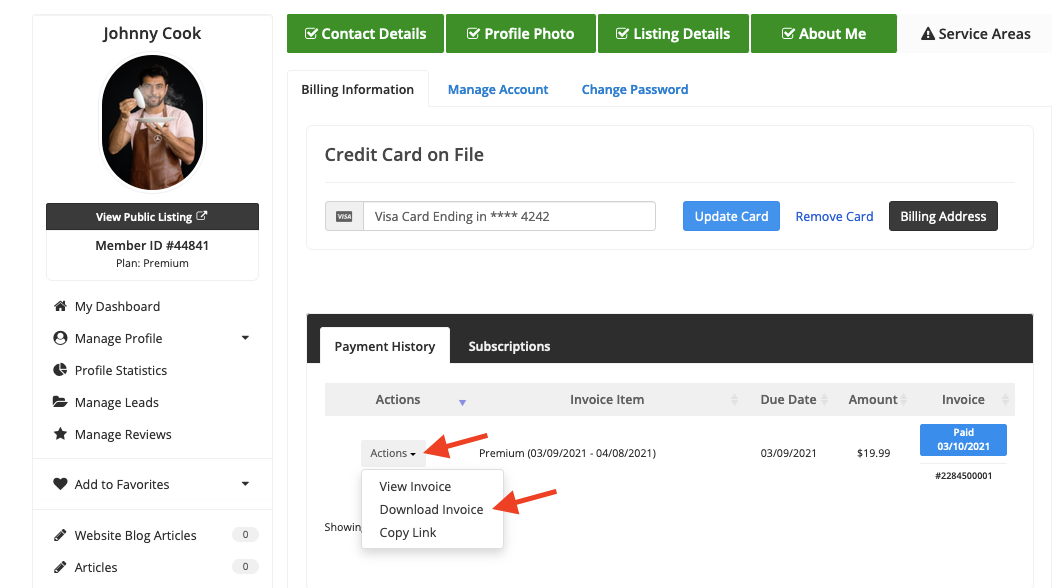
7. Below that section is the Subscription History, where the member can see the open and cancelled subscriptions (Orders).
8. The "Payments History" section will show all the paid invoices. To view or download them, click on "Actions".
9. They can View or Download the invoice.
Additional Information
- The section's titles shown in the image above: Billing Information, Subscription History, and Payment History are Text Labels and this text can be edited.
To edit them, go to the admin and navigate to Settings >> Text Labels >> Type the name of the text label, for example: "Subscription History". Then type the new title and click on Save Changes: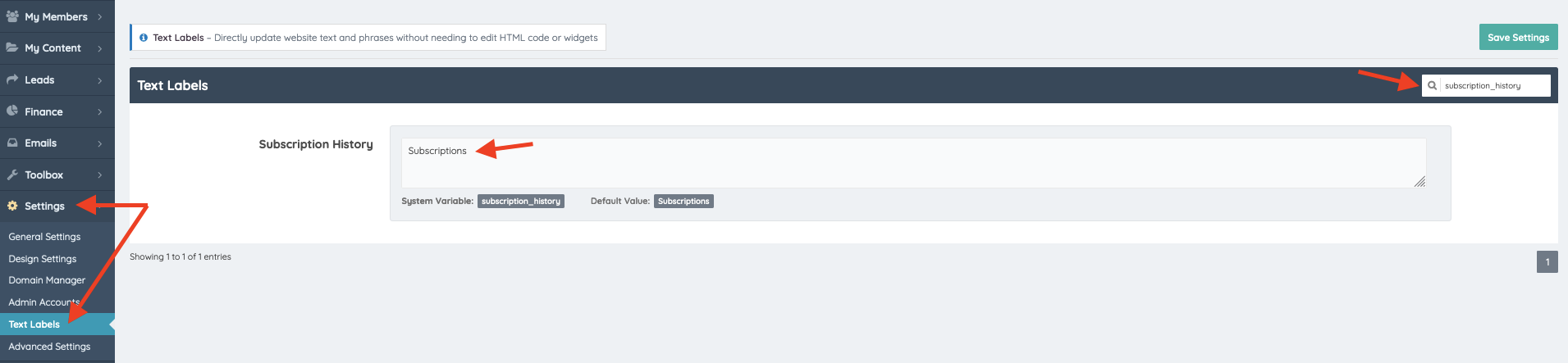
- If the site needs to have services tax (GST/VAT) or any percentage tax on the invoice, there's an add-on that will apply it to the invoice.
Here is the documentation about it: Tax & VAT Manager Add-On
To learn how to modify the invoice information, read this article: Modifying Invoices
