
To import a category structure via CSV file (useful for quickly importing large category structures), please follow the steps below for creating the file.
This can be used to import up to 3 levels of categories: Top Level Categories, Sub Level Categories, and Sub-Sub Level Categories (for a total of three tiers).
Step 1: Create The Category Structure in a CSV file
- Download the Category Structure Import Template (attached at the bottom of the article).
- Open up the file and expand the width of the columns so all of the text can be seen in each one.
- Column A will have all of the Top-Level Categories
Column B will have all of the Sub Categories (optional)
Column C will have all of the Sub-Sub Categories (optional)

4. Fill out the spreadsheet with the categories by replacing the placeholders in the template.
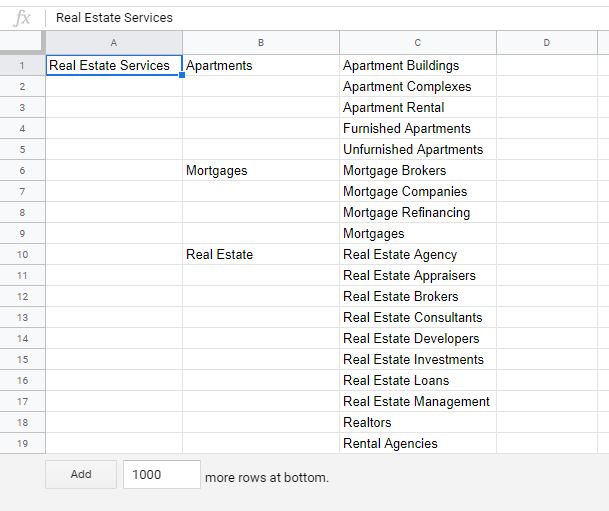
Step 2: Import The Category Structure
Navigate to Members >> Member Categories select Import Categories:
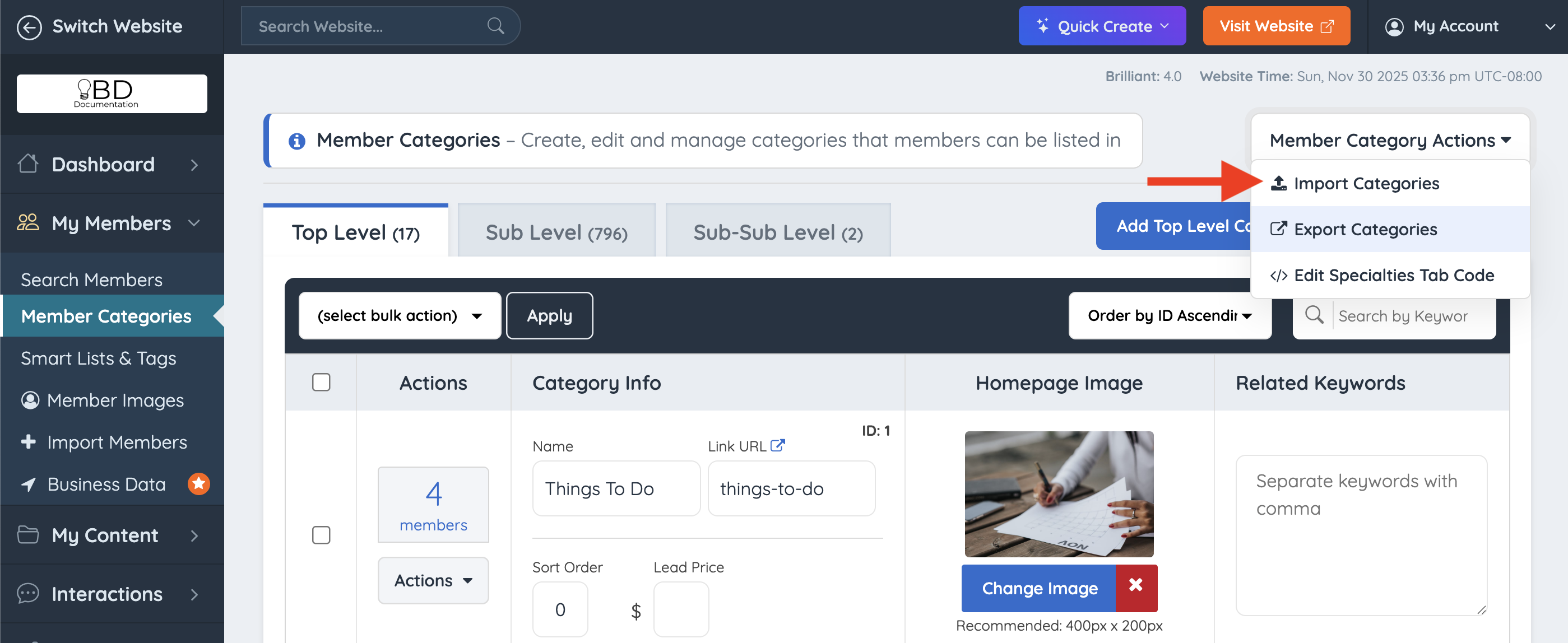
The button will lead to a new page where it is possible to import the file:

- CRITICAL WARNING: Checking the option to delete existing categories will permanently remove all current categories from the database. This action will also unassign all current members from their categories, requiring them to be manually recategorized or re-imported. Only check this box if starting a completely brand-new directory or performing a total category reset.
- Upload the file here.
Find the Category Import template attached to this article.
IMPORTANT NOTE: By default, all members can be listed in 1 Top Level / Main Category and multiple Sub Categories. However, there is a workaround : Workaround: Members Selecting Multiple Top-Level Categories
