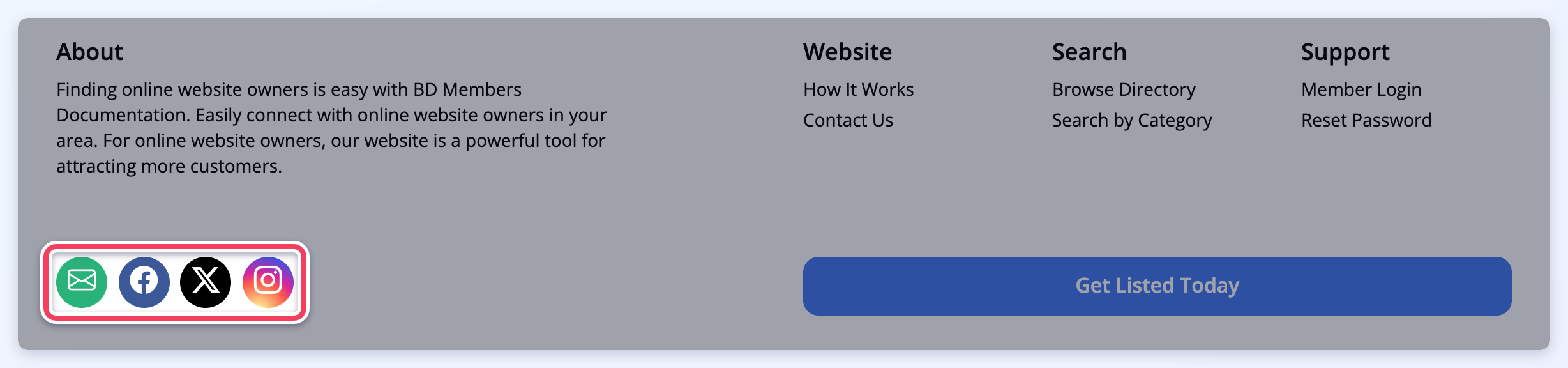
The Social Media tab of the General Settings page holds the links to the website's own social media pages. Members and visitors can then reach every profile the website has, which links the website to its social media presence.
Open it from Settings » General Settings, then click the Social Media tab. All the links are in its Brand Social Links section. The layout of the page and how changes are saved are explained in Settings » General Settings Tab.
Entering the Links
Paste the full link to each page, EG https://www.facebook.com/CompanyFacebook. When the link is typed without https://, EG www.facebook.com/CompanyFacebook, it is added automatically. Leave a field empty for a social media site the website does not use.
A link that is not a full web address is not saved, and a message under the field says what to fix:
- Remove the spaces from this link. when the link contains a space.
- Enter a full link that starts with https:// or http:// when the link is not a web address, EG it has no domain such as facebook.com.
Social Media Links
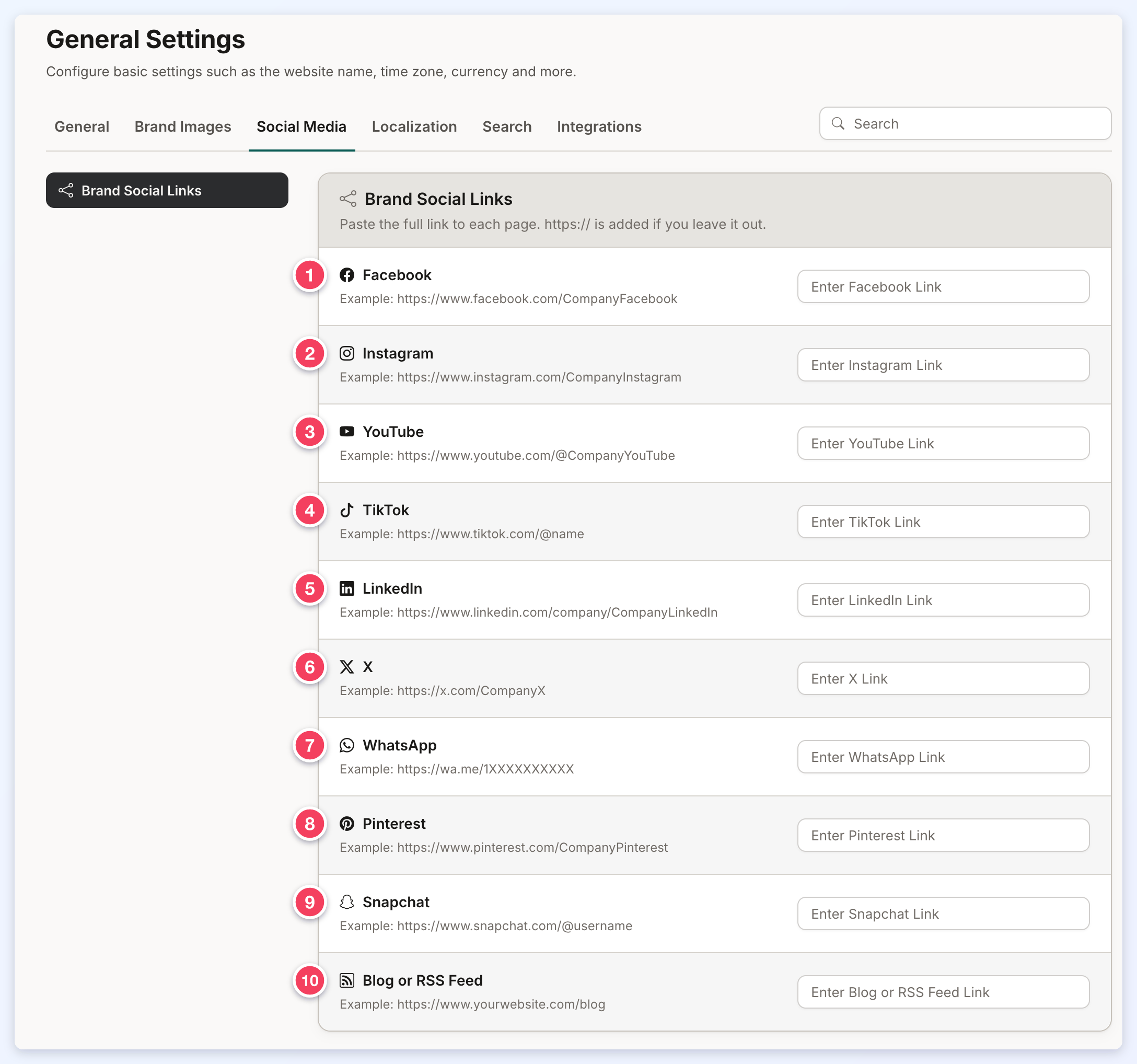
- Facebook: EG https://www.facebook.com/CompanyFacebook
- Instagram: EG https://www.instagram.com/CompanyInstagram
- YouTube: EG https://www.youtube.com/@CompanyYouTube
- TikTok: EG https://www.tiktok.com/@name
- LinkedIn: EG https://www.linkedin.com/company/CompanyLinkedIn
- X (formerly Twitter): EG https://x.com/CompanyX
- WhatsApp: EG https://wa.me/1XXXXXXXXXX
- Pinterest: EG https://www.pinterest.com/CompanyPinterest
- Snapchat: EG https://www.snapchat.com/@username
- Blog or RSS Feed: a link to the website's blog or RSS feed, EG https://www.yourwebsite.com/blog
Where Do These Links Appear?
Each saved link shows as an icon in the footer of the website. In this example, Facebook, X and Instagram links are saved, next to the email icon: