
The My WordPress website choice in Settings > Domain Manager shows the directory inside an existing WordPress website, in a folder of that site, such as https://www.mybusiness.com/directory. The Brilliant Directories plugin for WordPress displays the directory pages at that address. The directory keeps running on Brilliant Directories, and the WordPress website stays with its current host.
The WordPress website runs on its own hosting account. This choice only connects the two websites; see Can I host a WordPress site on Brilliant Directories?
What changes and what stays the same
- The directory's own website address does not change. This choice opens its own screen and does not run the Check It, Point Domain or Switch Over stages, and no DNS record is added anywhere.
- Pages viewed through the WordPress address keep their links inside the WordPress folder.
- Once a license key is created, links in the emails the website sends, such as a password reset, point at the WordPress address.
- The connection uses a license key made for this purpose. It is not the website's API key and does not give access to the API.
Before starting
- Have administrator access to the WordPress website.
- The WordPress hosting must run Apache or LiteSpeed and use HTTPS. Hosting that runs Nginx is not supported yet; the WordPress host can confirm which one is in use.
- Choose the folder name for the directory. Folder names can use letters, numbers, hyphens and underscores.
Get a license key
- Open Settings > Domain Manager.
- Click Connect my domain name or Change my domain name.
- Choose My WordPress website.
- In Where should your directory appear?, enter the WordPress address followed by the folder, such as https://www.mybusiness.com/directory.
- Click Get my license key.
- Copy the three values shown: BD Website URL, License Key and Subfolder. Each has its own Copy button.
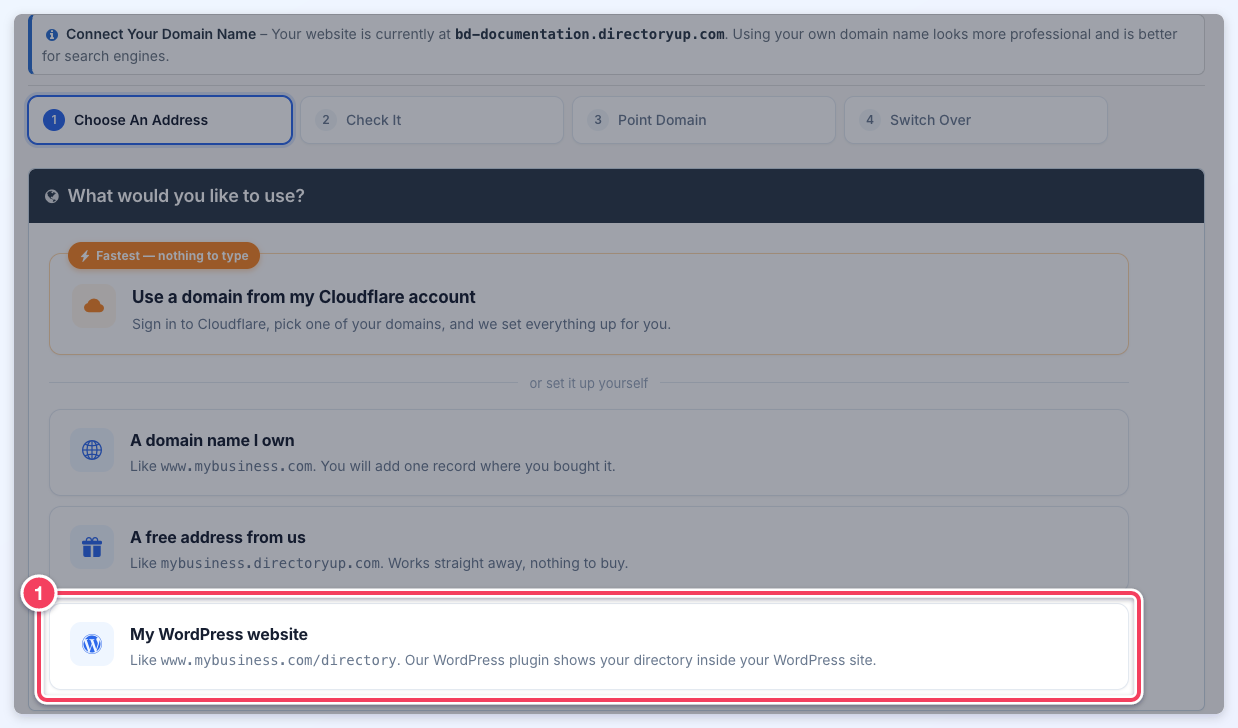
My WordPress website (1) is the last of the choices on the Choose An Address stage.
Choosing My WordPress website, entering the WordPress address with its folder, and clicking Get my license key. The license key is blurred in this example.
For security, the license key is shown only once. If it is lost, return to this screen and create a new one (see Replace the license key below).
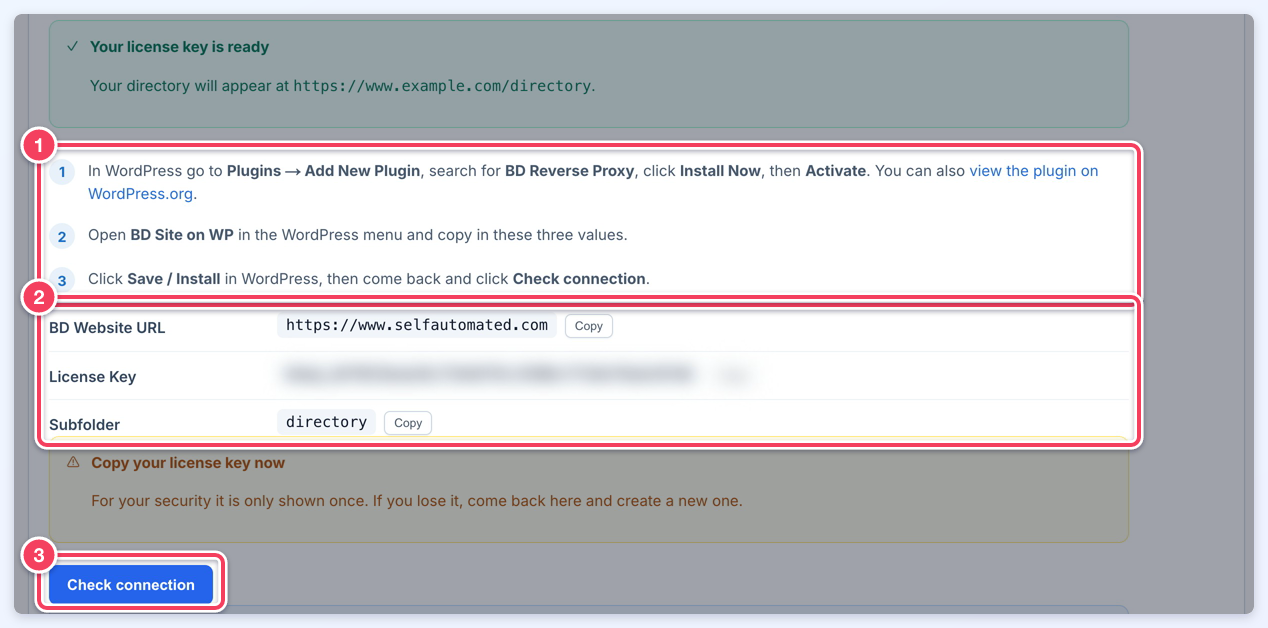
After Get my license key: the plugin steps (1), the three values to copy into WordPress (2), and Check connection (3). Here the BD Website URL is the site's own domain; on a site that uses a free directoryup.com address it is a directoryup.com address.
When the folder has more than one part, such as https://www.mybusiness.com/blog/directory, the screen adds Is WordPress itself in a folder? and names the part to enter as the Subfolder when WordPress itself lives in a folder.
The screen refuses an address that belongs to Brilliant Directories, with the message That address belongs to Brilliant Directories. Enter the address of your own WordPress website. If it reports We could not securely reach your directory, follow the advice in the message: try again in a few minutes, or contact support if it keeps happening.
Install the plugin in WordPress
- In WordPress, go to Plugins > Add New Plugin.
- Search for BD Reverse Proxy. WordPress.org lists the plugin as Brilliant Directories Site Connector; the Domain Manager screen also links to the plugin on WordPress.org.
- Click Install Now, then Activate.
- Open BD Site on WP in the WordPress menu.
- Paste the BD Website URL, License Key and Subfolder values copied from Domain Manager.
- Click Save / Install.
Confirm the connection
- Return to the Domain Manager screen and click Check connection. To come back later, open Settings > Domain Manager, click Change my domain name or Connect my domain name, and choose My WordPress website; the status is checked when the choice opens.
- Read the status at the top of the screen. Waiting for the WordPress plugin means the plugin has not used the license key yet. Connected means the plugin confirmed the license key for the WordPress address, with the date and time it did so.
- Below the status, a line reports whether the WordPress address is answering, or the error it answered with.
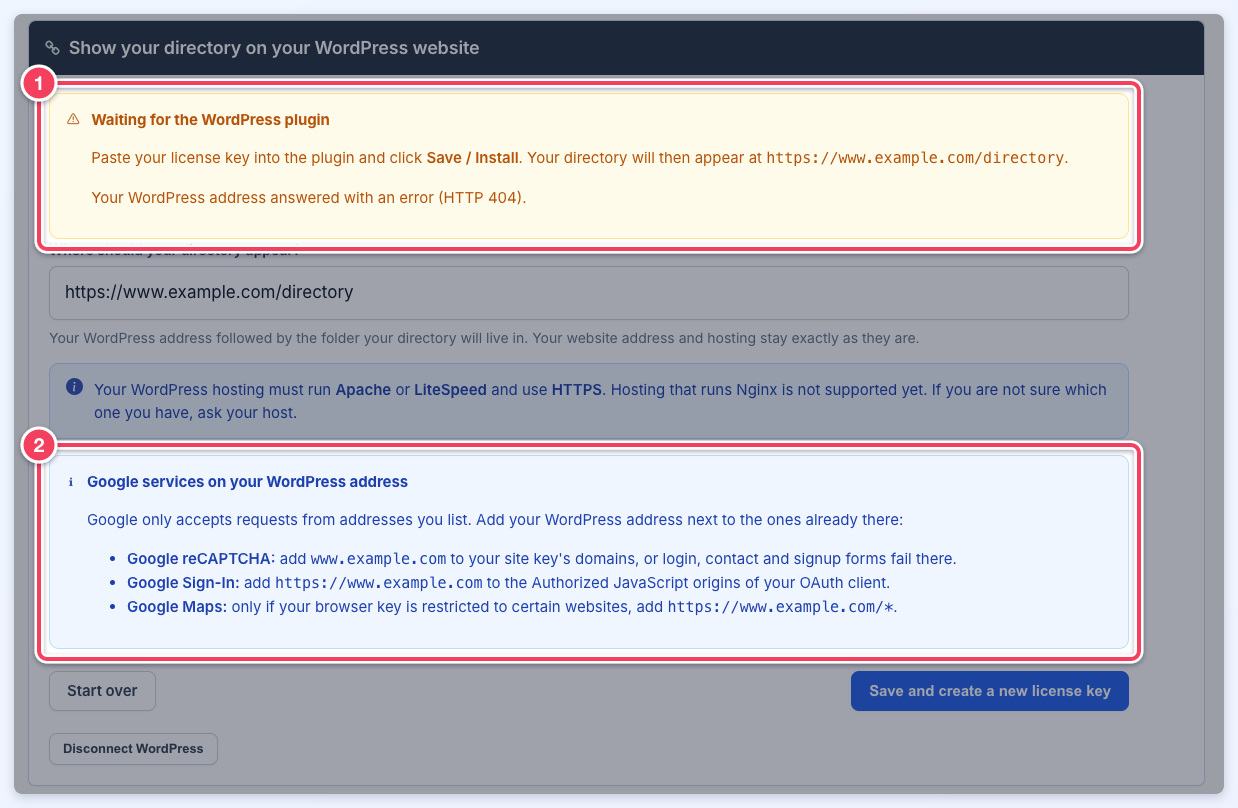
A saved address whose plugin has not connected yet: the status (1) reads Waiting for the WordPress plugin, and the Google services on your WordPress address note (2) lists the addresses to add at Google. The example address does not run WordPress, so it answered with an error.
The My WordPress website choice also shows the status: Waiting for the plugin or Connected.
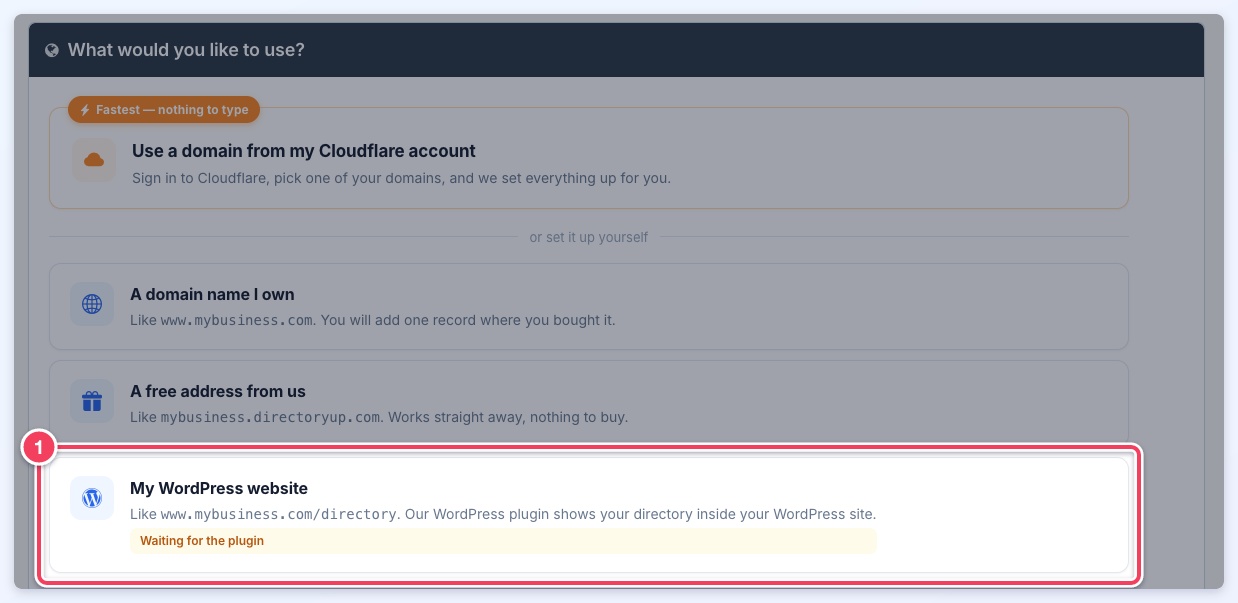
The My WordPress website choice (1) with its status, here Waiting for the plugin.
Google services on the WordPress address
Google only accepts requests from the addresses listed in each Google setting. While a WordPress address is saved, the screen names the exact values to add next to the ones already there:
- Google reCAPTCHA: add the WordPress domain, such as www.mybusiness.com, to the site key's domains. Otherwise the login, contact and signup forms fail on the WordPress address.
- Google Sign-In: add the WordPress origin, such as https://www.mybusiness.com, to the Authorized JavaScript origins of the OAuth client.
- Google Maps: only if the browser key is restricted to certain websites, add the WordPress origin followed by /*, such as https://www.mybusiness.com/*.
Replace the license key
A new license key replaces the current one as soon as it is created. The key in the WordPress plugin stops working at that moment, and the directory disappears from the WordPress address until the new key is pasted into the plugin.
- Open My WordPress website. The address field shows the saved address; change it if the directory should move to a different address.
- Click Save and create a new license key. The first click only shows the warning This replaces your current license key.
- Click Yes, replace my license key within five seconds. After five seconds the button returns to normal and nothing changes.
- Copy the new values into the plugin in WordPress and click Save / Install.
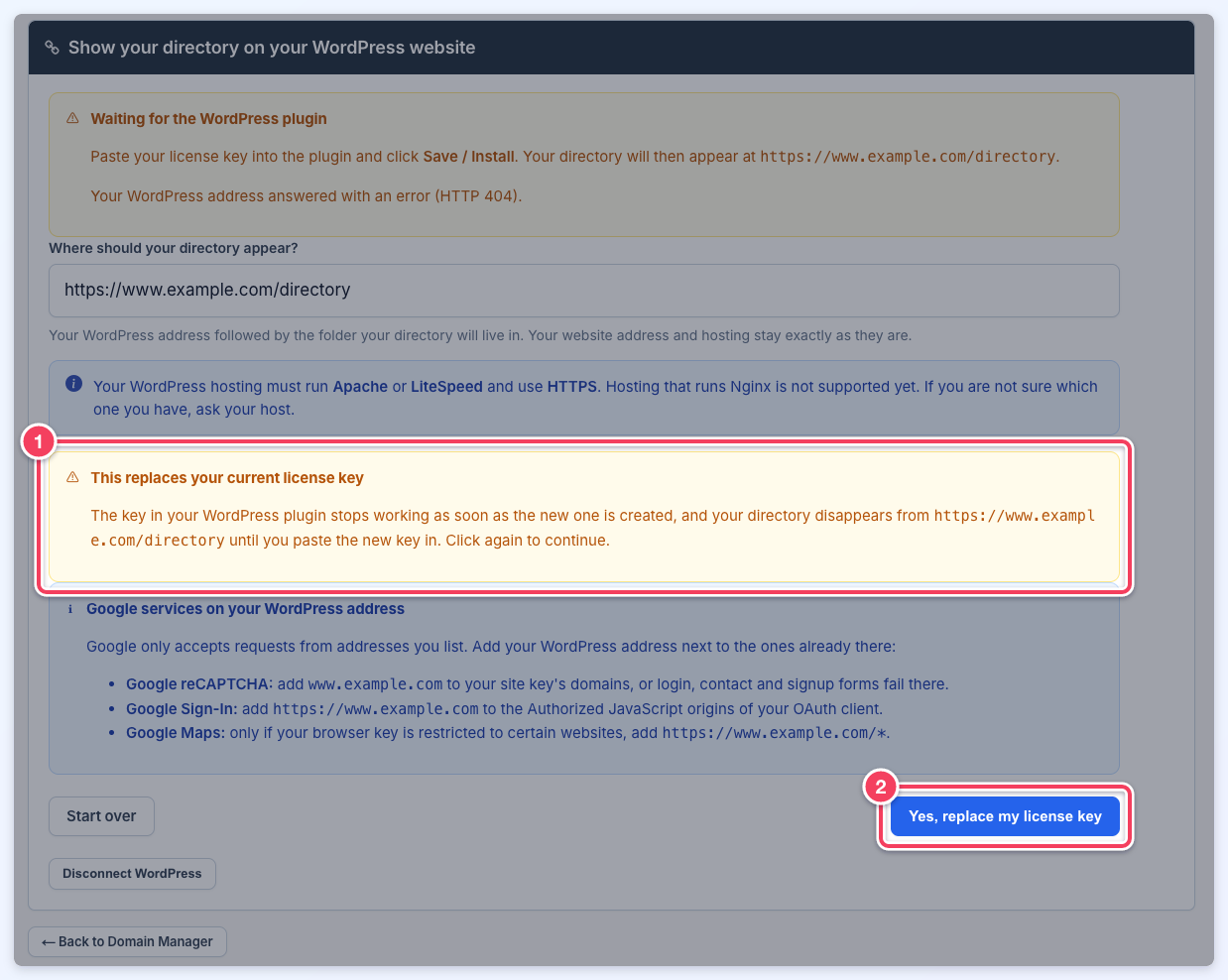
The first click shows the warning (1); the second click on Yes, replace my license key (2) creates the new key.
Disconnect WordPress
- Open My WordPress website.
- Click Disconnect WordPress. The button changes to Click again to disconnect.
- Click it again within five seconds.
Disconnecting removes the saved WordPress address and the license key, so the directory no longer appears on the WordPress website. The directory's own website address is not affected. The screen then returns to the address choices.
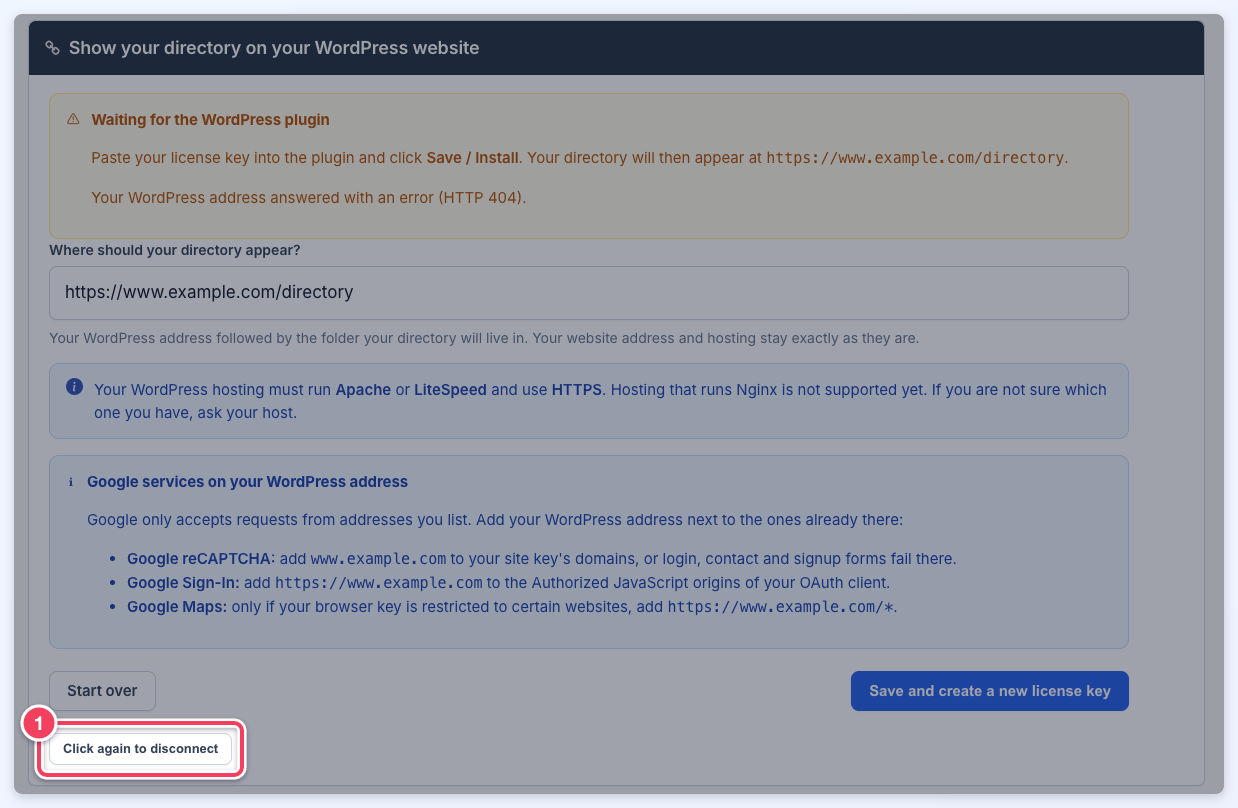
After the first click, the button reads Click again to disconnect (1).
