The Manage Images form appears by default when publishing or editing multi-image post types such as Photo Albums and Products, providing a per-photo edit section.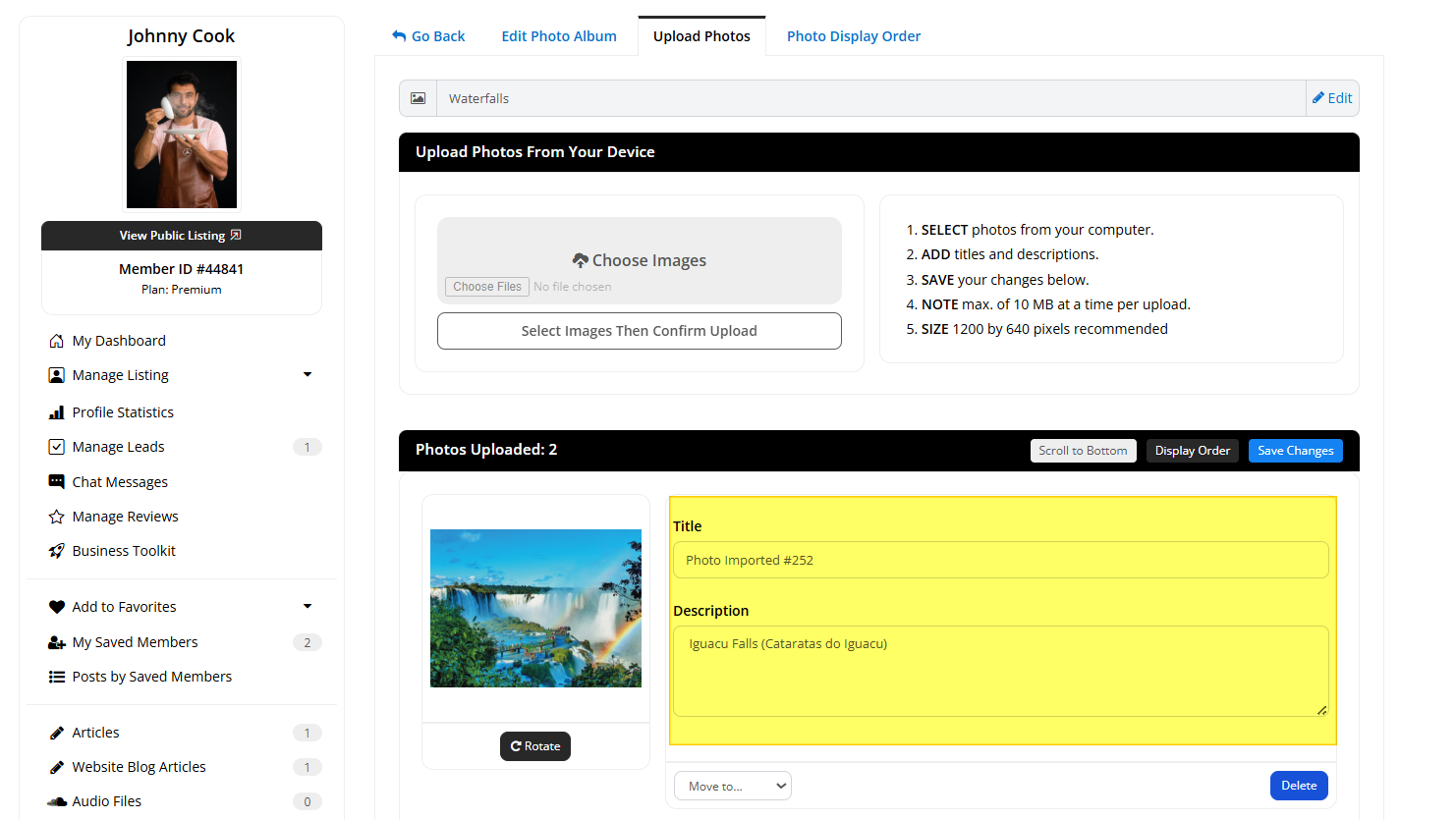
Steps to Add Custom Fields
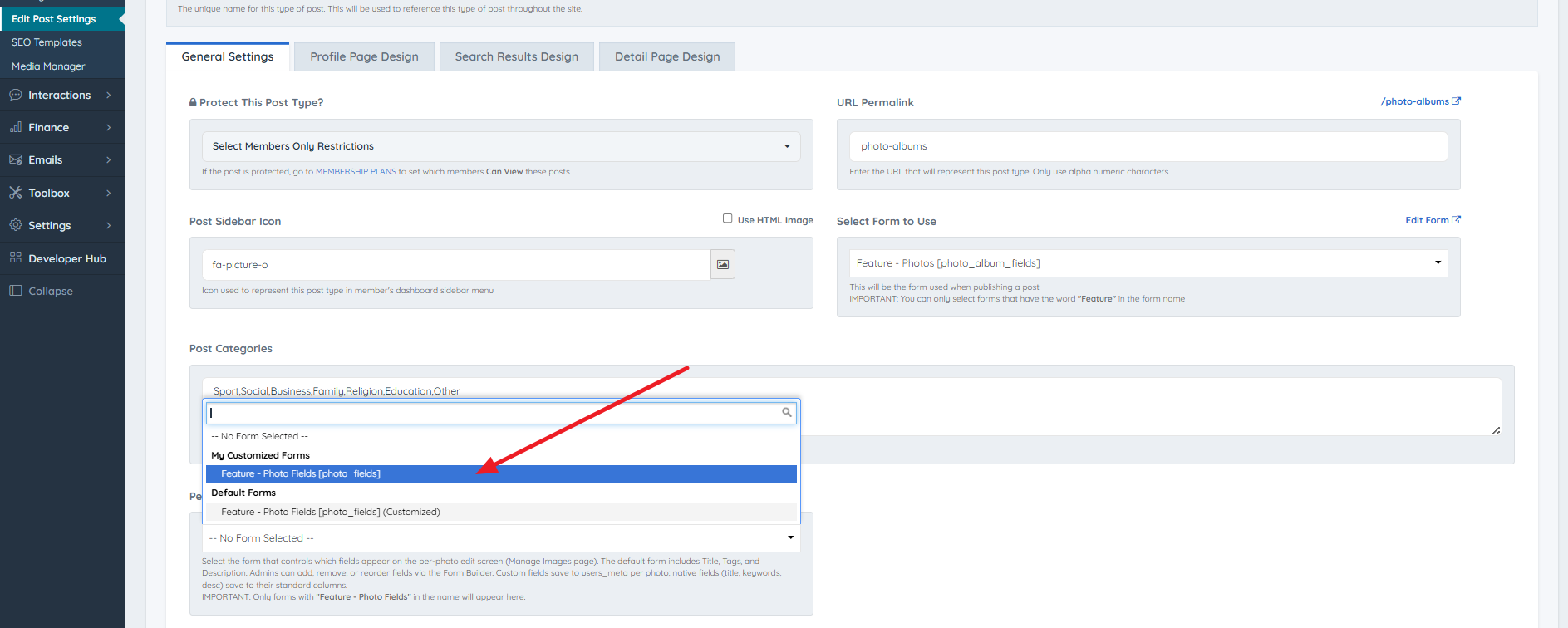
- Access Edit Post Settings. Navigate to Edit Post Settings > Edit view and locate the Per-Photo Custom Fields Form setting under General Settings.
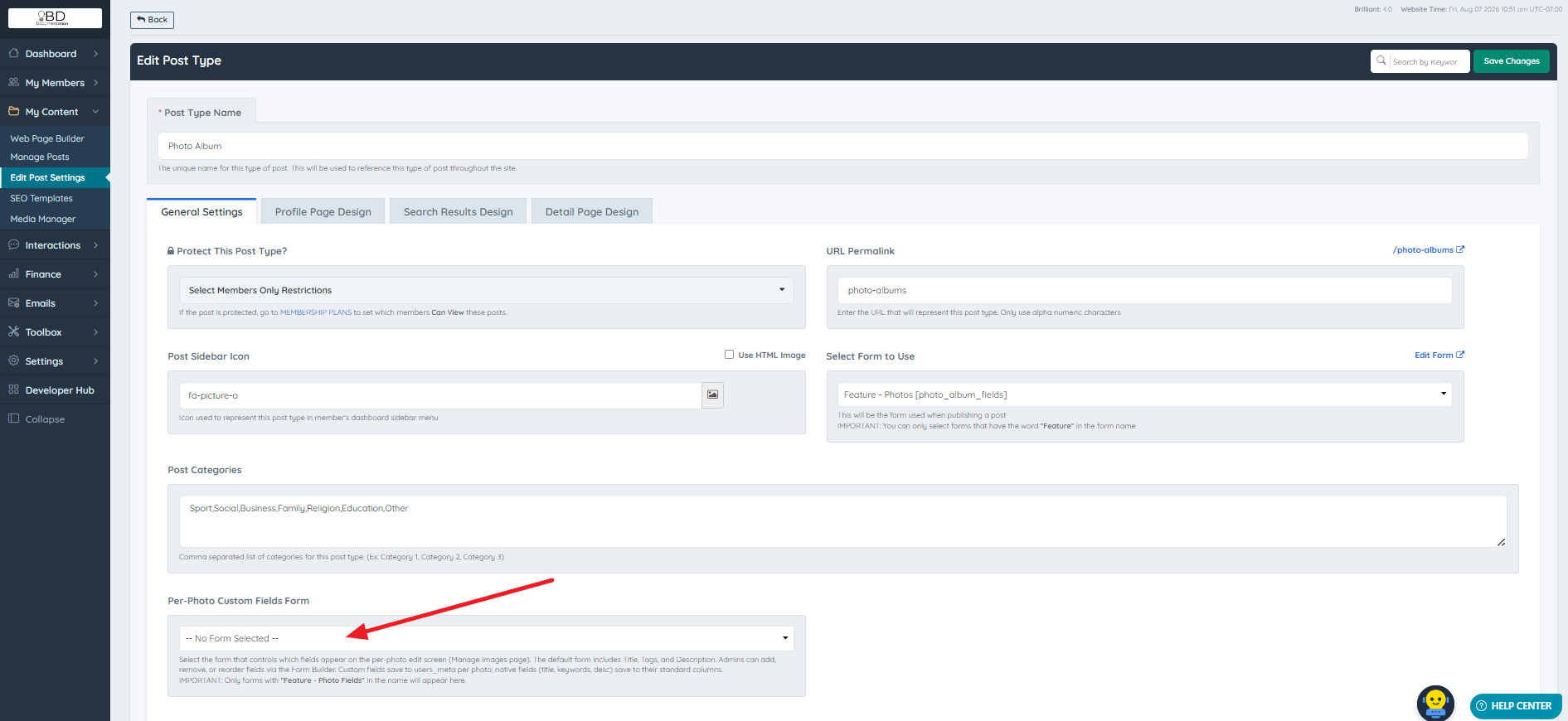
- Locate the default form. A default form already exists, named "Feature - Photo Fields" (
photo_fields), which can be customized.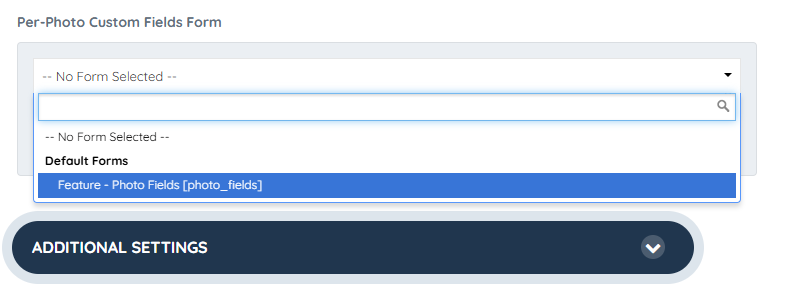
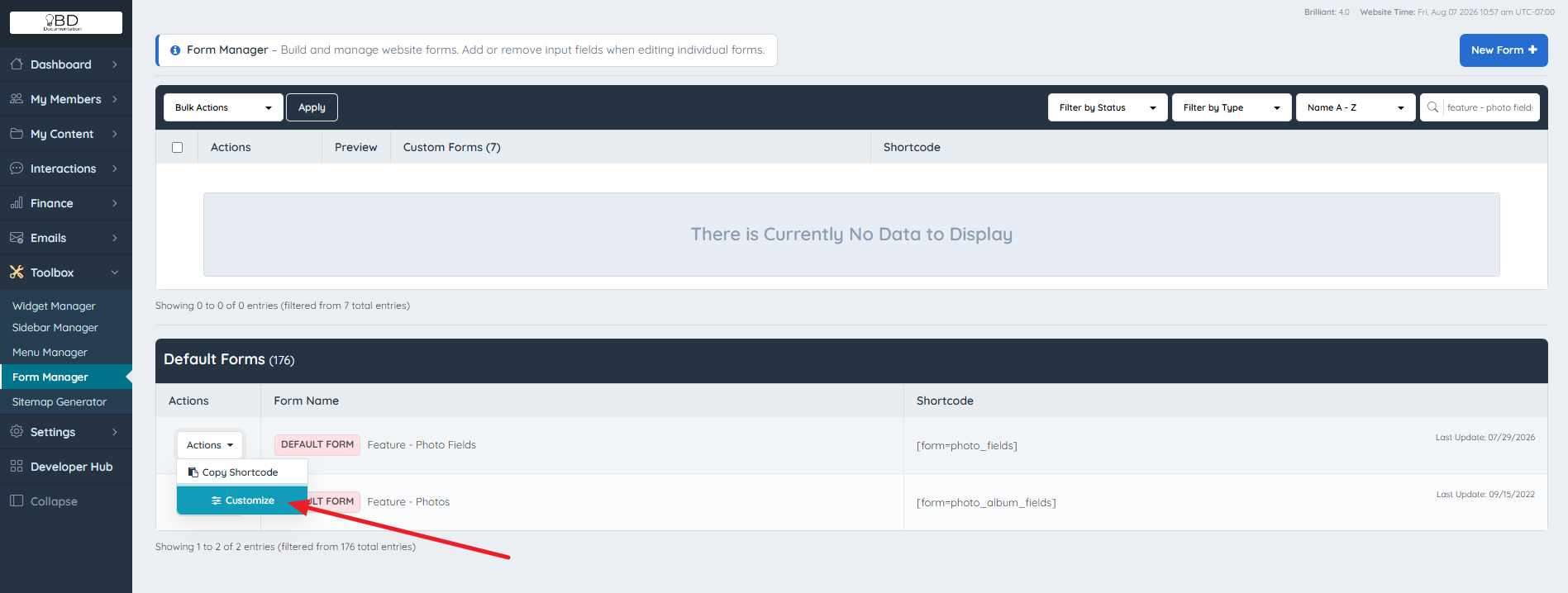
- Open Form Manager. Navigate to Toolbox > Form Manager, search for "Feature - Photo Fields," and select customize (or Edit, if the form has already been customized).
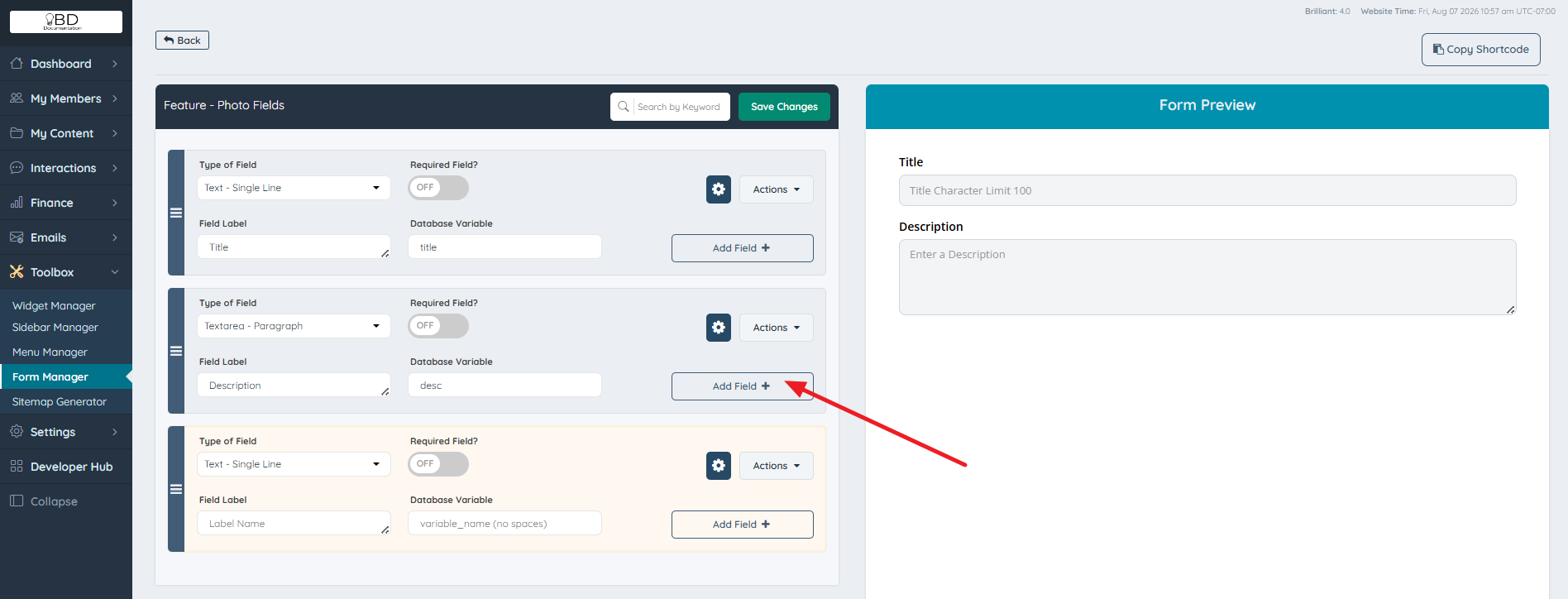
- Add a new field. Select the Add Field + button to create a new custom field.
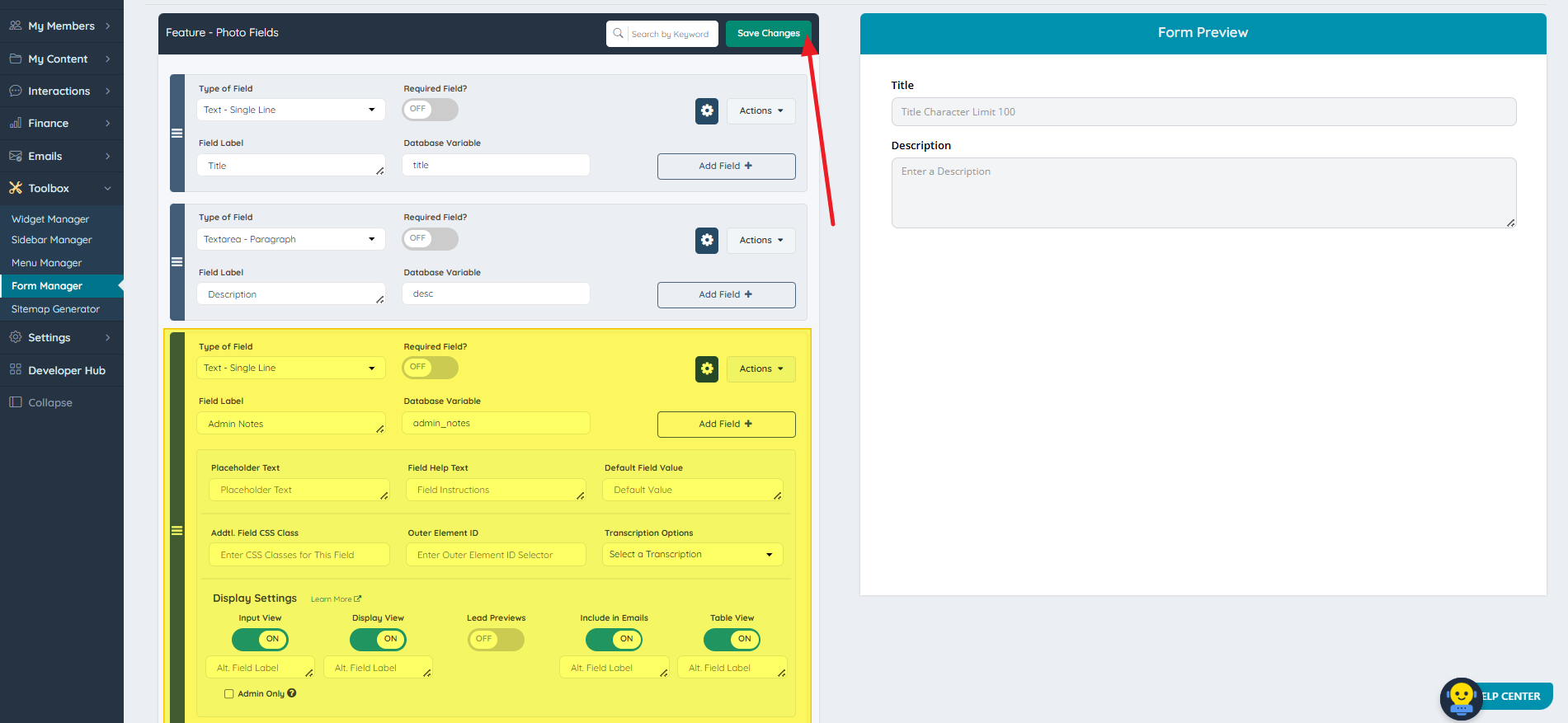
- Configure and save. Complete the required field details, then select Save Changes.
- Verify selection. Confirm the customized form is selected under Edit Post Settings.
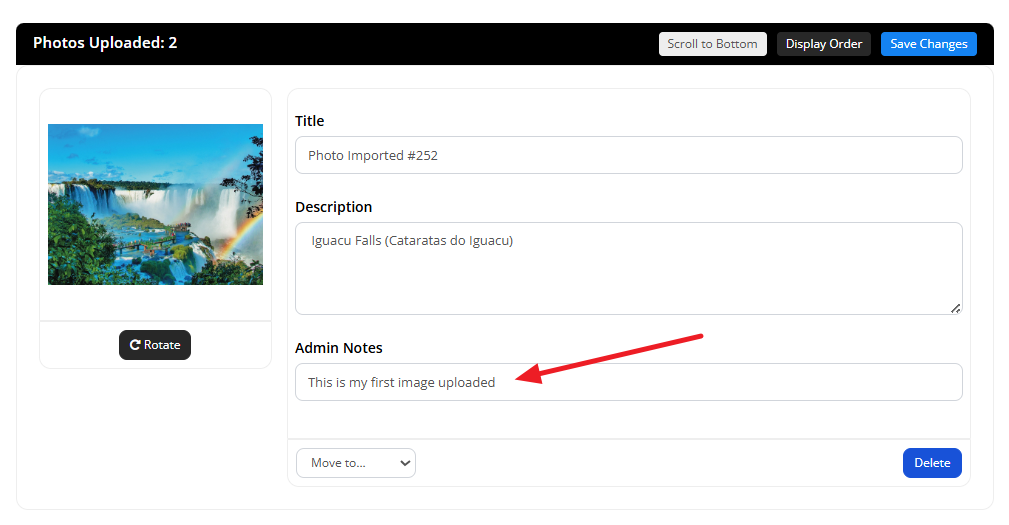
The new field will be available in the front-end when editing the images of a post:
Critical Cautions
Naming restriction: Only forms containing "Feature - Photo Fields" in the name will appear under the Per-Photo Custom Fields Form setting in Edit Post Settings.
Display restriction: Custom fields created through this process are for internal use only for members. These fields will not display on the front-end detail page of the published post.
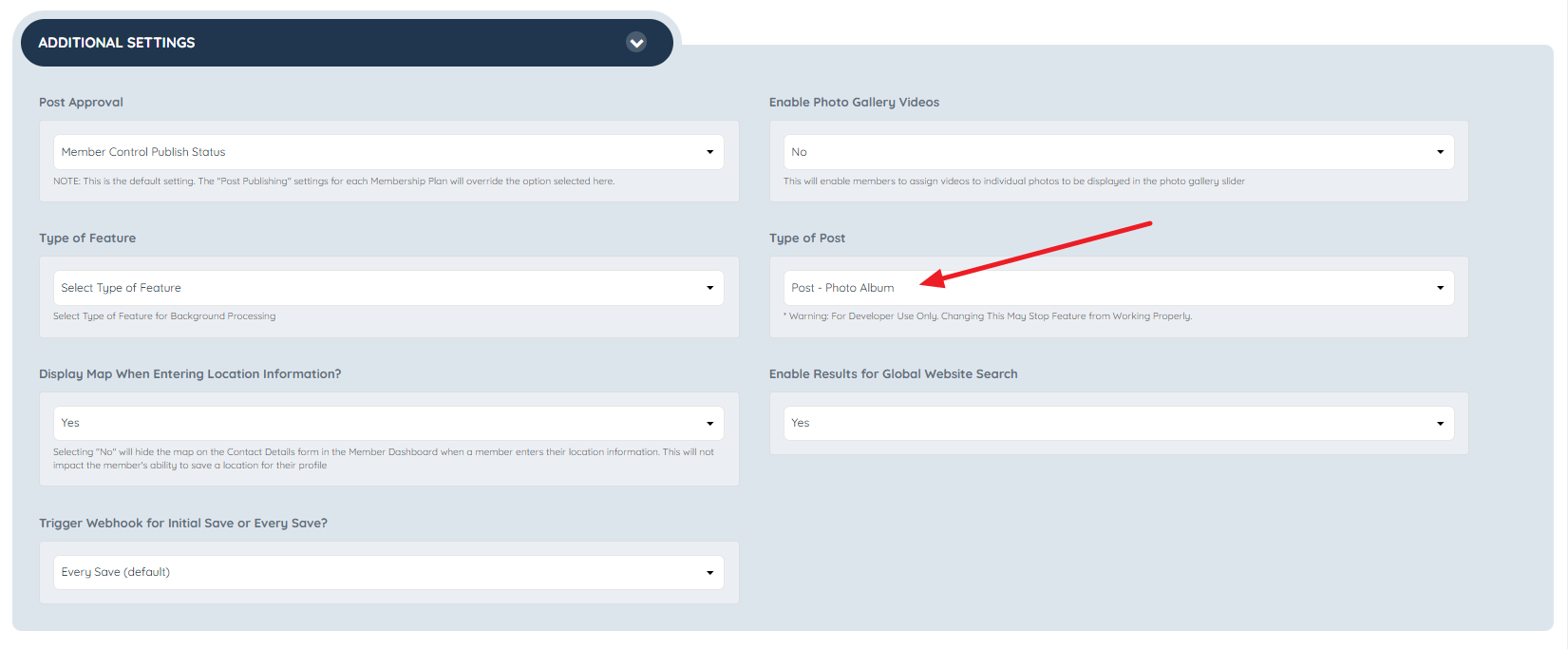
Post type prerequisite: The Per-Photo Custom Fields Form setting will not appear under Edit Post Settings unless the
Type of Postfield is set to Post - Photo Album.