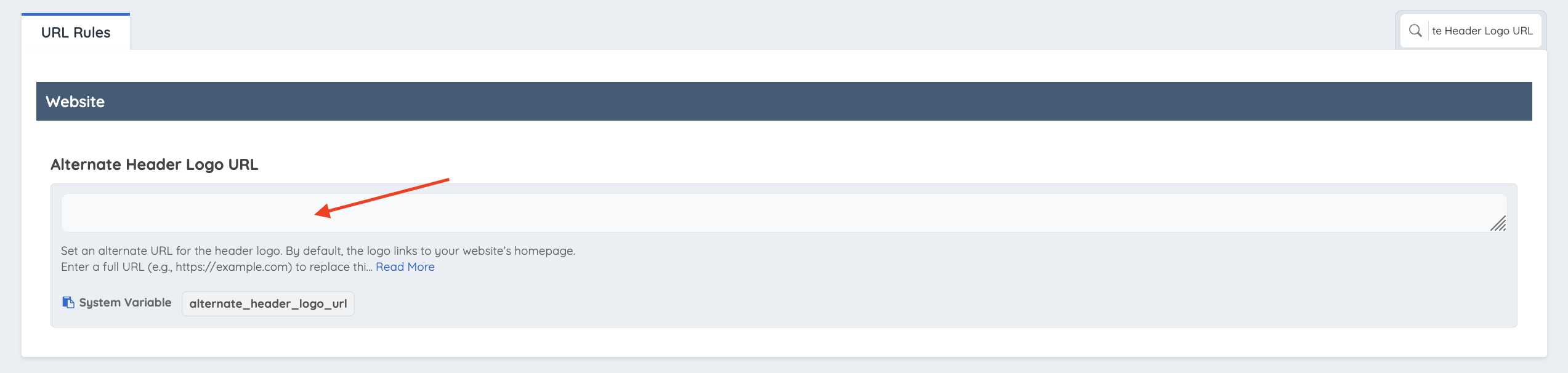
The Alternate Header Logo URL setting allows the header logo to link to a custom destination instead of the default homepage URL (/home).
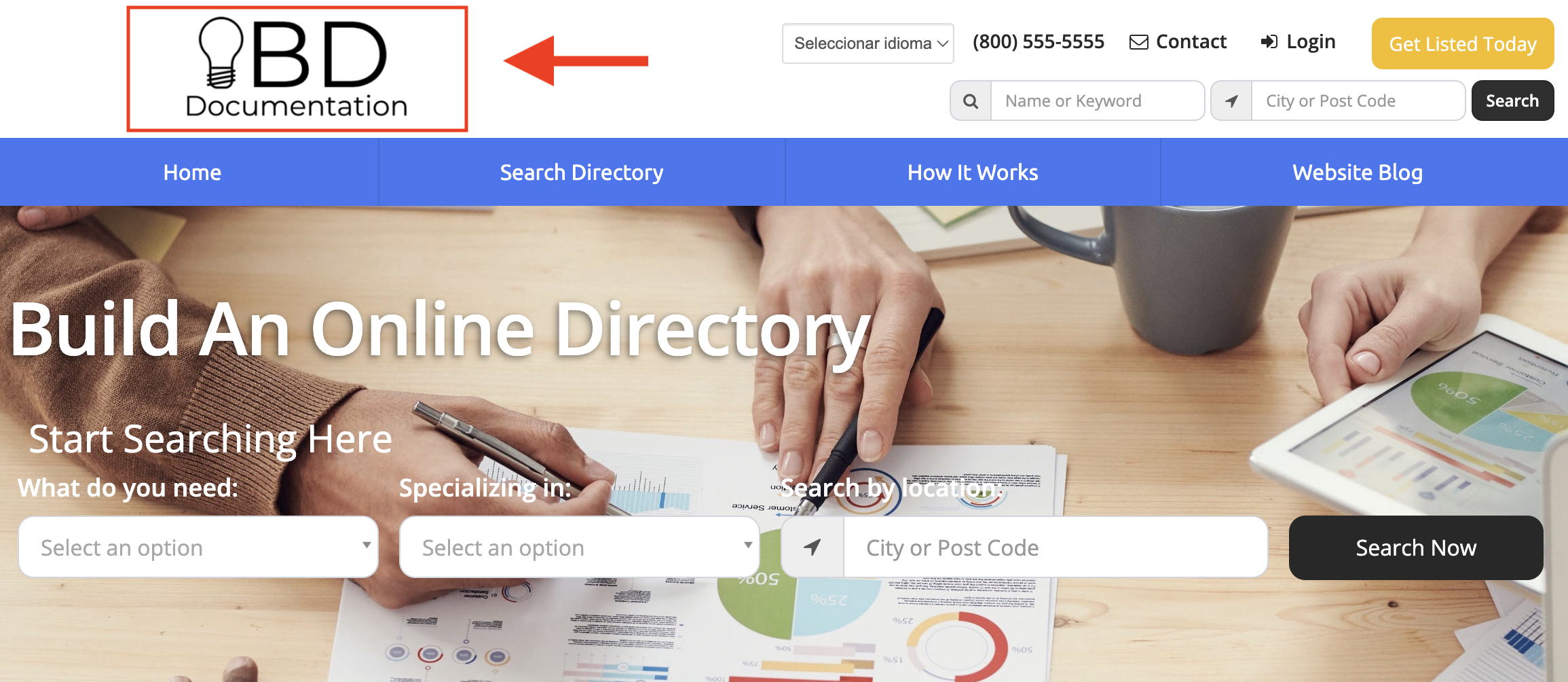
By default, clicking the website logo redirects visitors to the website homepage. This setting can be used to replace that behavior by entering a full URL (for example, https://example.com), allowing the logo to redirect to a different internal page or an external website.
This option can be useful when a website requires visitors to be redirected to a page other than the homepage after clicking the main logo.
For example, the logo can be configured to open a landing page, a directory search page, a promotional page, or even an external website.
This provides additional flexibility in controlling website navigation and directing visitors to the most relevant destination.
How to Access It
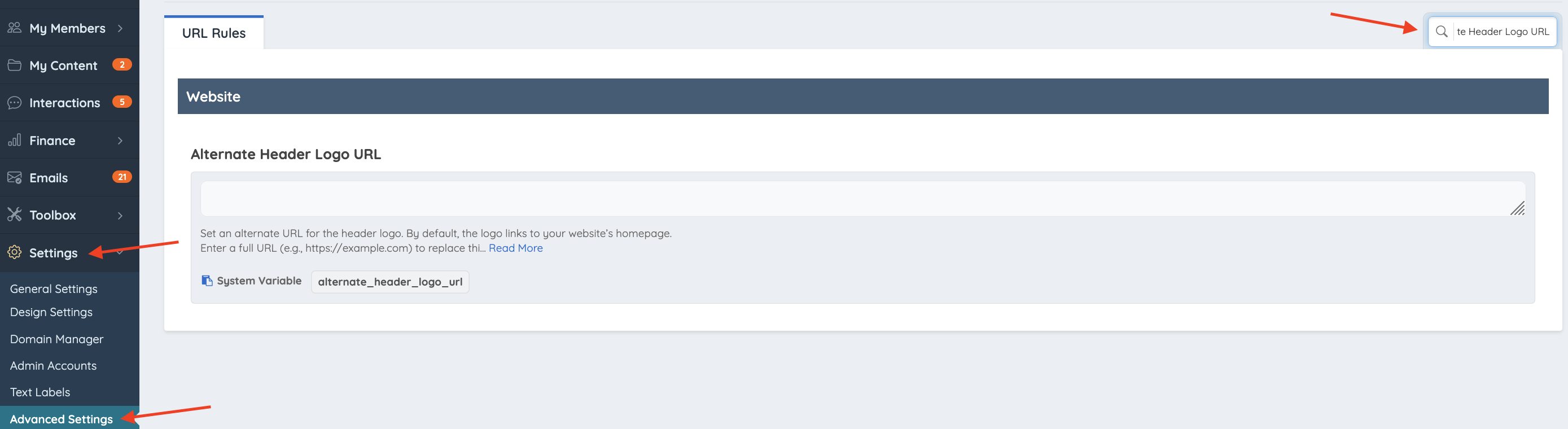
To access this setting, navigate to Settings > Design Settings and search for Alternate Header Logo URL:
How to Configure It
Enter a full URL (for example, https://example.com) in the Alternate Header Logo URL field to define the destination that opens when visitors click the website logo.
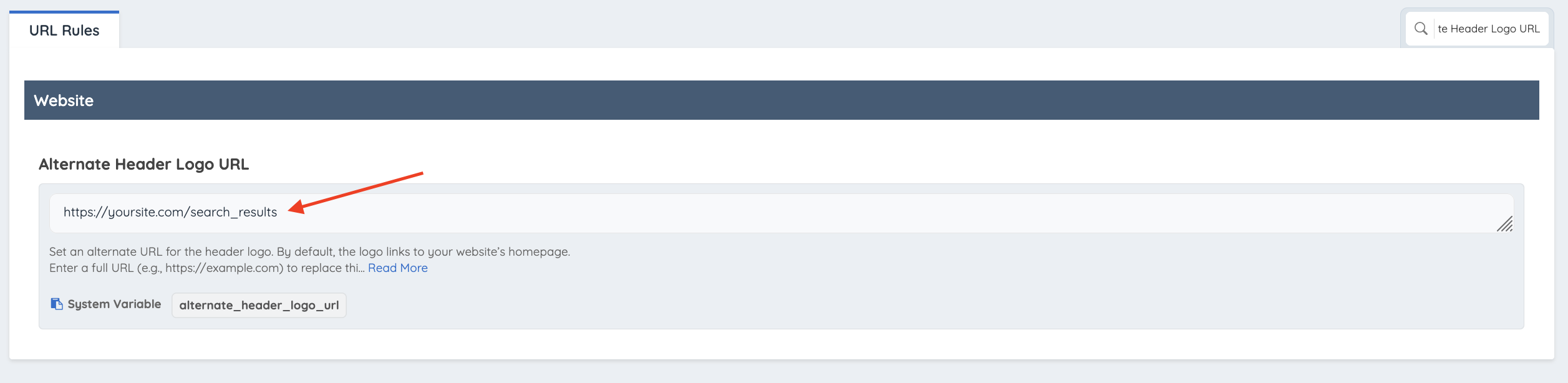
For example, to redirect visitors to the search results page when clicking the website logo, enter:
- https://yoursite.com/search_results
To keep the default behavior and continue redirecting visitors to the homepage (/home), leave the field blank: