
Create Invoice
The Create Invoice wizard bills a member in a few short steps. It creates a one-time invoice for any service, or starts a recurring subscription to a membership plan. When the invoice is created, the last step can email it to the member straight away.
The wizard opens in two ways:
- From the admin header: BD Butler » Create Invoice. The wizard starts by asking which member to bill.
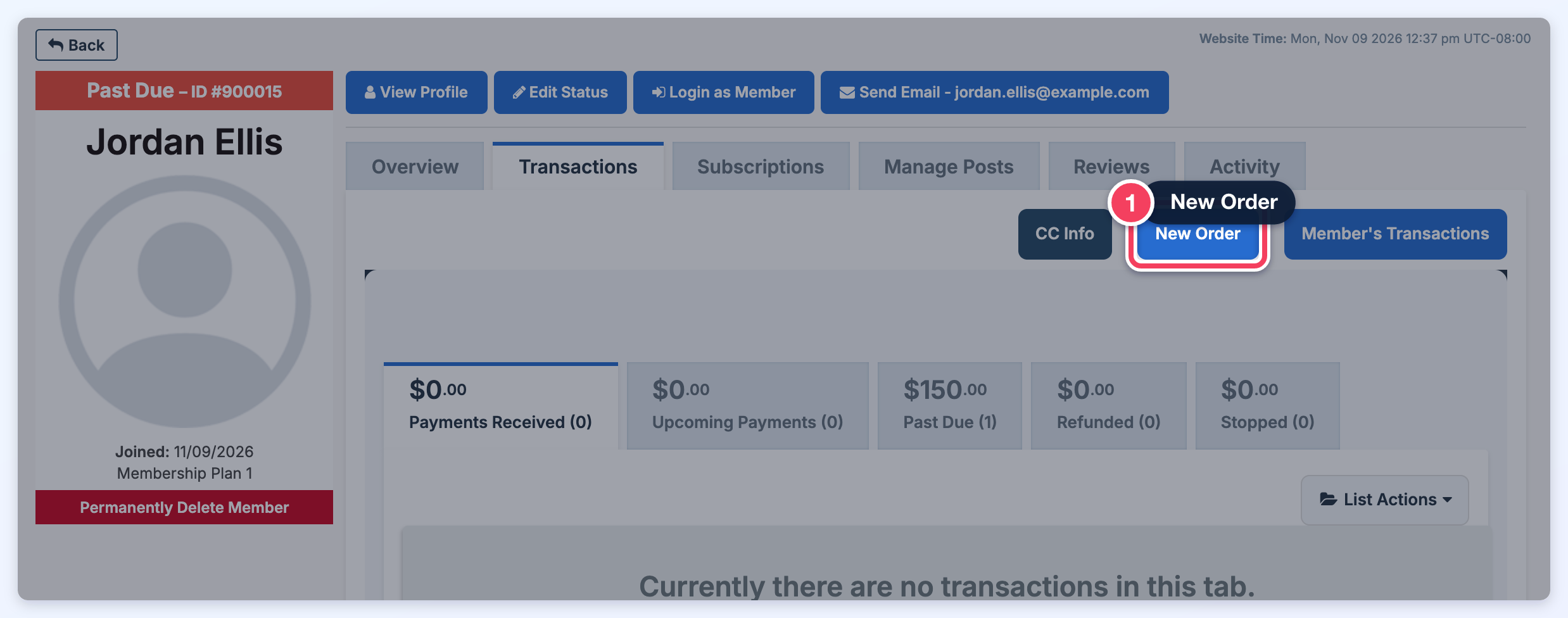
- From a member's account: the New Order button on the member's Transactions or Subscriptions tab. The wizard opens full screen with that member already selected.
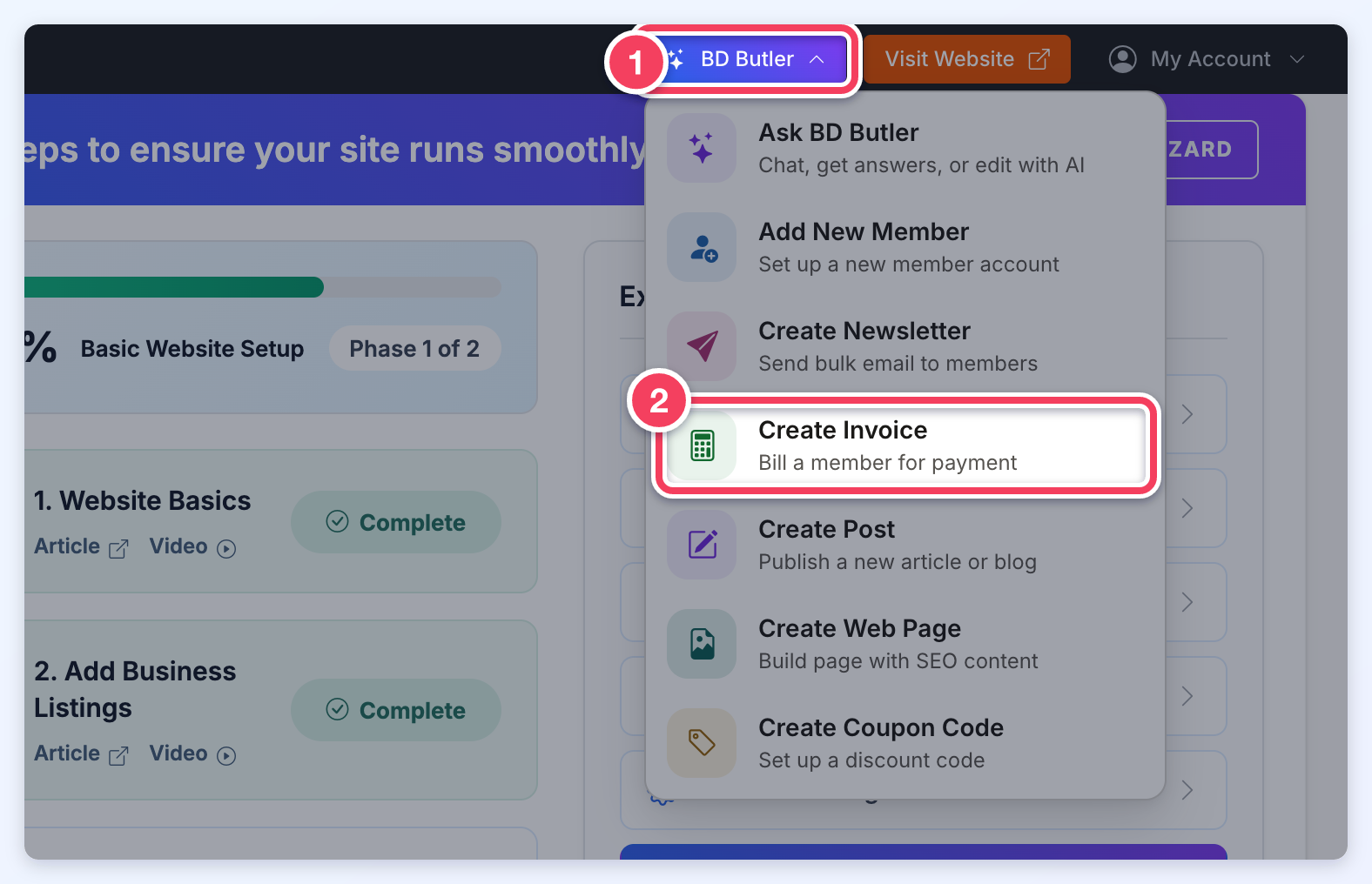
Open the wizard from a member's account
In My Members » Search Members, open a member's Account Details, go to the Transactions or Subscriptions tab, and click New Order. The wizard opens with the member already filled in, so the first step only needs Continue. The tabs of a member's account are described in Account Details Section For Members.
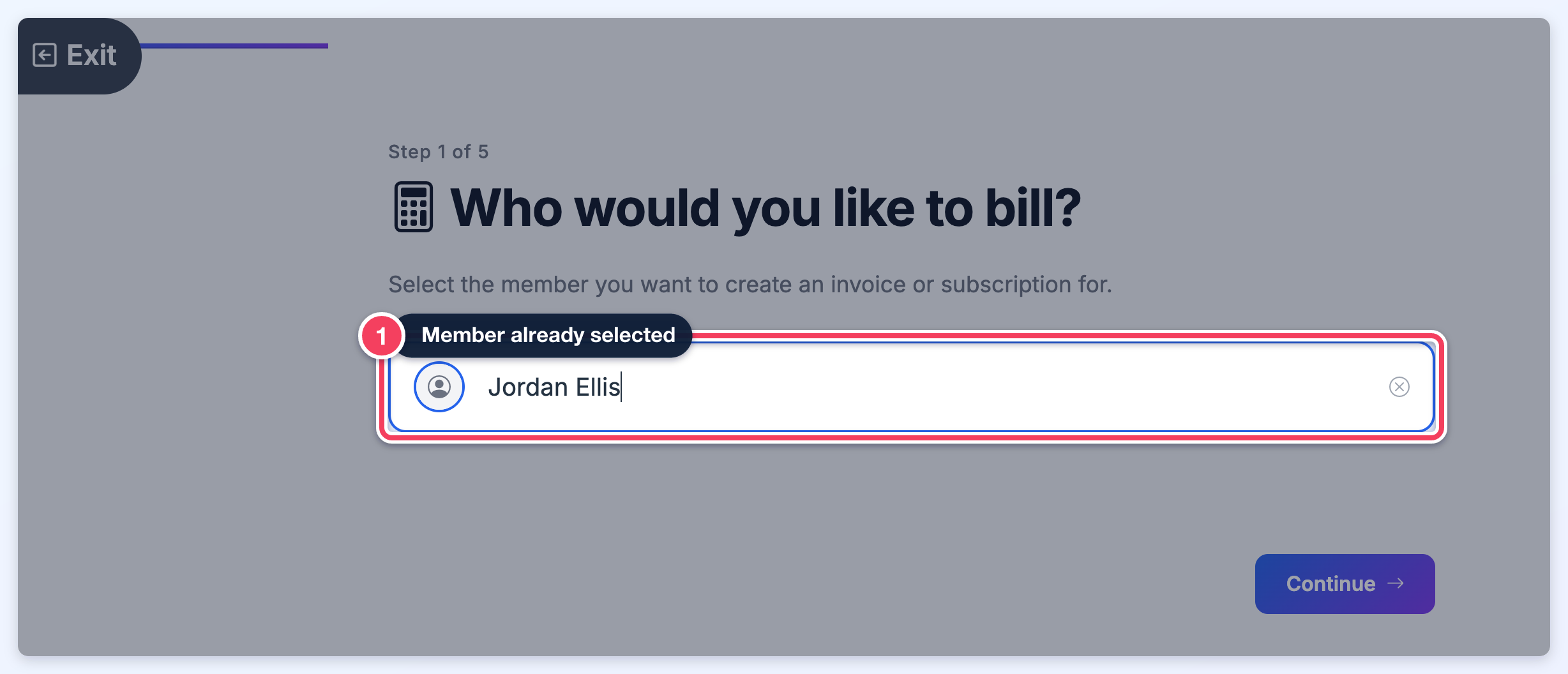
Who would you like to bill?
The first step selects the member the invoice or subscription is for. When the wizard is opened from a member's account, that member is already selected. To bill someone else, clear the field with the x and search again.
When the wizard is opened from the admin header's BD Butler menu, type at least three characters of the member's name or email address, or their member ID, then pick the member from the list.
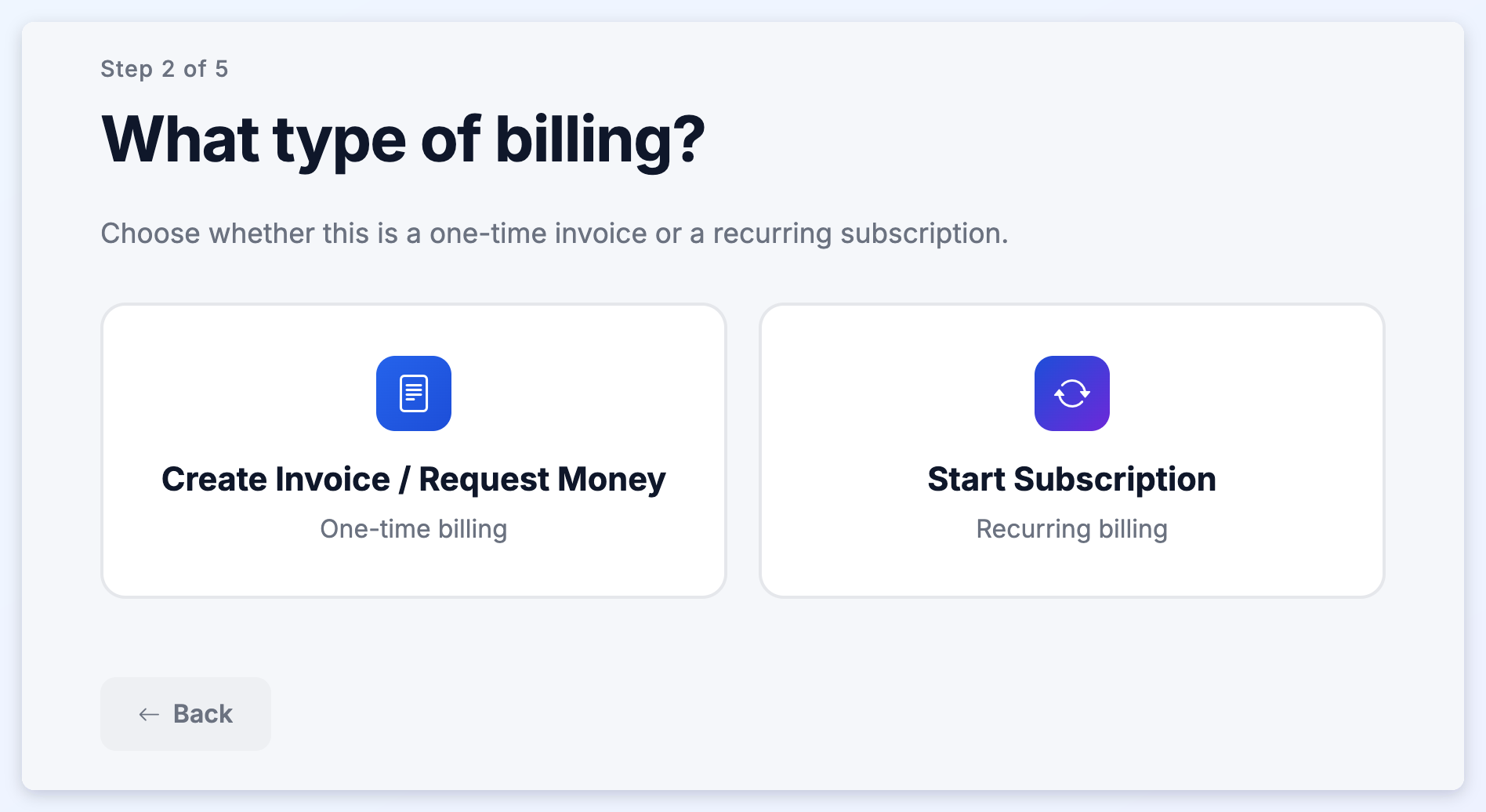
What type of billing?
Choose Create Invoice / Request Money for a one-time invoice, or Start Subscription for recurring billing. Both lead through similar steps.
Create Invoice / Request Money
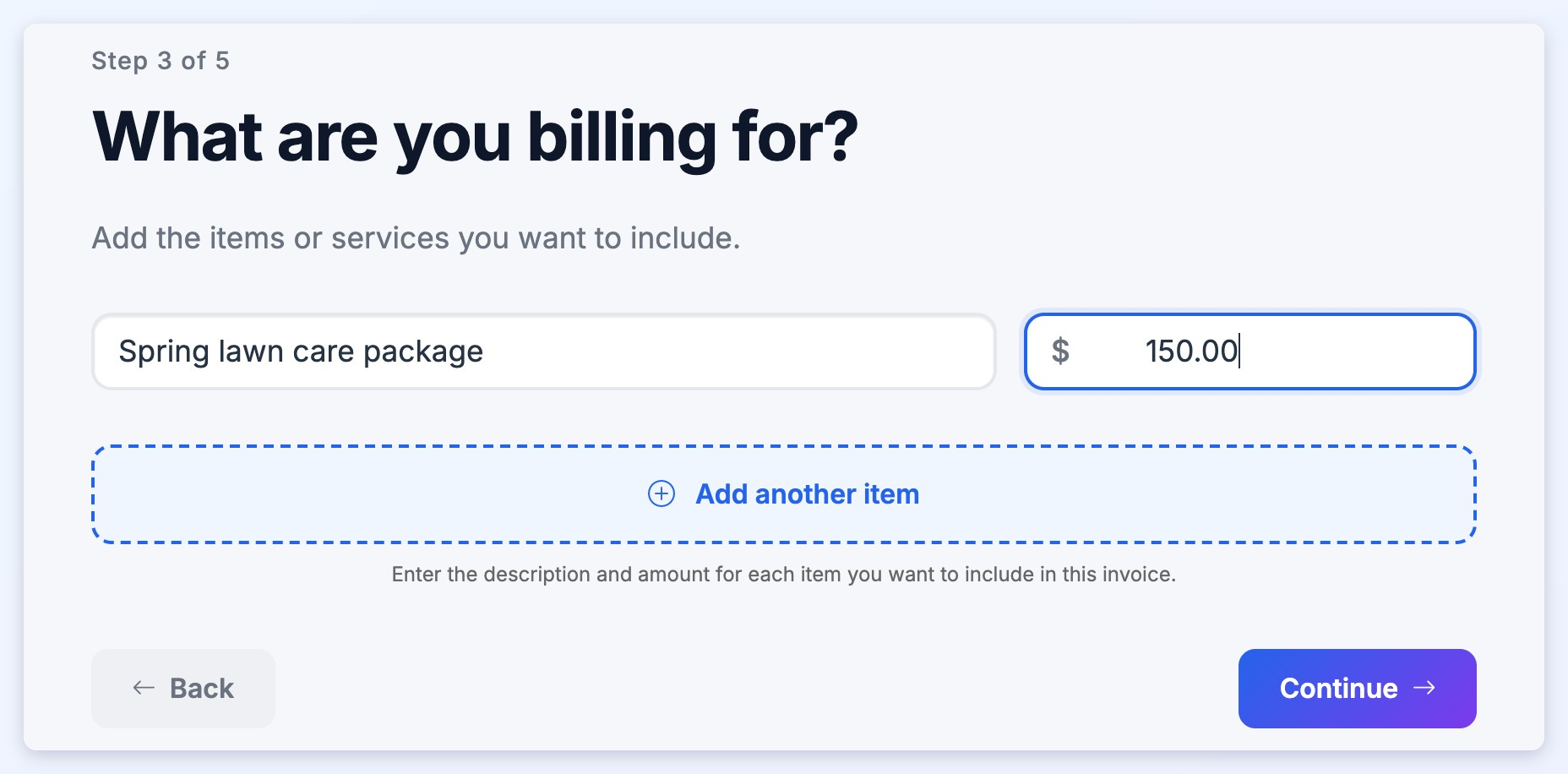
Enter a description and an amount for each item or service on the invoice. Click Add another item to add as many lines as needed.
Start Subscription
Choose the membership plan in Select Membership Plan and its Billing Cycle. Once a billing cycle is chosen, more settings appear on the same step: When to Bill Member (Bill Immediately - Today or Bill on Subscription Start Date), the Subscription Cycle Start Date, an optional discount (a price override, or a coupon code when the site has coupon codes) and Admin Notes.
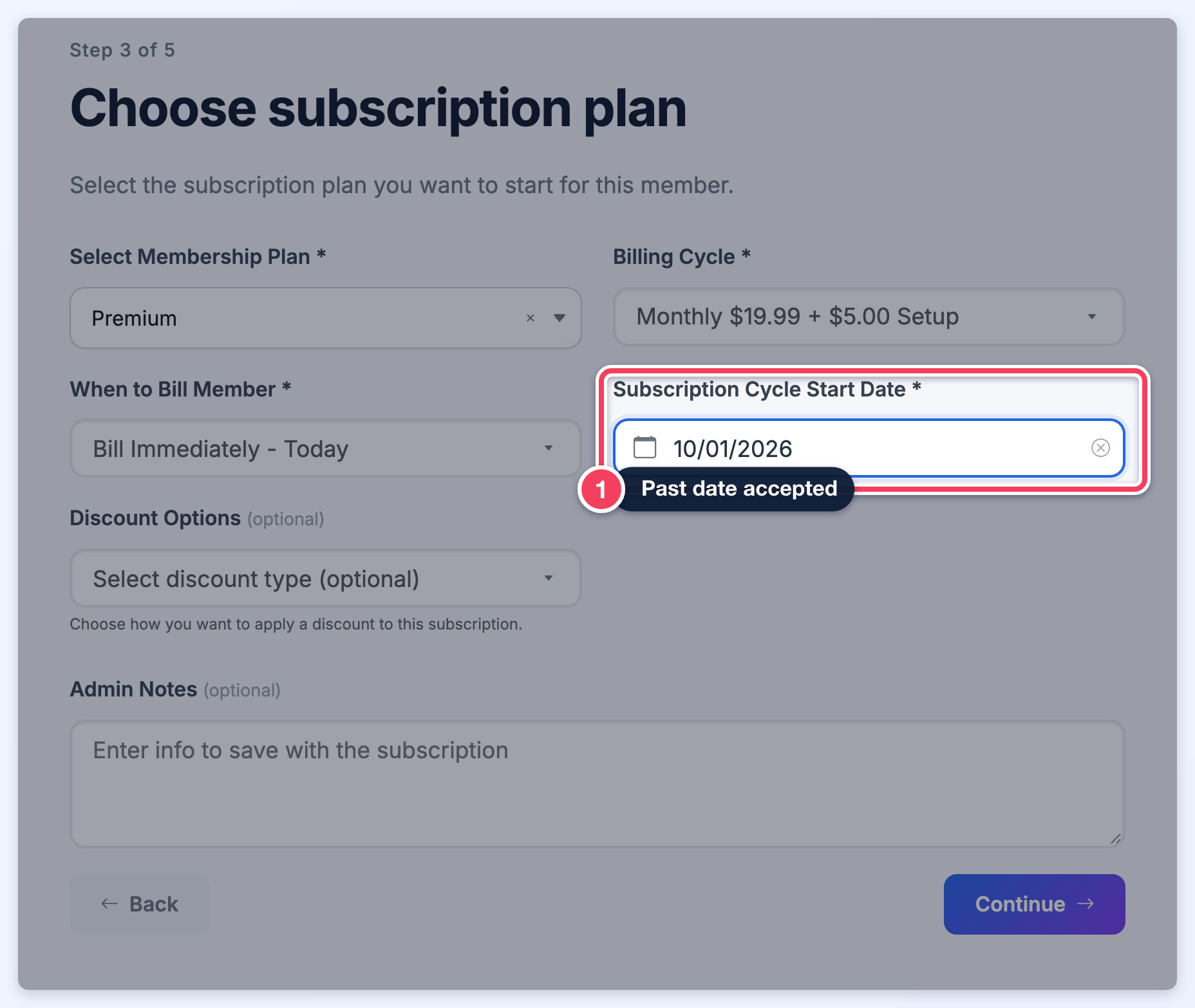
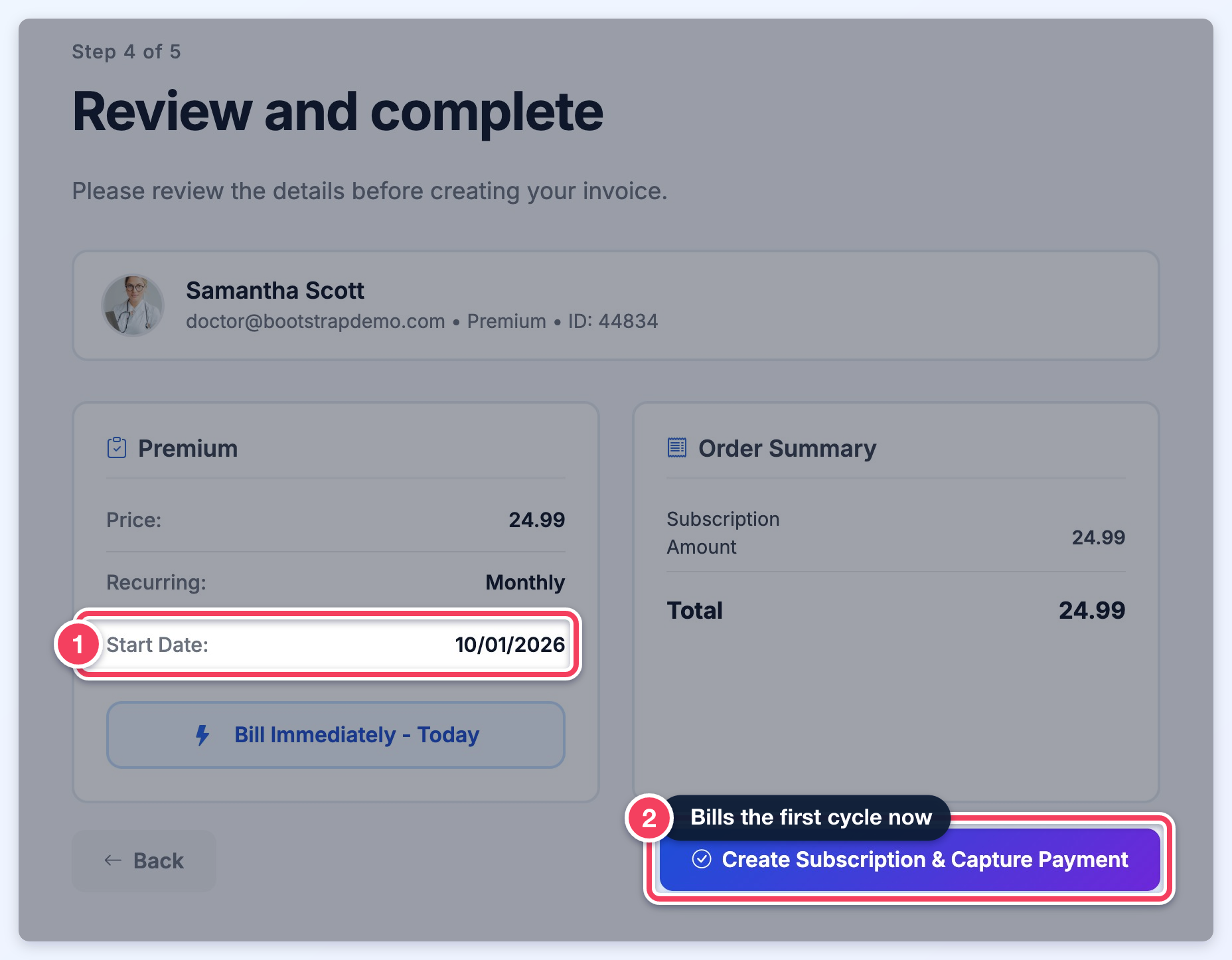
The Subscription Cycle Start Date defaults to today. It can be changed to a future date or to a past date, EG to record a subscription that began earlier. The start date decides whether payment is collected when the subscription is created:
- Today or a past date — the wizard attempts to collect the payment for the first billing cycle when the subscription is created. The review step's button reads Create Subscription & Capture Payment.
- A future date — the subscription is created without charging the member, and the first payment is due on the start date. With Bill on Subscription Start Date selected, the review step shows the date as Future Start Date and the button reads Create Subscription.
Almost done! A few settings
For a one-time invoice, the last step before the review sets:
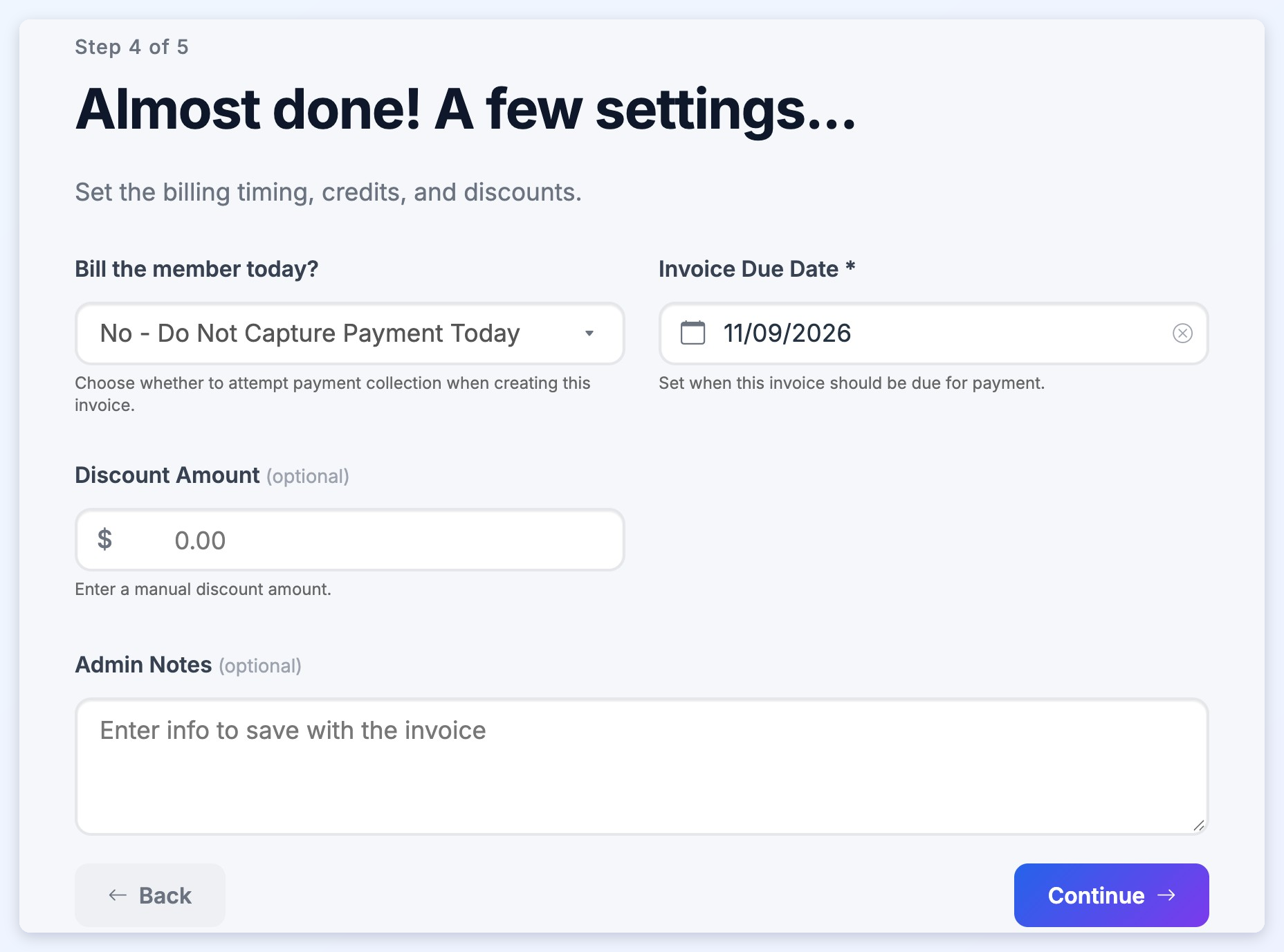
- Bill the member today? — Yes - Capture Payment Today attempts to collect the payment when the invoice is created; No - Do Not Capture Payment Today creates the invoice without charging the member.
- Invoice Due Date — when the invoice is due. It defaults to today.
- Discount Amount (optional) — a manual discount taken off the invoice.
- Admin Notes (optional) — notes saved with the invoice.
Review and complete
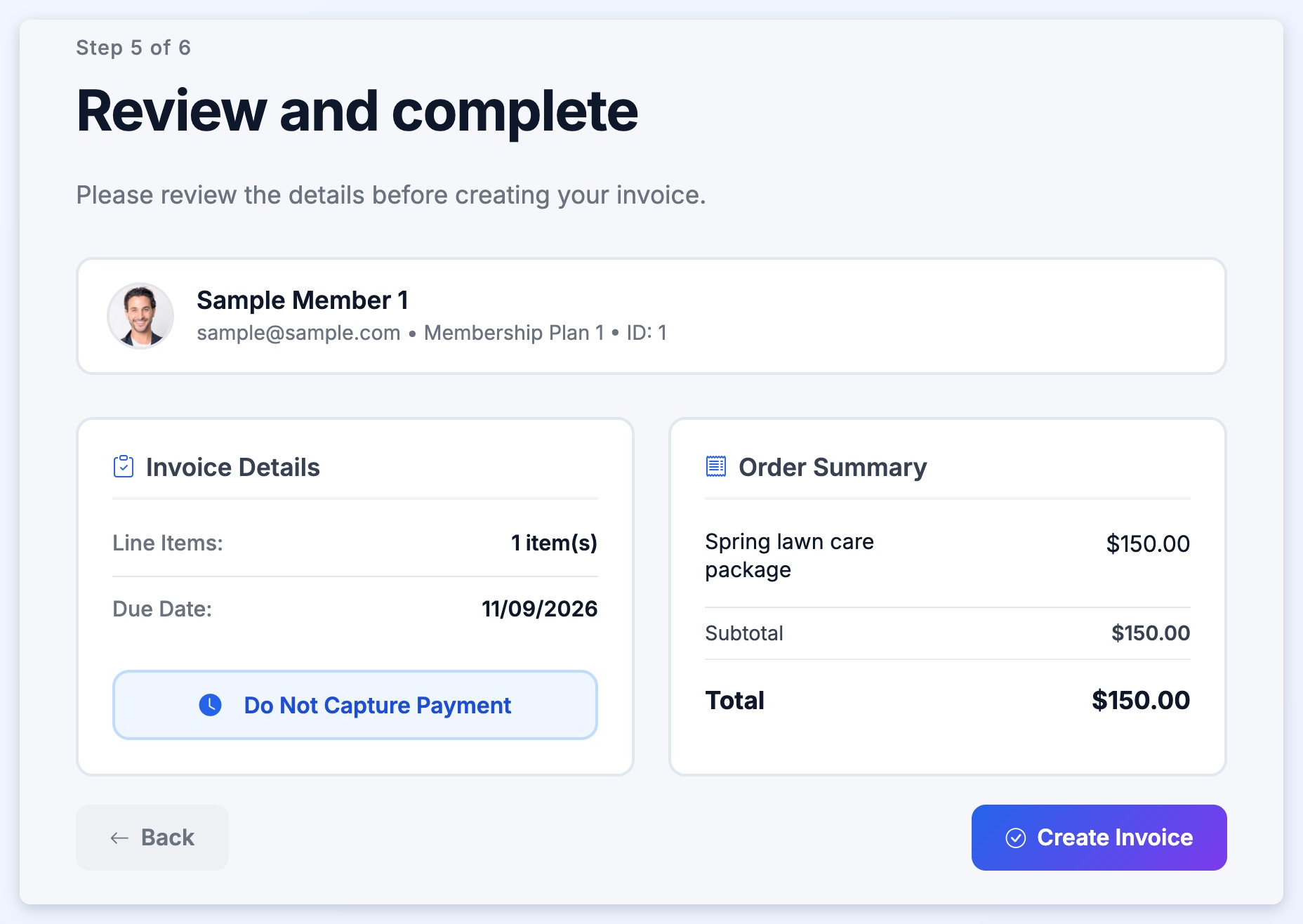
The review step shows the member, the invoice details and the order summary with its total. Click Back to change anything, or click Create Invoice. When the member is being billed today, the button reads Create Invoice & Capture Payment.
For a subscription, the review step shows the plan with its price, billing cycle, start date and when the member is billed, and the button reads Create Subscription or Create Subscription & Capture Payment depending on the start date (see Start Subscription above).
After the invoice is created
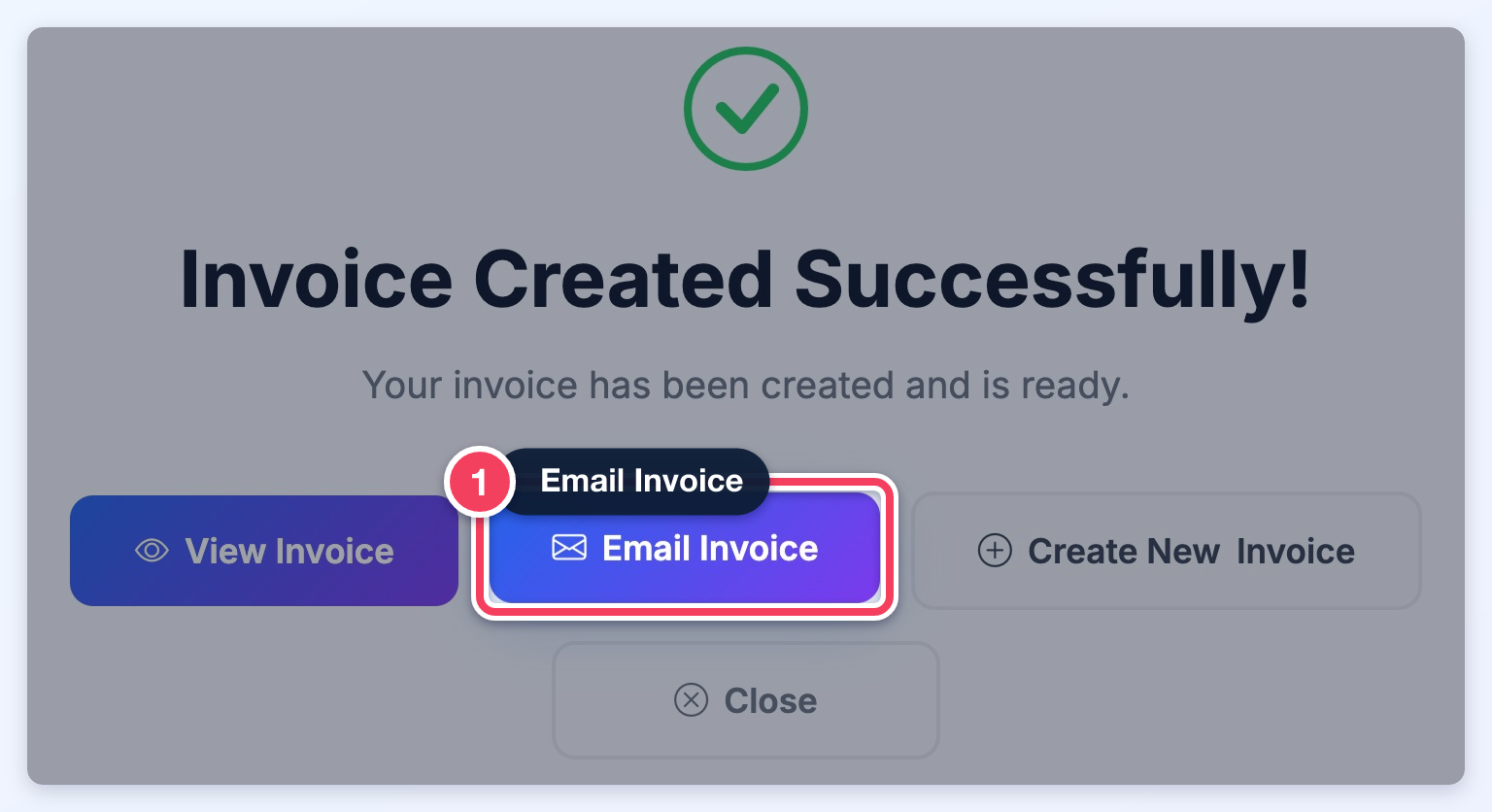
The final step confirms the invoice was created and offers four buttons:
- View Invoice — opens the new invoice in a new window.
- Email Invoice — opens the email compose window, ready to send the invoice to the member.
- Create New Invoice — starts the wizard again. When the wizard was opened from a member's account, the same member is selected again. After a subscription the button reads Create New Subscription.
- Close — closes the wizard.
Email Invoice
Email Invoice opens the compose window in a pop-up, already filled in. Nothing is sent until Send is clicked, so the email can be checked or changed first.
- The member's email address is the recipient.
- The [REMINDER] Upcoming Payment Notice email template is selected, with its subject.
- The message shows this invoice's description, total due and due date. The sender is the site's own sender name and email address.
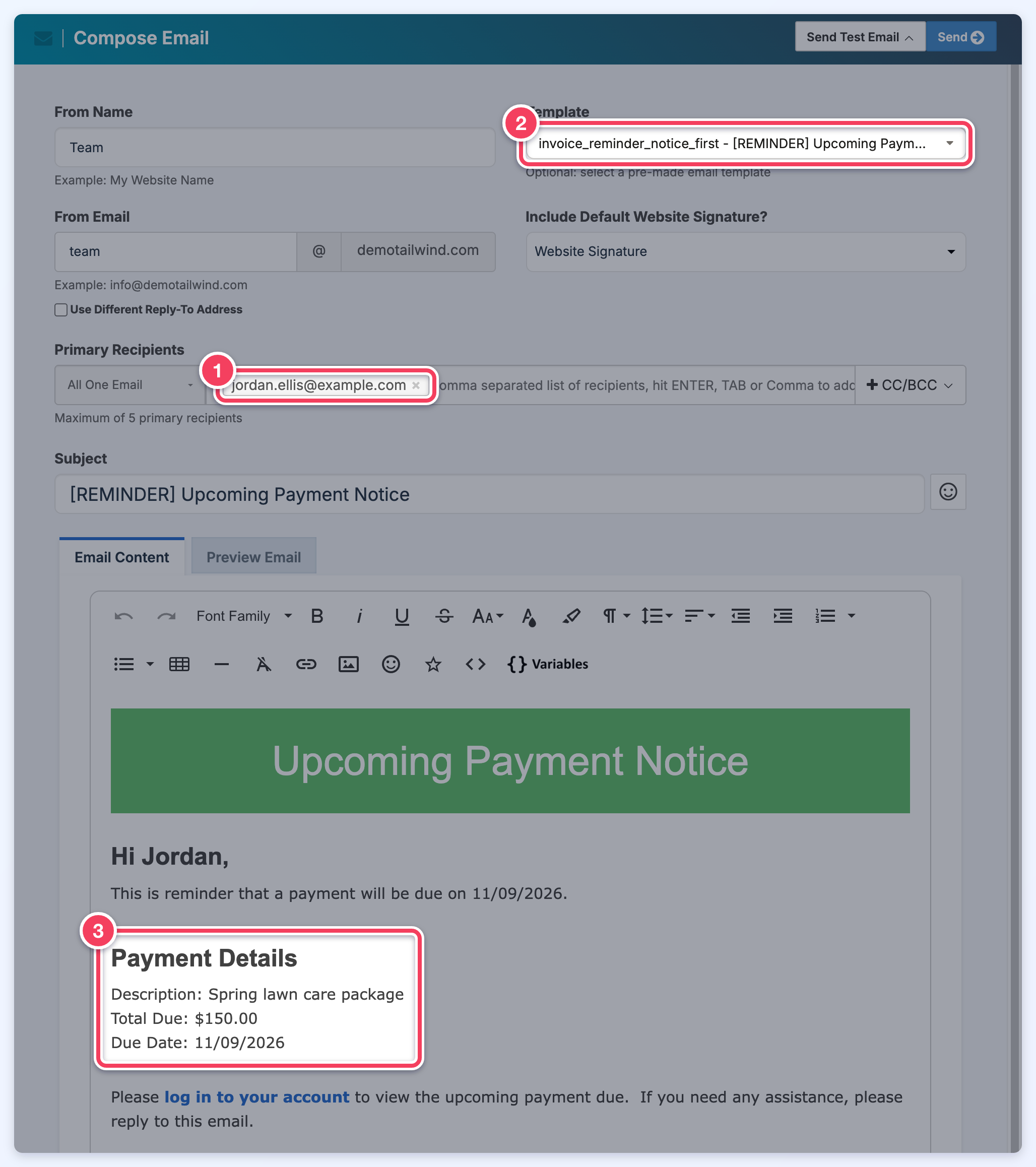
Email Invoice always selects the Upcoming Payment Notice template, including for an invoice that was paid when it was created. To send a different email, choose another template in the Template menu before clicking Send.
A subscription set to bill on a future start date has no invoice yet. For those, View Invoice and Email Invoice show a message that no invoice is available.
