
This article outlines the steps to roll an API key in a Stripe account. Rolling a key involves replacing the current API key with a new one to enhance security. The process includes generating a new key in the Stripe Dashboard, updating the application with the new key, and deactivating the old key once functionality is confirmed. This practice safeguards the account from unauthorized access.
Login to Your Account
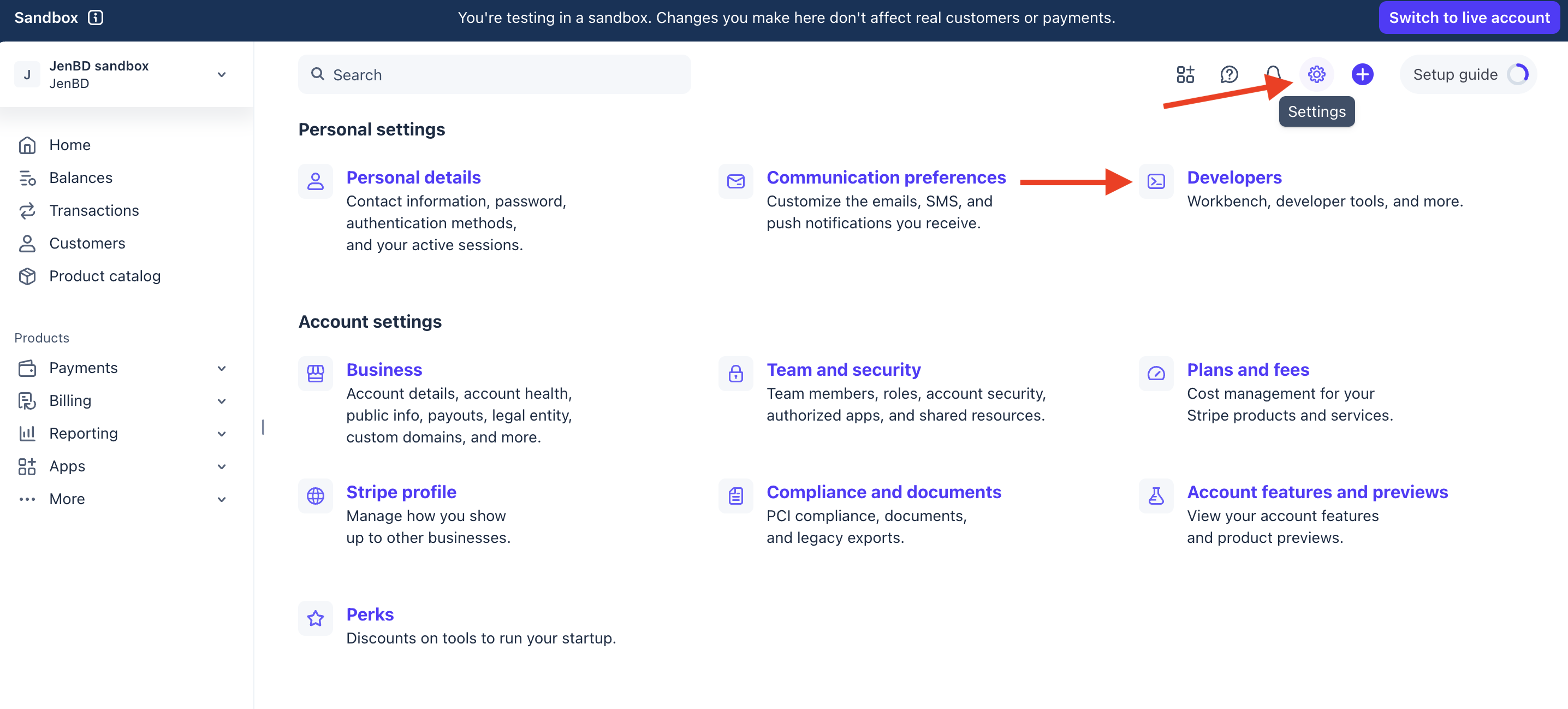
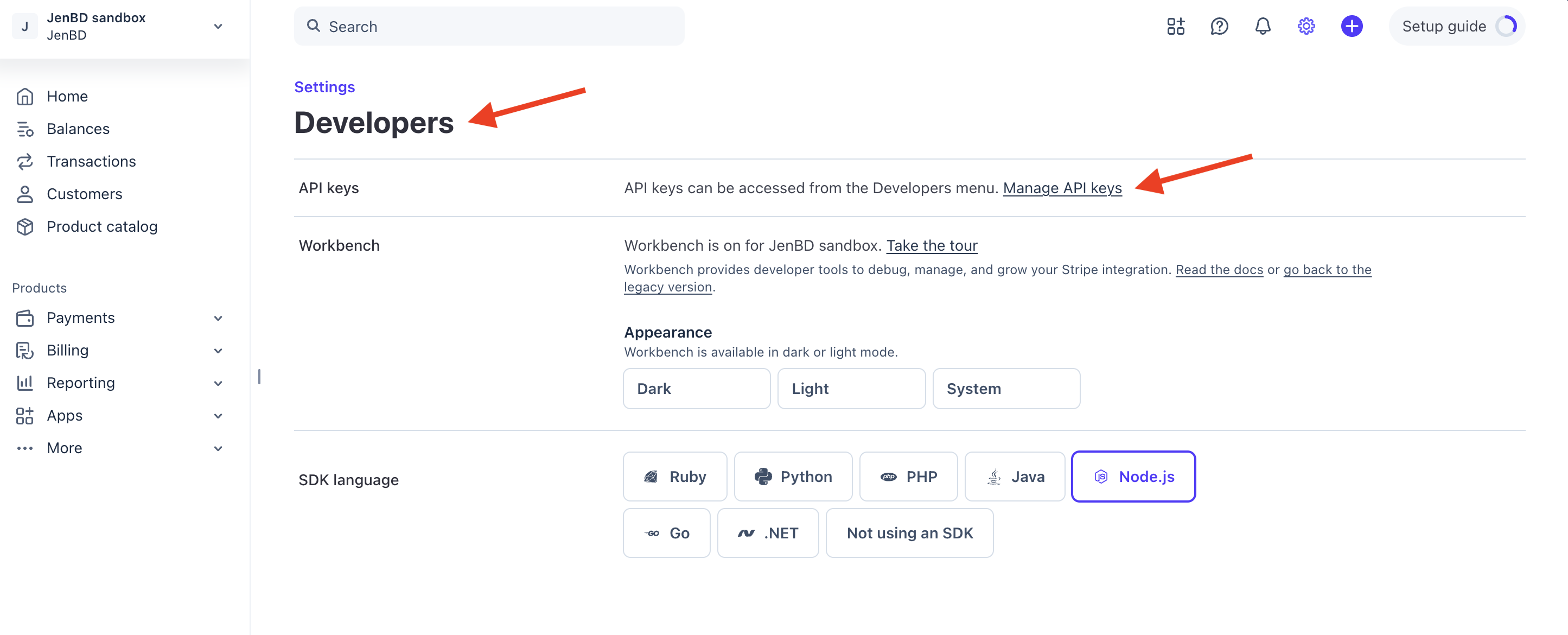
Let's begin by logging into the Stripe account first. Look for the "Developers" view under Settings >> Developers >> Manage API Keys. Then, follow the steps below:
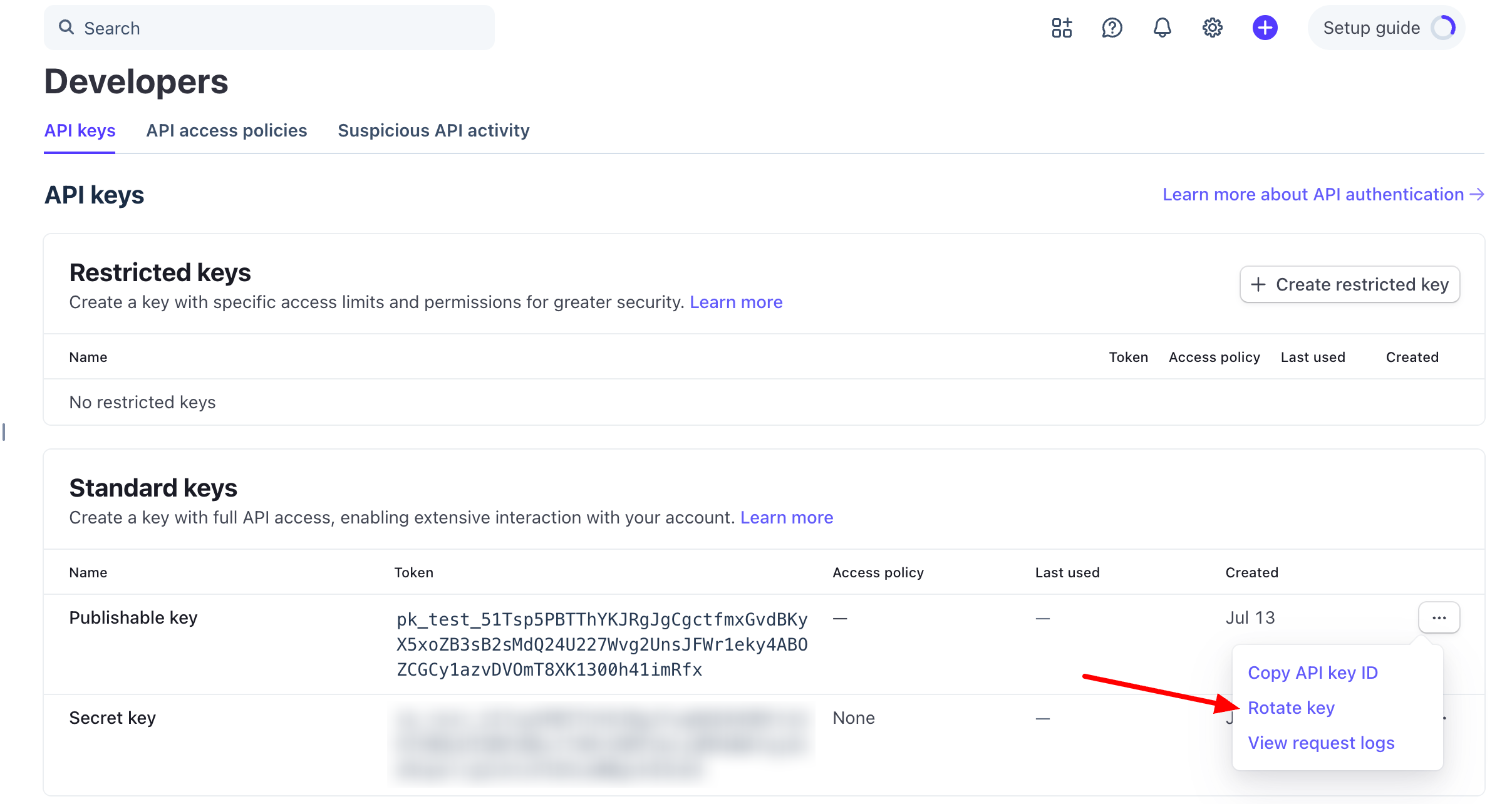
Step 1: Click on the three dots next to the key and click Rotate Key
Step 2: Select the time to rotate the key
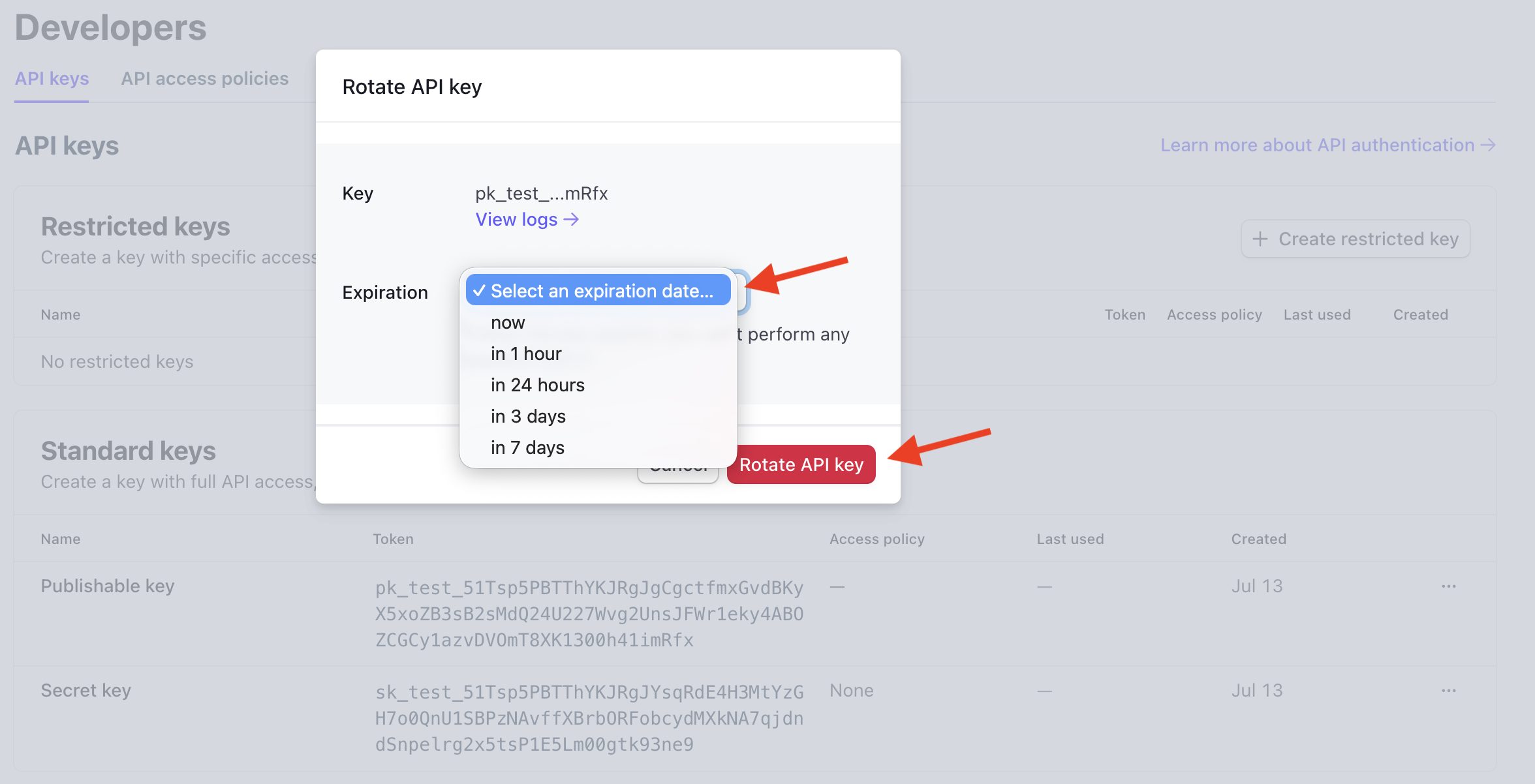
We recommend selecting "now" if you are not using the previous API key in another application.
Step 3: Stripe will display the new API Key
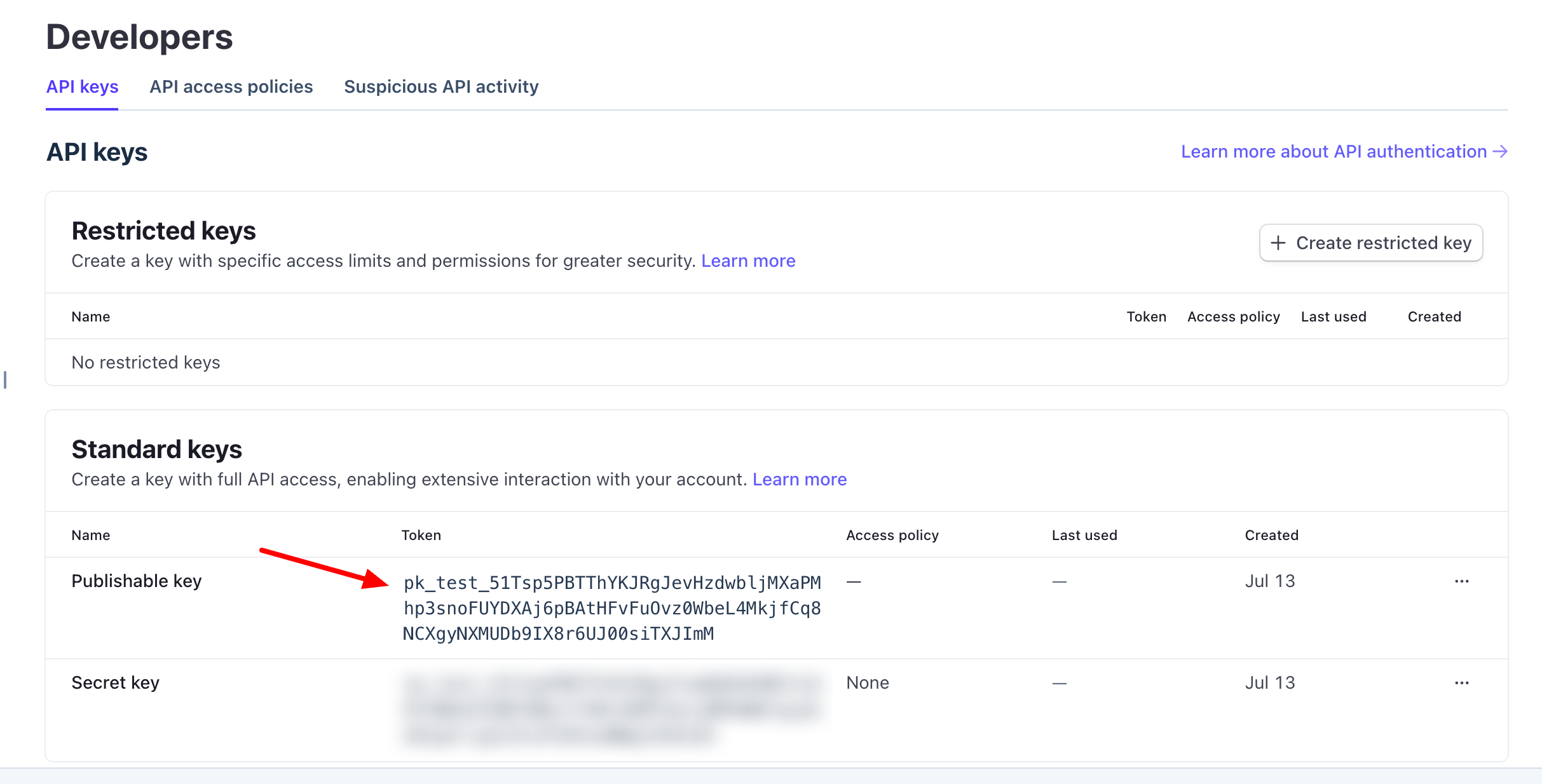
VERY IMPORTANT NOTE: This API Key must be copied from Stripe into the Brilliant Directories Admin >> Payment Settings or to a safe place. Stripe, for security purposes, will only display this key once. If failed to save the key as suggested, the same steps need to be repeated.
