
If the Stripe account has been created and the credentials need to be added to the admin, then follow the steps in this article.
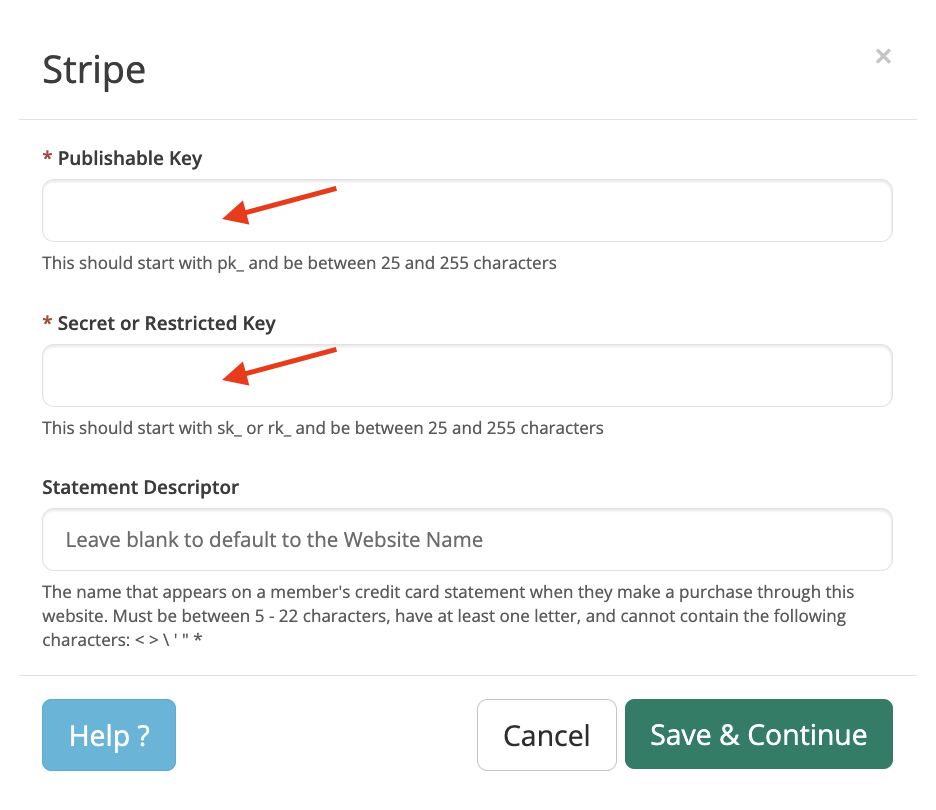
When the new Secret Key has been rolled out, go to the admin and navigate to Finance >> Payment Settings >> Stripe and paste the Publishable and Secret keys here:
Important Notes
- The name that appears on a member's credit card statement can be edited on the Statement Descriptor section above. Must be between 5 - 22 characters, have at least one letter, and cannot contain the following characters: < > \ ' " *
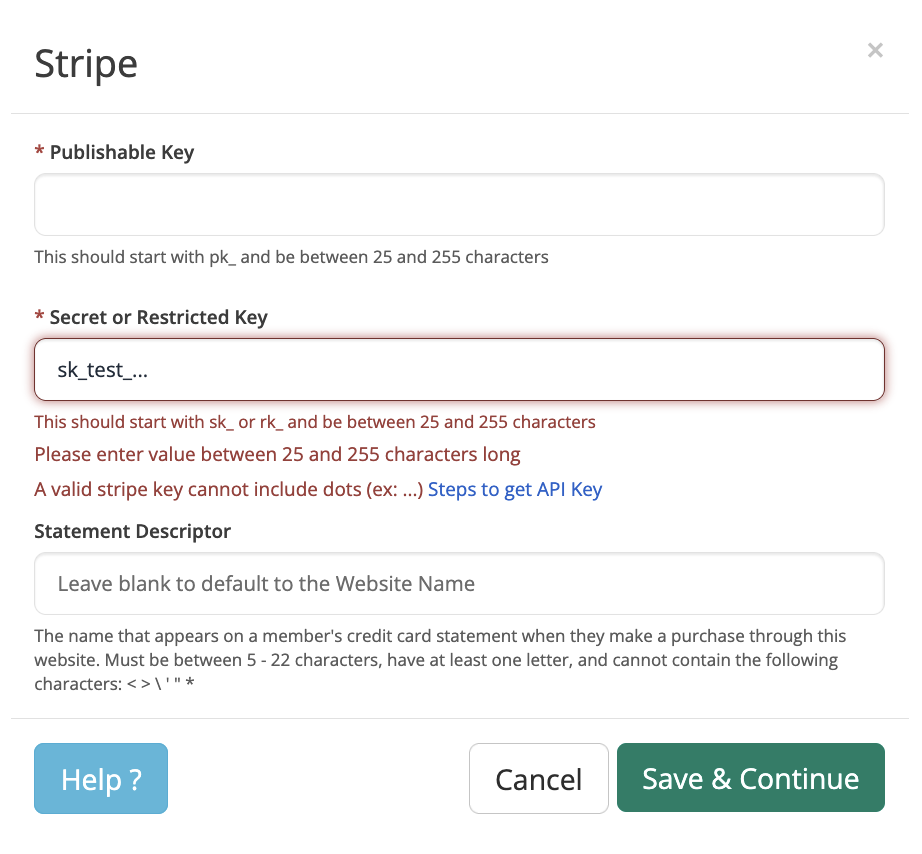
- When adding credentials for Stripe gateway, there will be additional validation on each key field as the valid credentials should be between 25 and 255 characters, and the key cannot include dots (ex: ....).
- In the "Secret or Restricted Key" field, you can enter either a standard Secret Key (beginning with sk_) or a Restricted Key (beginning with rk_).
There are three types of API keys: Publishable, Secret and Restricted.
- Publishable API keys are meant solely to identify the account with Stripe, they aren’t secret.
- Secret API keys should be kept confidential. The account’s secret API key can perform any API request to Stripe without restriction.
- Restricted API keys (beginning with rk_) can only make the requests their permissions allow. The permissions Brilliant Directories needs are listed under Restricted Key Permissions below.
Restricted Key Permissions
A restricted key needs the following permissions in Stripe. They cover membership signups, one-time setup fees, recurring renewals and refunds issued from the admin.
| Stripe permission | Access |
|---|---|
| Customers | Write |
| Payment Intents | Write |
| Payment Methods | Write |
| Setup Intents | Write |
| Charges and Refunds | Write |
| Balance | Read |
All other permissions can stay at None.
- Recurring memberships and setup fees: Brilliant Directories does not use Stripe Billing subscriptions, products or prices. The member's card is saved in Stripe and charged by the site's billing system at each renewal, and a one-time setup fee is part of the first charge, so neither needs extra permissions.
- Webhooks: Brilliant Directories does not use Stripe webhooks, so nothing needs to be set up in Stripe's Webhooks section and the key needs no webhook permission.
Checking a Restricted Key in Test Mode
- Switch the Stripe dashboard to test mode and create a restricted key with the permissions above.
- Paste the test Publishable Key and the restricted key (beginning with rk_test_) into Finance >> Payment Settings >> Stripe.
- Run a test membership signup with a Stripe test card, then refund the payment from the admin.
- On the API keys page in Stripe, open the restricted key's menu and choose View request logs. A request the key was not allowed to make shows as an error naming the missing permission.
- Once the test runs without errors, create the live restricted key with the same permissions and paste it into the admin with the live Publishable Key.
Create Stripe Account
If the Stripe account needs to be created for the first time, then follow the steps on this other article: Setting Up A New Stripe Account
Stripe Test and Live Modes
- In test mode, payments are not processed by card networks or payment providers, and only Stripe test payment information can be used.
Genuine card information cannot be used in test mode. Instead, use any of the following test card numbers, valid expiration date in the future, and any random CVC number, to create a successful payment.
Stripe test cards can be found here: https://stripe.com/docs/testing
Each basic test card’s billing country is set to the U.S. If need to create test card payments using cards for other billing countries, use the international test cards.
- In Live mode, payments are processed by card networks and members can use real cards.
Obtaining the API Keys
The API keys are always available in the Dashboard.
In TEST mode, secret keys are always visible and you can just copy and paste them in the BD admin.
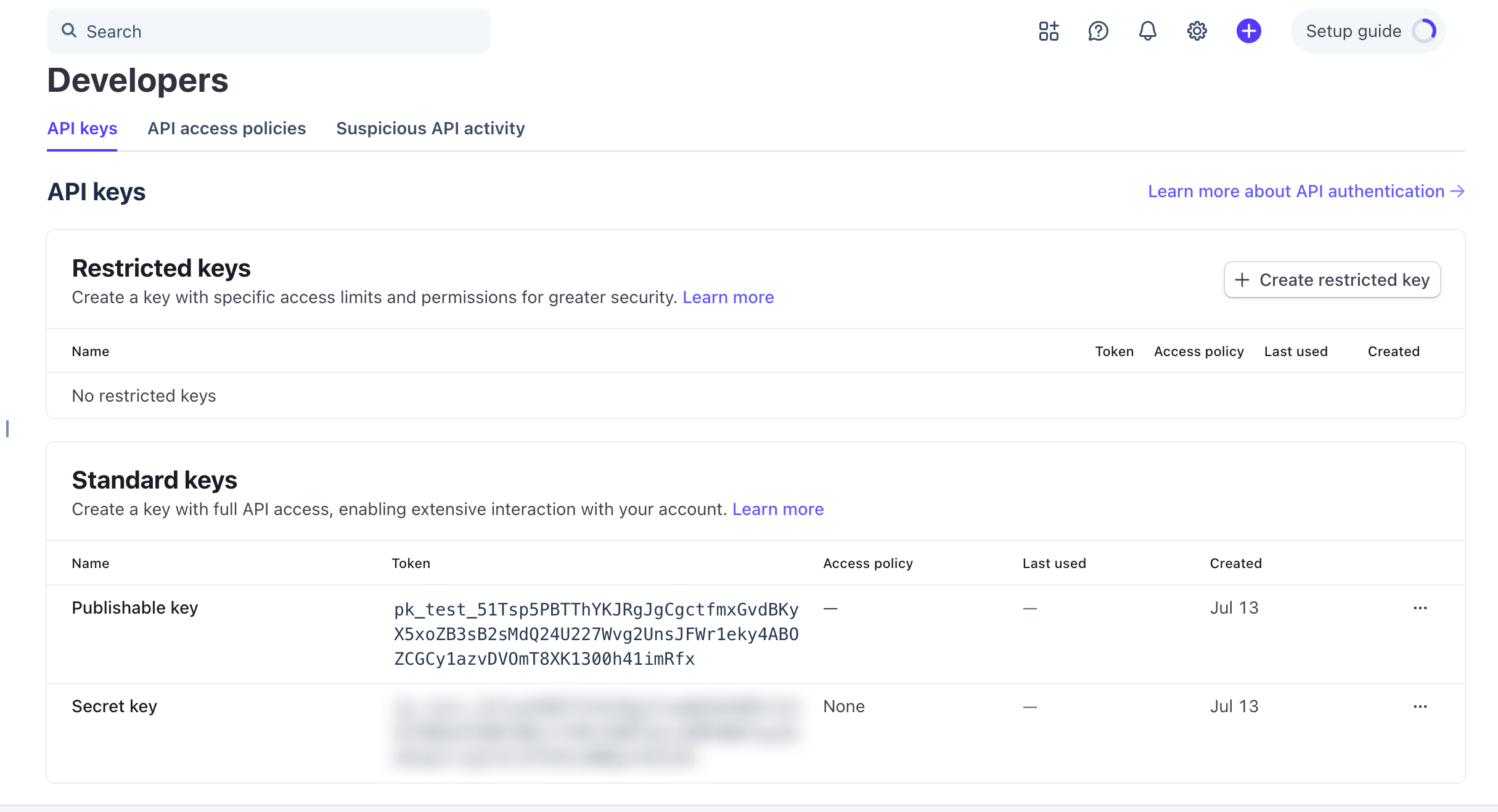
In order to copy a key, hover over it and click on "Click to copy"
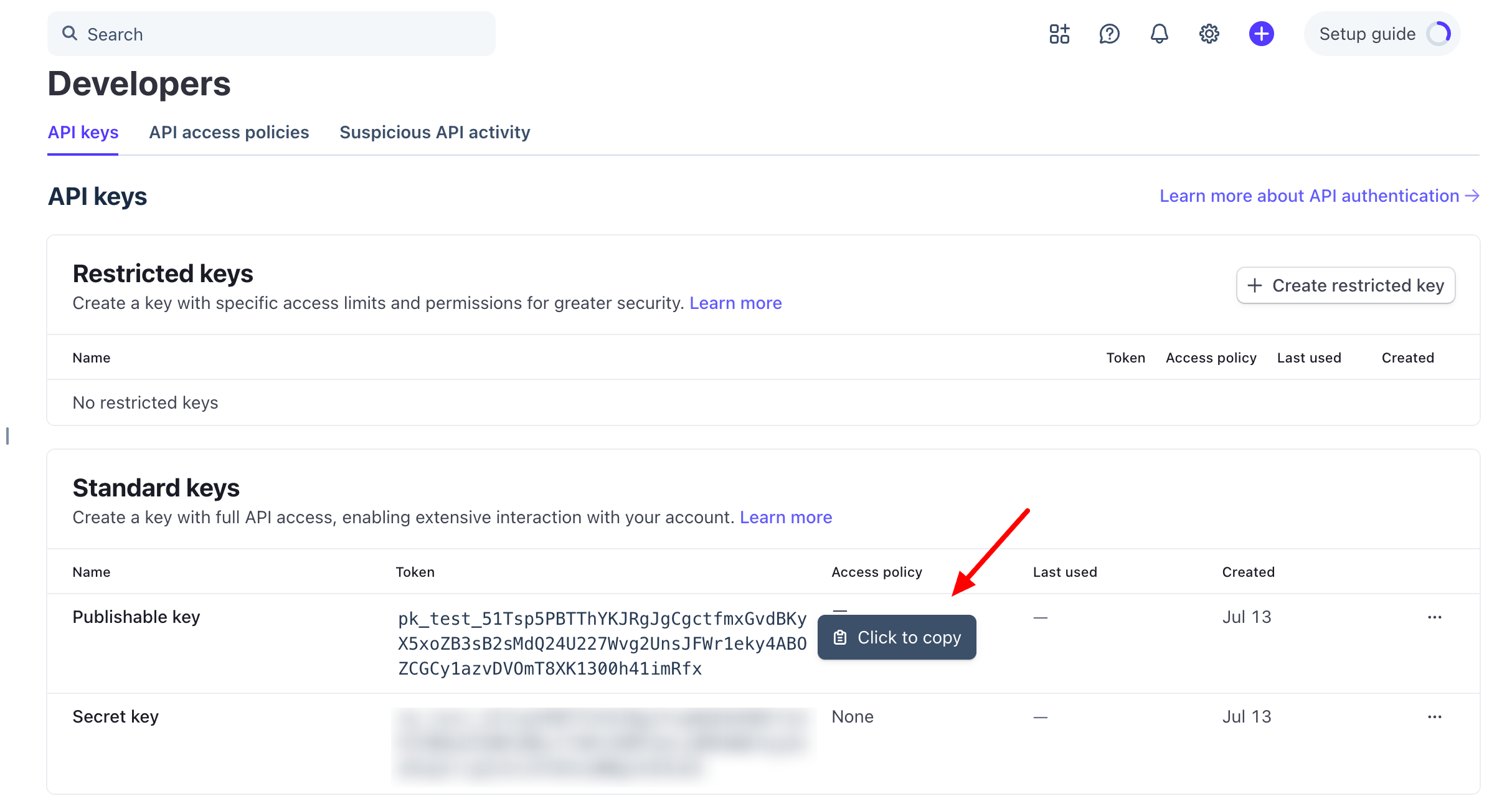
In LIVE mode, new secret keys are only visible the first time the owner accesses them. After that, the Dashboard redacts the API key.
Roll Key
If the secret key is lost, it cannot be recovered from the Dashboard, so the owner must roll the key or create another one.
In order to roll a new key refer to the article down below:
Stripe Credentials - How To Roll Key
Setting up a Payment Gateway
To learn more about how to complete this process, use the following article for reference: Finance » Payment Settings - Setting Up A Payment Gateway
