Navigation Path
Admin Dashboard » My Members » Search Members
The Bulk Actions tool allows administrators to apply account-level changes to multiple member records simultaneously. Bulk actions are initiated from the Search Members section and apply to all members selected within a given operation.
Part 1 — Selecting Members for a Bulk Action
Before a bulk action can be applied, the target member records must be selected. Two selection methods are available:
Method A — Select All Results on the Current Page
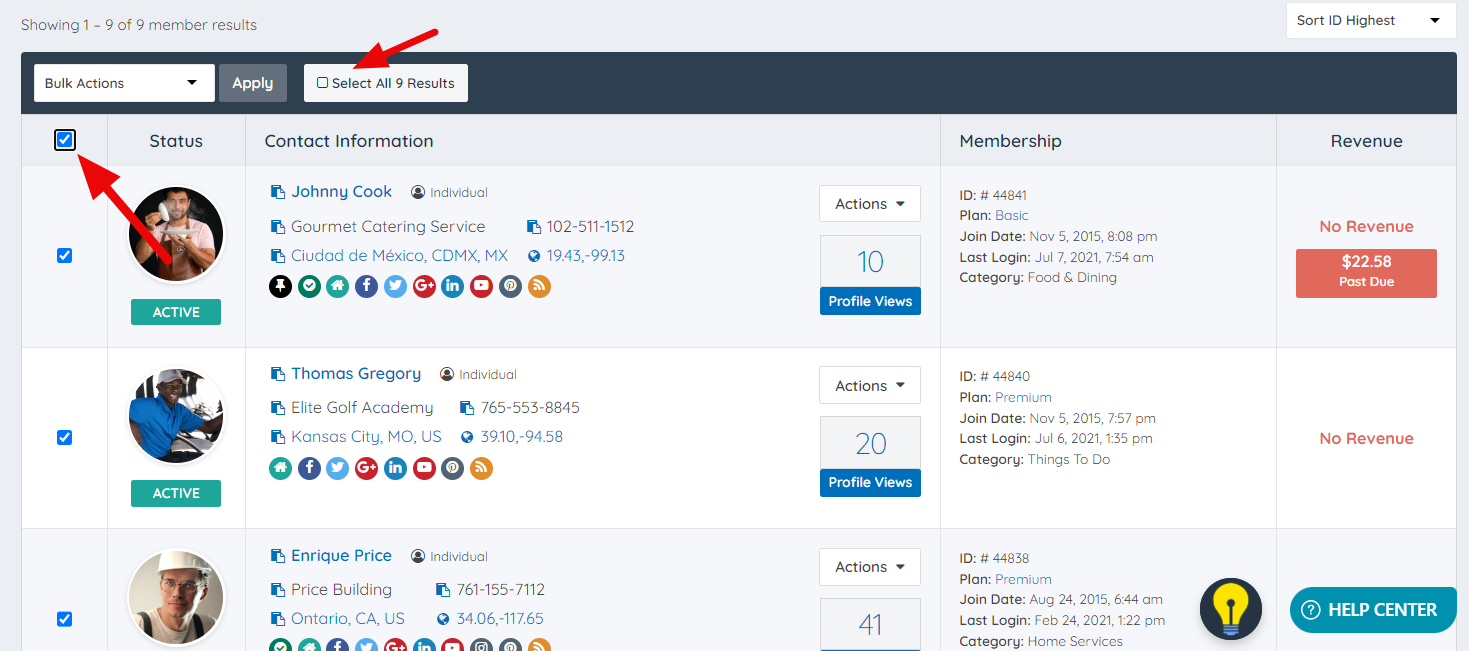
Click the checkbox located directly below the Bulk Actions dropdown. This selects all member records currently displayed on the active page of the Search Members results table.
To extend the selection across all records returned by the current search filter (not just the current page), click "Select All # Results" after activating the page checkbox.
Method B — Select Members Individually
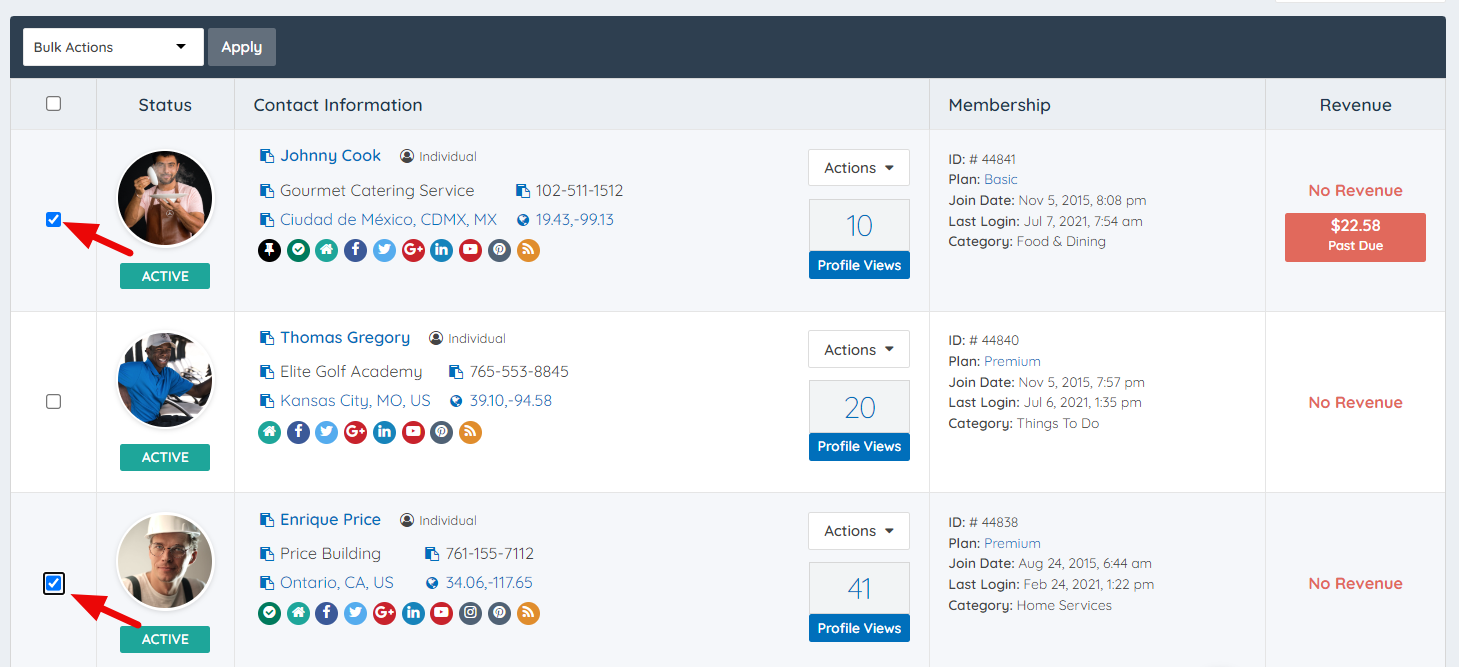
Click the checkbox next to each individual member record in the results table to manually select specific members for the bulk action.
Part 2 — Applying a Bulk Action
Once the target members are selected:
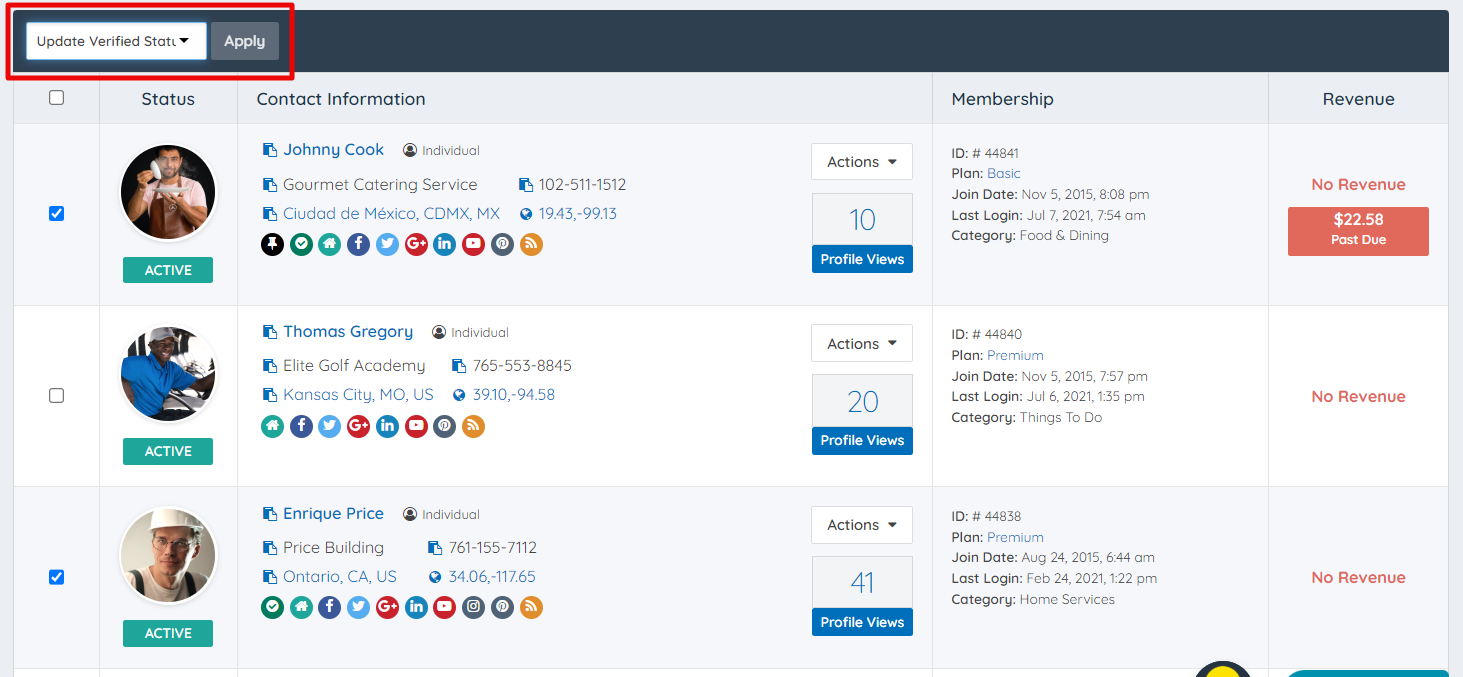
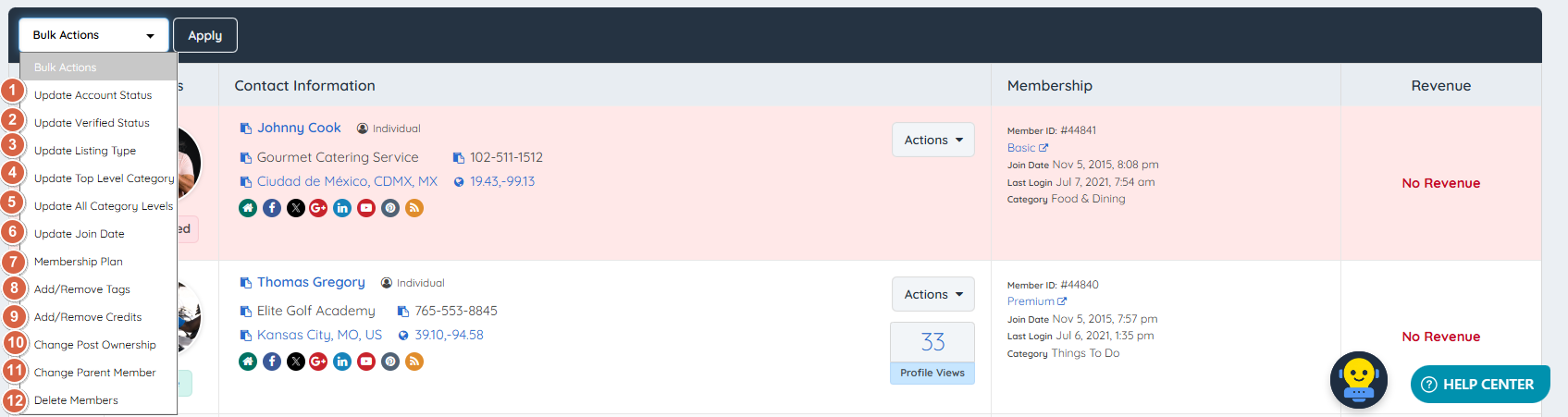
- Click the Bulk Actions dropdown in the Search Members toolbar.
- Select the desired action from the list.
- Click Apply.
Part 3 — Bulk Actions Reference
The following twelve bulk actions are available in the Search Members Bulk Actions dropdown. Each action applies to all currently selected member records.
1. Update Account Status
Applies a new Account Status value to all selected member records simultaneously.
⚠ CRITICAL CAUTION — Status Change Does Not Affect Billing: Changing Account Status via bulk action does NOT cancel, pause, or modify any active billing subscriptions for the selected members. Subscription management must be handled independently. Members set to "Not Active" or "Cancelled" via this tool may still be actively billed if their subscriptions are not separately cancelled.
Account Status value definitions: Quick Edit Module — Account Status
2. Update Verified Status
Applies a verified or unverified status to all selected member records simultaneously. Members with verified status display a verification badge on their public profile.
Reference: How To Verify A Listing
3. Update Listing Type
Updates the Listing Type designation for all selected member records. Two Listing Type options are available:
| Listing Type | Profile Display | URL Format |
|---|---|---|
| Individual | Member's first and last name | Based on first and last name (e.g., /john-doe) |
| Company | Company name | Based on company name (e.g., /doe-consulting-group) |
This setting controls both how a member's identity is displayed on their public profile and how the profile URL slug is generated.
URL Update Option
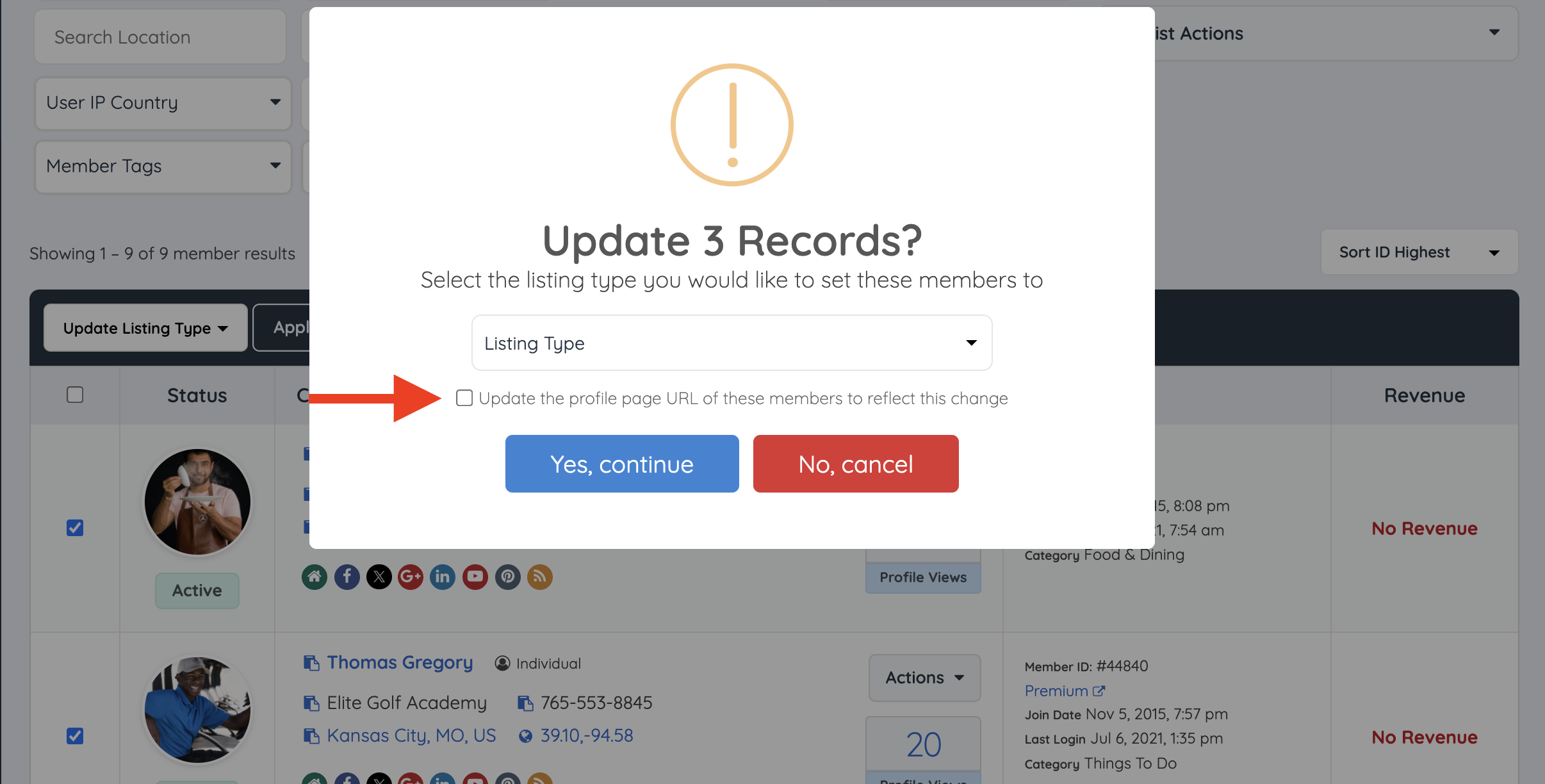
When applying a Listing Type change via bulk action, the system presents an option to update the profile URLs to reflect the new Listing Type.
When this option regenerates profile URLs, the current formatting rules apply to the name: apostrophes are removed, most other punctuation and spaces become hyphens, and underscores are preserved. Existing URLs are not rewritten merely because a platform update was released. See How To Customize The Member Profile URL Structure for the formatting examples and URL lock behavior.
⚠ CAUTION — URL Change Behavior: If the URL update option is selected, the system will automatically generate a 301 redirect from each affected member's old profile URL to the new URL. This preserves SEO value and prevents broken links. However, if external systems, marketing materials, or third-party integrations reference the old URLs directly, those references will need to be updated manually. The 301 redirect handles browser and search engine traffic but does not update hardcoded references outside the platform.
⚠ CAUTION — Company Name Field Required for Company Listing Type: If the Listing Type is changed to Company but the member record does not have a Company Name populated, the URL generation will fail to produce a meaningful slug. Verify that all selected members have a Company Name on file before bulk-updating to Company Listing Type.
4. Update Top-Level Category
Reassigns the top-level member category for all selected member records simultaneously. The available categories are drawn from the list configured under My Members » Member Categories.
5. Update All Category Levels
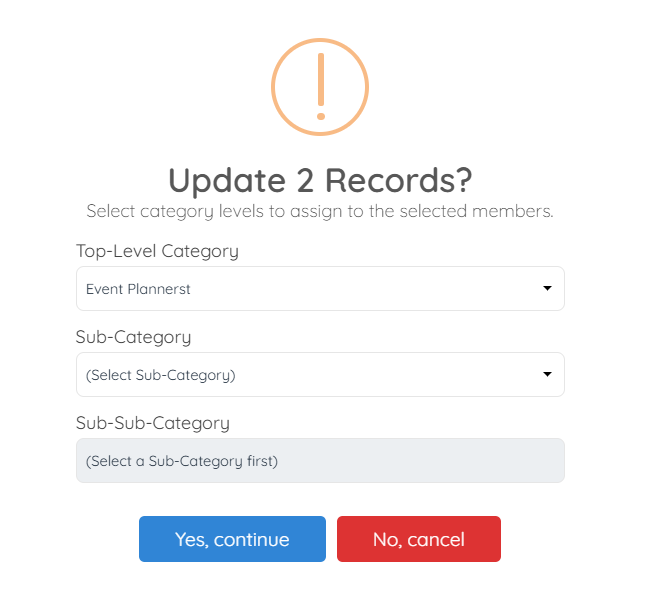
Reassigns one or more category levels for all selected member records simultaneously. When this action is selected, a configuration module appears presenting the following three category fields:
| # | Field | Description |
|---|---|---|
| 1 | Top-Level Category | Reassigns the primary top-level category for all selected members. |
| 2 | Sub-Category | Reassigns the sub-category for all selected members. |
| 3 | Sub-Sub-Category | Reassigns the sub-sub-category for all selected members. |
Only the fields that require updating need to be populated. Fields left blank in the module are ignored, the corresponding category level on each selected member record remains unchanged.
6. Update Join Date
Modifies the recorded join date for all selected member records simultaneously.
⚠ NOTE — Applies to All Selected Members: This action sets a single join date value across all selected records. There is no per-member date assignment within a single bulk action. To assign different join dates to different members, separate bulk action operations must be run for each distinct date value.
7. Update Membership Plan
Reassigns the Membership Plan for all selected member records simultaneously.
⚠ CRITICAL CAUTION — Plan Change Does Not Affect Billing: Changing the Membership Plan via bulk action does NOT modify or cancel any existing subscription associated with the selected members. The plan designation in the member record will change, but subscription billing continues under the original plan terms unless separately updated in the subscription management system.
8. Add/Remove Tags
Adds or removes Member Tags for all selected member records simultaneously. The administrator selects whether the operation is an addition or removal, then selects the specific tag or tags to apply.
9. Add/Remove Credits
Adjusts the credit balance for all selected member records simultaneously. The administrator specifies whether the operation adds or removes credits and enters the credit amount to apply.
10. Change Post Ownership
Reassigns all posts owned by the selected member records to a different specified member. This action transfers content ownership in bulk and does not delete any posts.
11. Change Parent Member
⚠ ADD-ON REQUIRED — Multi-Member Manager: This action is only available when the Multi-Member Manager add-on is active on the site. If this add-on is not active, the Change Parent Member option will not appear in the Bulk Actions dropdown.
When available, this action assigns a new parent member to all selected member records, or removes the existing parent assignment. This converts the selected members into sub-accounts under the designated parent, or returns them to standalone account status.
⚠ CRITICAL CAUTION — Eligibility Restriction for Parent Assignment: Only Active members who share the same Membership Plan AND have the "Sub Accounts" feature enabled in their plan settings are eligible to be assigned as a parent. Members not meeting both criteria will not appear as assignable parent options.
Reference: Multi-Member Manager
12. Delete Members
Permanently deletes all selected member records. When the Delete Members action is selected, a configuration modal appears before any deletion is executed. The following options must be reviewed and set before confirming the action:
| # | Option | Description |
|---|---|---|
| 1 | Delete Members | Toggle must be enabled to confirm the deletion action. |
| 2 | Delete Sub-Accounts Under Members? | If selected members have associated sub-accounts, the administrator chooses whether to delete or retain them. |
| 3 | Delete Member Profile Images & Files? | Determines whether images and files attached to the selected member records are also permanently deleted. |
| 4 | Delete Member Posts? | Determines whether posts created by the selected members are deleted or retained. |
| 5 | Reassign Posts to Another Member | If posts are being retained rather than deleted, this option transfers them to a designated existing member. |

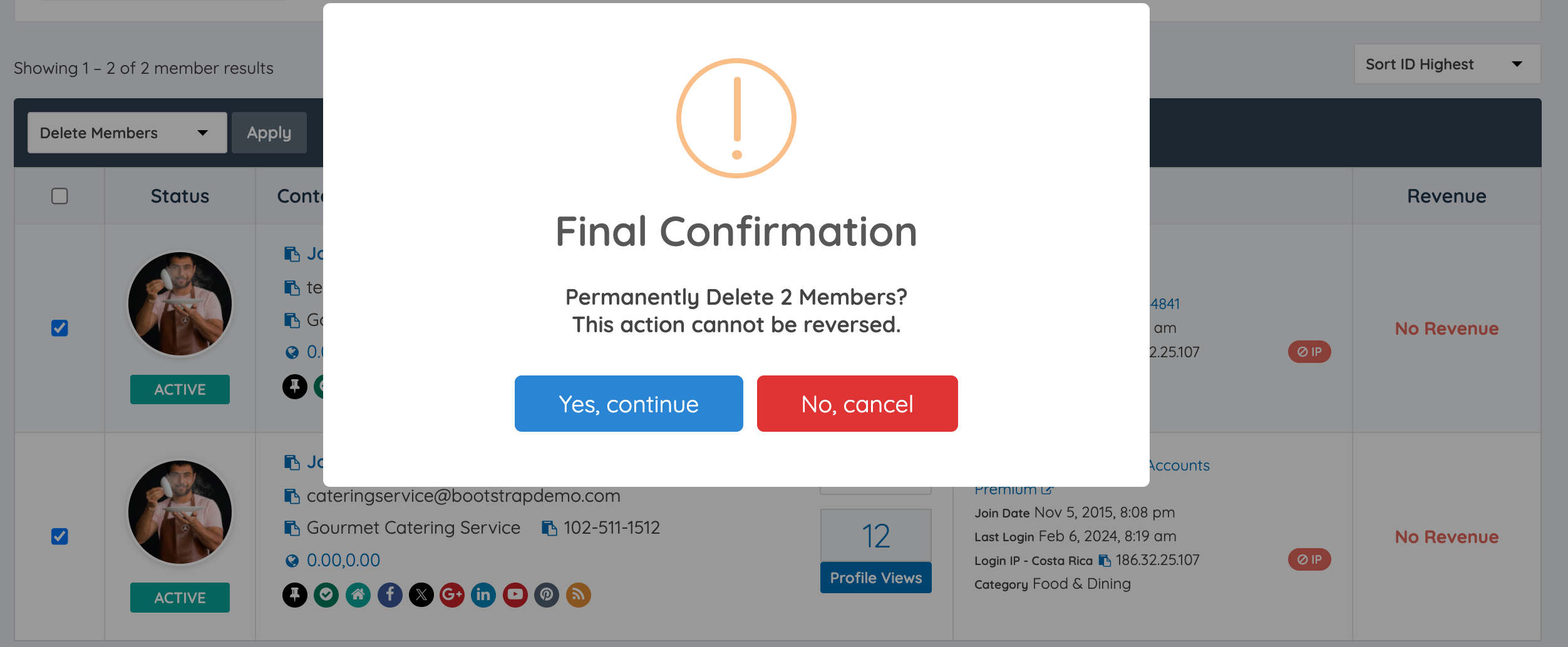
After all options are configured, a final confirmation prompt is displayed before the deletion is executed.