
Disabling a custom widget keeps it saved on the website but prevents the system from using it on the live site. This makes disabling a reversible alternative to deletion: the widget remains available and can be re-enabled at any time.
NOTE: Only custom widgets can be disabled and enabled — default widgets don't have this option.
Disabling a Widget
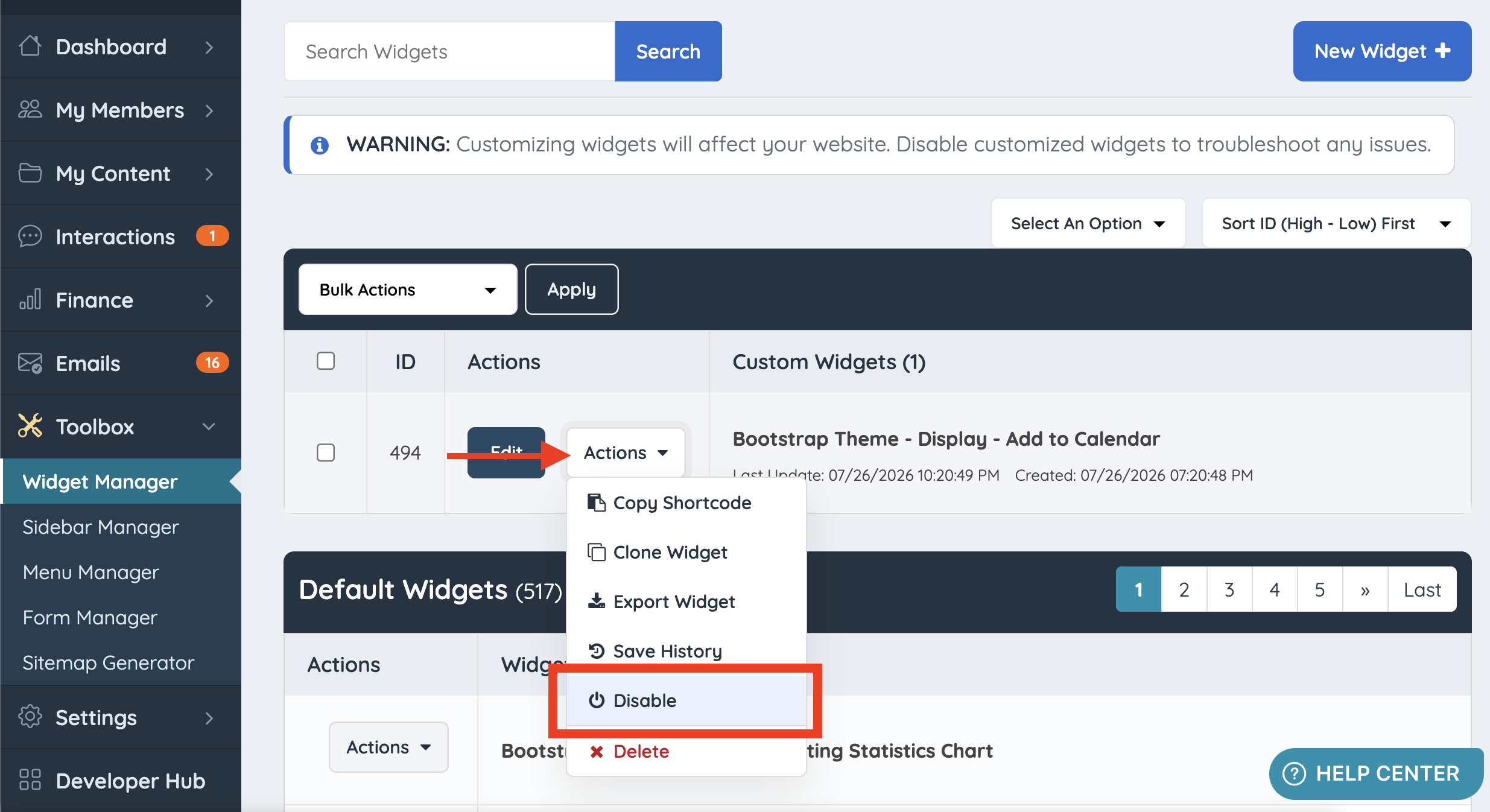
To disable a custom widget, navigate to Toolbox >> Widget Manager and click Disable in the Actions dropdown:
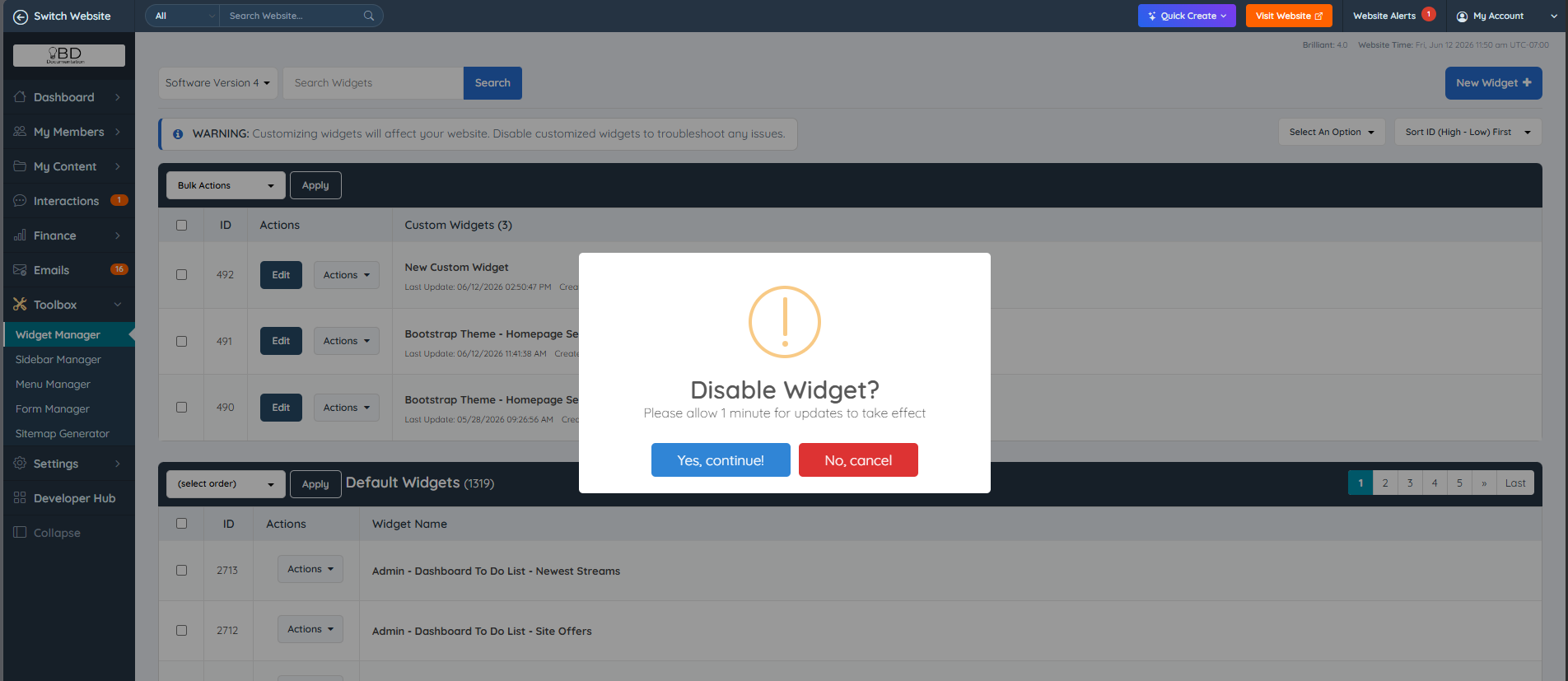
Once clicked, a confirmation pop-up will appear:
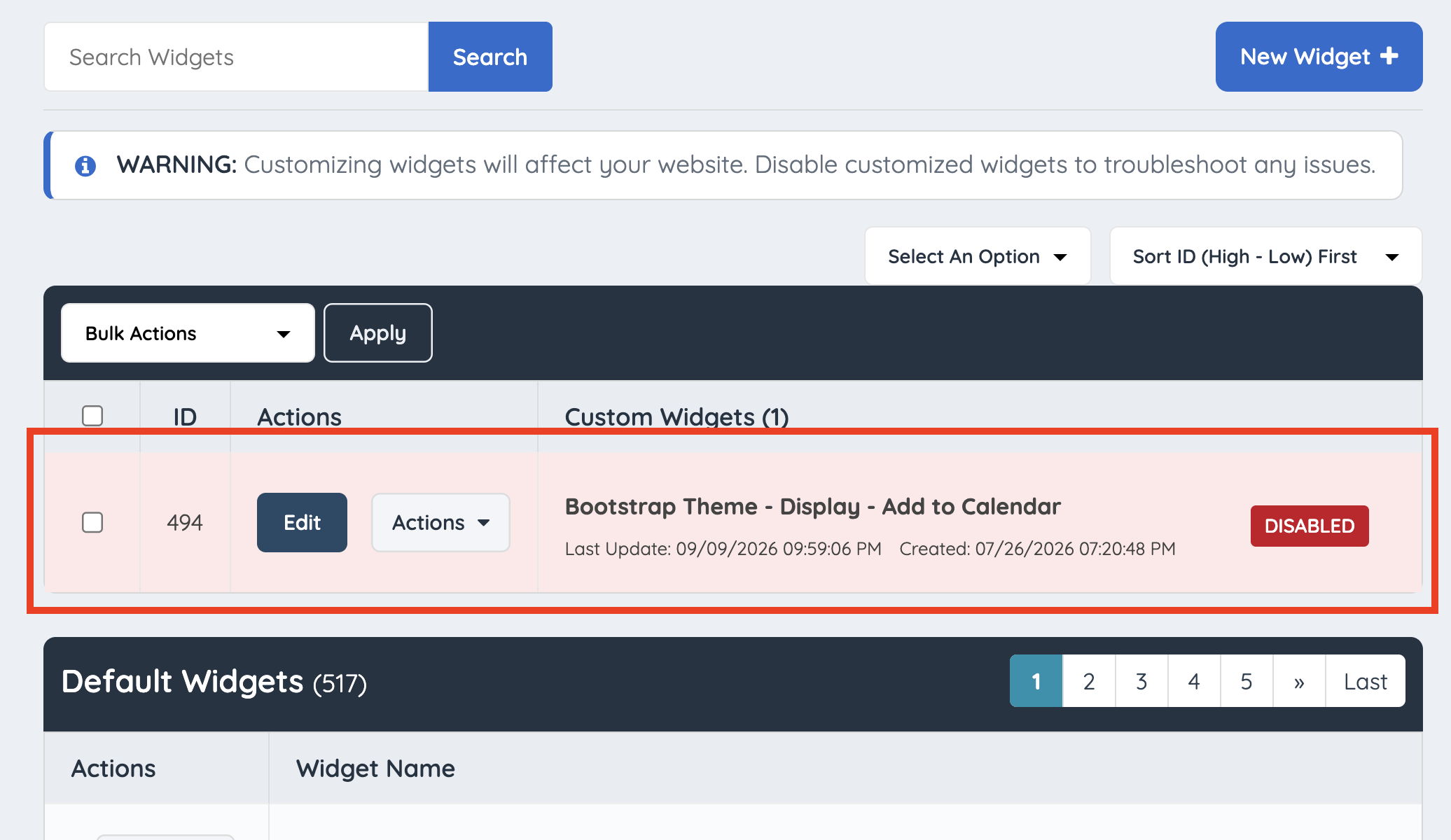
Once confirmed, the widget is highlighted in red and a "DISABLED" tag is added to it:
Re-Enabling a Widget
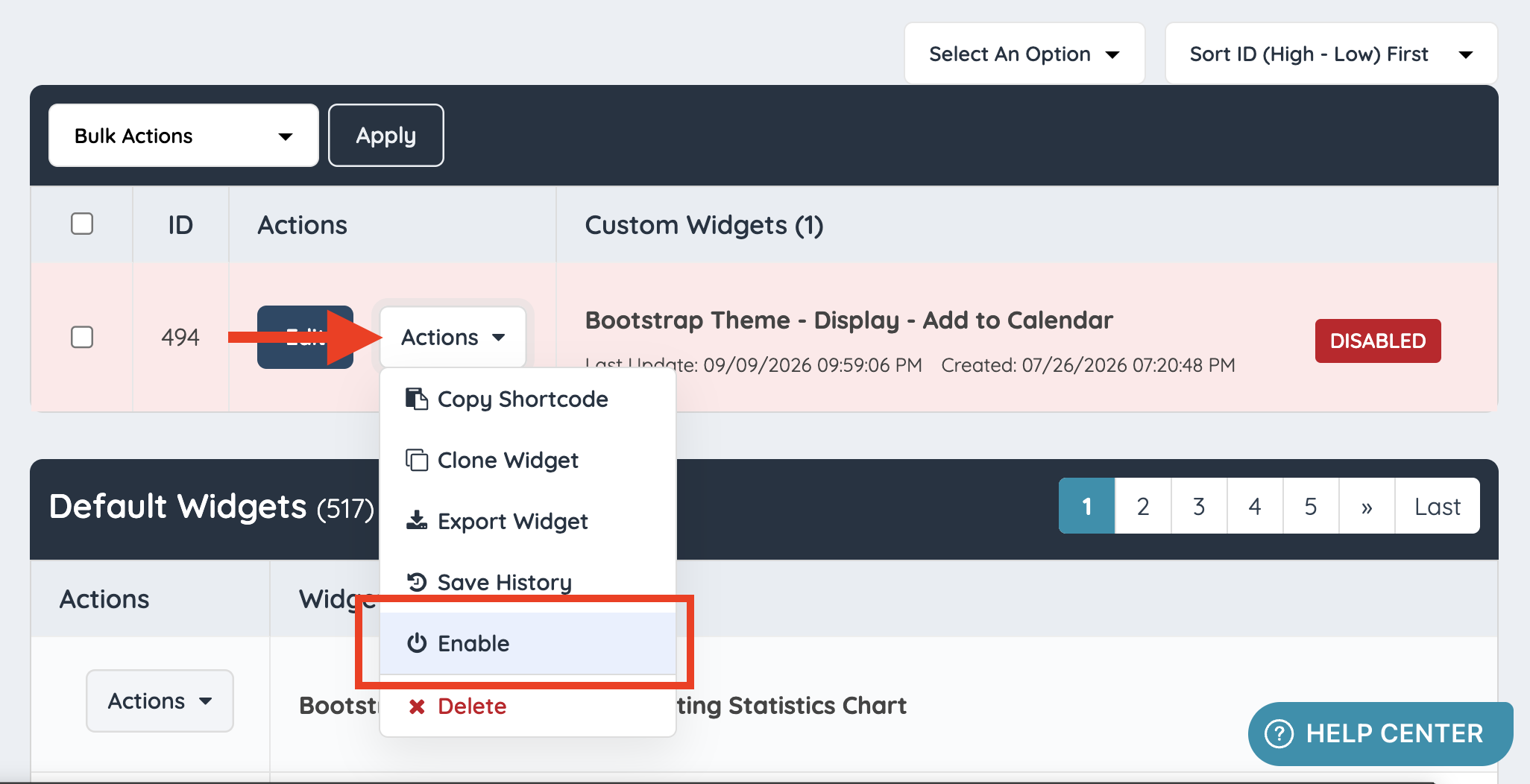
To re-enable a widget, click Enable in the Actions dropdown:
Filtering Enabled and Disabled Widgets
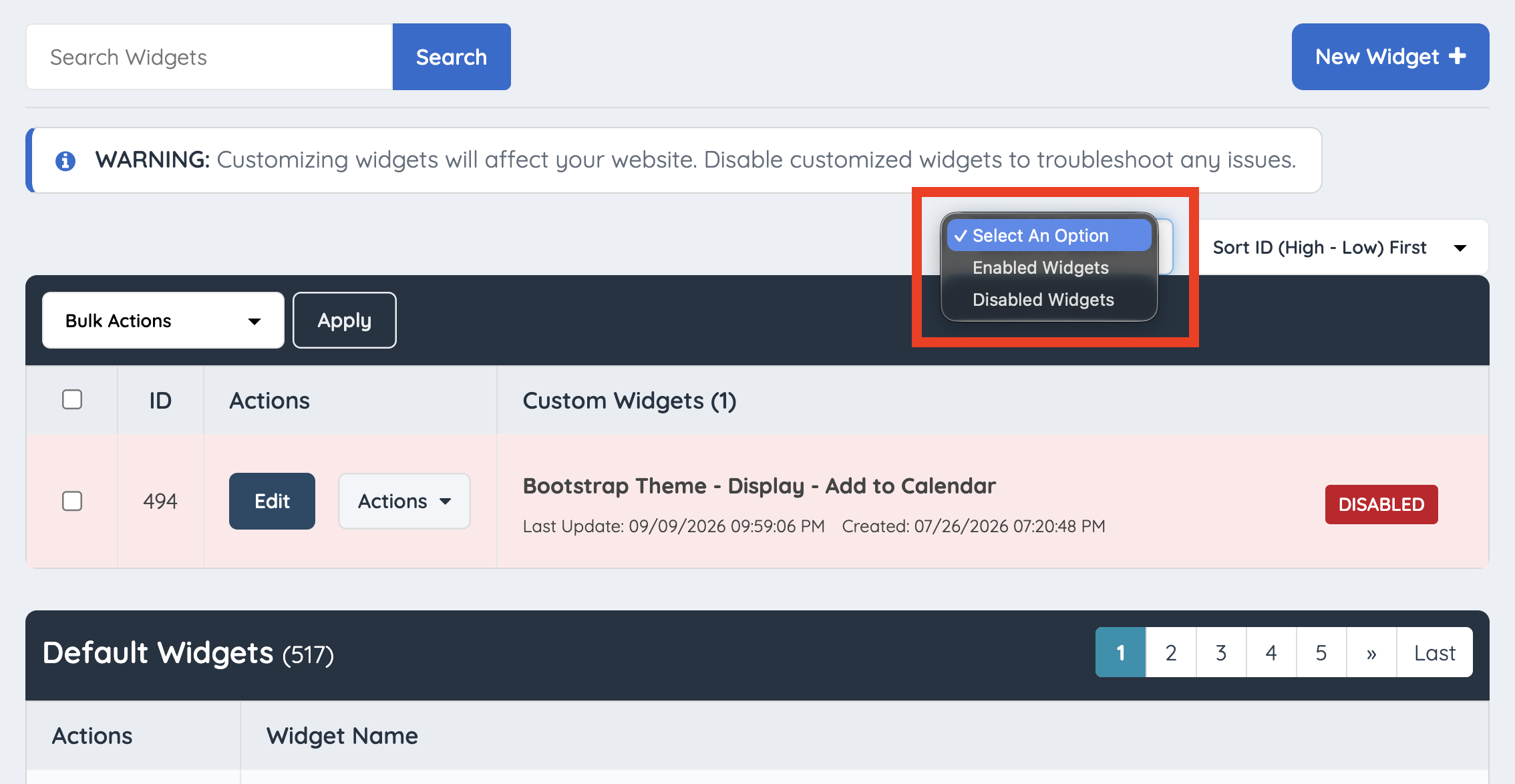
To filter between enabled and disabled widgets, use the Enabled / Disabled filter dropdown:
IMPORTANT: If two customized widgets on a site have the exact same name, the widget with the greater ID number is used. To prevent conflicts and confusion, rename or disable the version of the widget that should not be used on the website.
