
Social share images help control the image displayed when member profile pages are shared on social media platforms. Brilliant Directories provides options to set a custom image for individual members or use the member’s Profile Cover Photo as the social share image.
Set a Custom Image for Individual Members
Website administrators can set a custom Social Share Image for individual members. This image will be used when the member's profile page is shared on social media.
To set a custom Social Share Image for a member:
- Navigate to Members → Search Members.
- Locate the member and click Quick Edit.
- Click the Advanced Options tab.
- Locate the Listing Social Meta Image field.
- Upload or select the desired image.
- Click Save Changes.
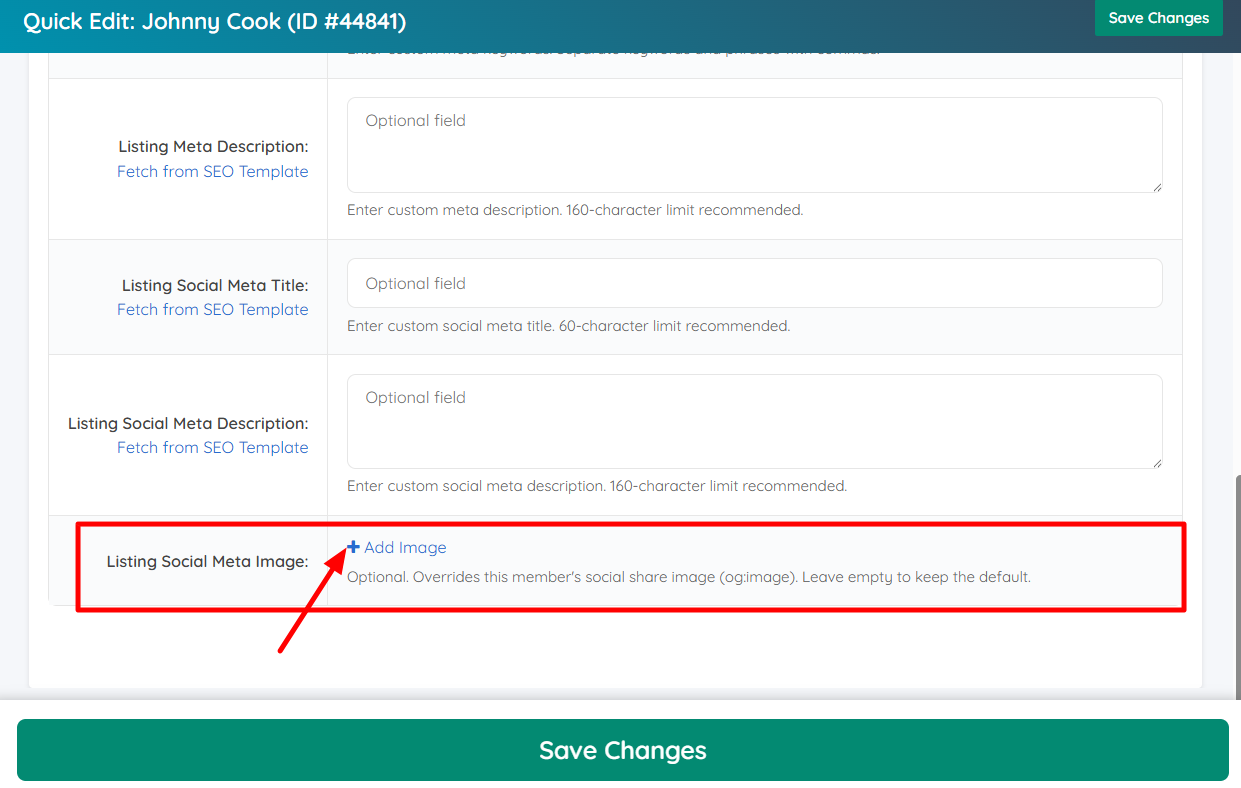
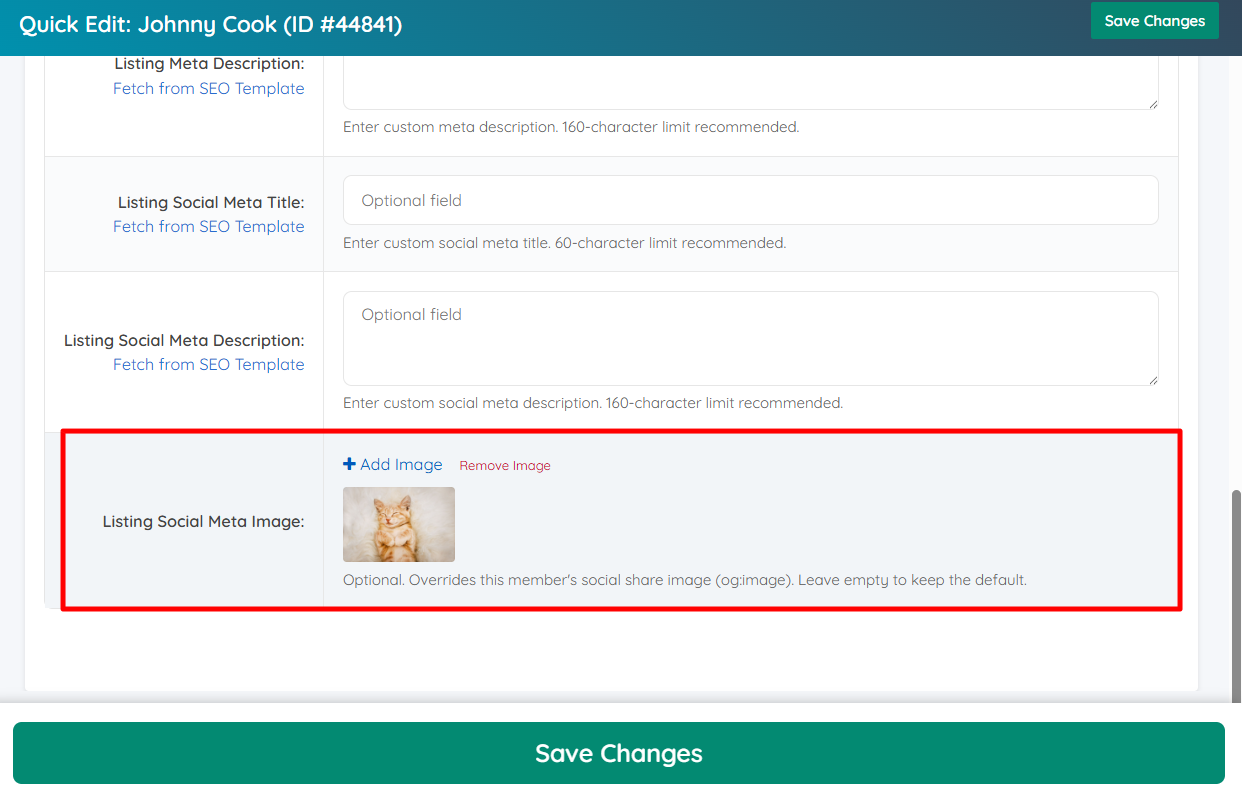
Important: When a Social Share Image is selected for an individual member, this image will take priority over the member's Profile Cover Photo when the profile is shared on social media. If no image is selected, the default social share image behavior will apply.
Use the Profile Cover Photo
The Profile Cover Photo can also be used as the social share image for member profiles by enabling the following Advanced Setting:
Prioritize Profile Cover Photo As Social Share Image
System Variable: profile_share_cover_photo_priority
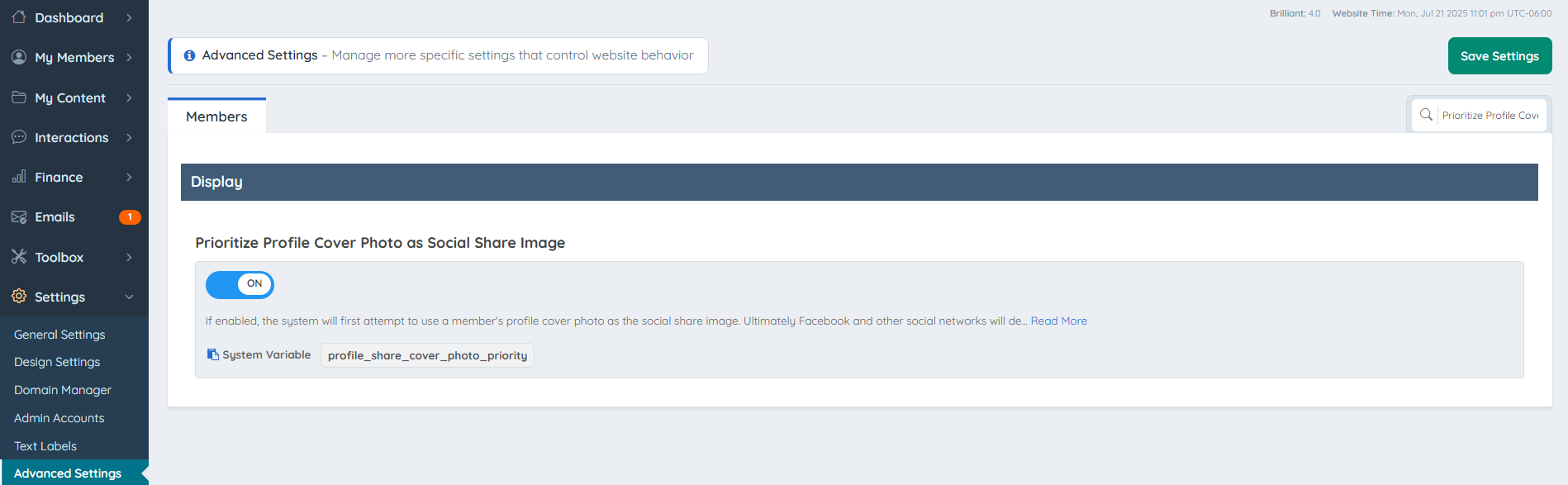
**Important: Ultimately Facebook and other social networks will decide to use the profile cover photo if the image dimensions meet the minimum criteria. If the criteria is not met, then social networks will choose the next qualifying image on the page as the social share image.
Once the member uploads the Profile Cover photo it will show up on member's profile like this:

If the Advanced Setting is turned on and the member shares the profile on facebook the Profile Cover will be used as the post image:

Social Media Cache
Social media platforms may cache previously shared images. After updating a member's Social Share Image, the previous image may continue to appear temporarily until the social network re-scrapes the member's profile URL.
