
If Google Maps is not loading after the API key was added, the website domain may be missing from the key’s HTTP referrers.
HTTP referrers tell Google which websites are allowed to use the API key. If the website domain is not listed, Google may block the key from working on the site.
Step 1 - Open Google Cloud Credentials
Log in to the Google account connected to Google Cloud and open the Credentials page:
Make sure the correct Google Cloud project is selected at the top of the page.
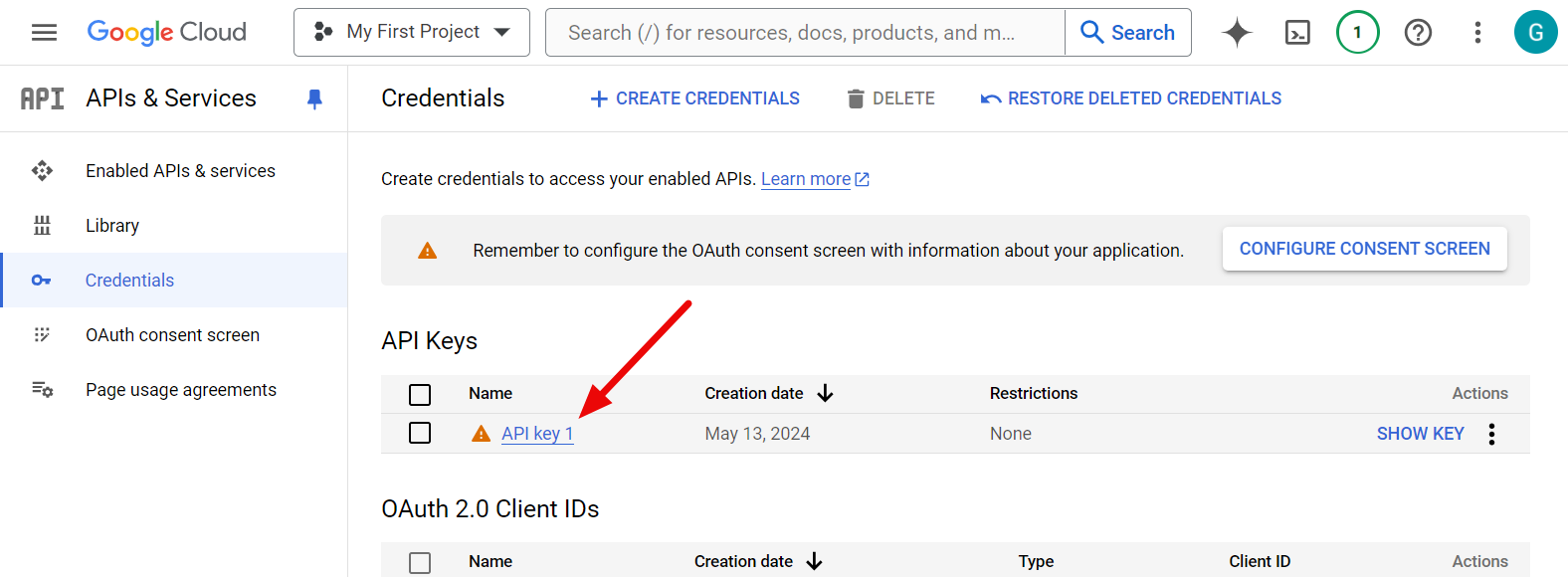
Step 2 - Open the API Key
Find the Google Maps API key and click on it to open the key settings.
Step 3 - Edit the Website Restrictions
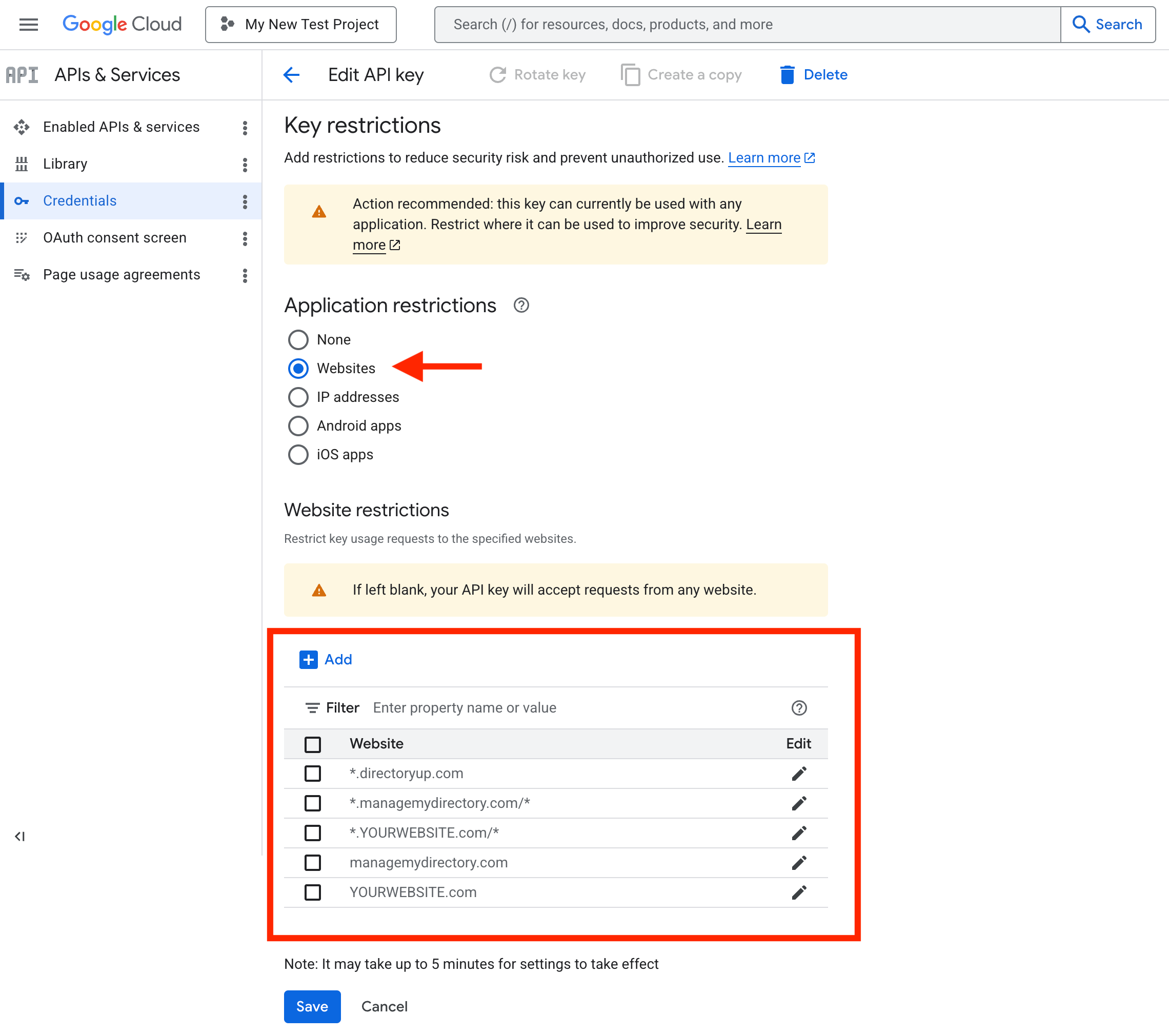
In the application restrictions section, select:
- Websites
Add each approved referrer one at a time.
Required Referrers
Add the following referrers. Replace example.com with the website’s live domain.
- *.directoryup.com/*
- *.managemydirectory.com/*
- managemydirectory.com
- *.example.com/*
- example.com
The directoryup.com referrer is useful if the site is not live yet.
The managemydirectory.com referrers are needed so map-related features can work inside the Brilliant Directories admin area.
The custom domain referrers allow the API key to work on the live website.
Step 4 - Save the Changes
After all referrers have been added, save the API key settings in Google Cloud.
Once saved, refresh the Brilliant Directories website and test the map again.
