
This article covers the available settings found in the "Post Publishing" tab when editing a membership plan. In general, this section allows selection of which membership plans can publish certain types of posts.
Navigate to Finance » Membership Plans:
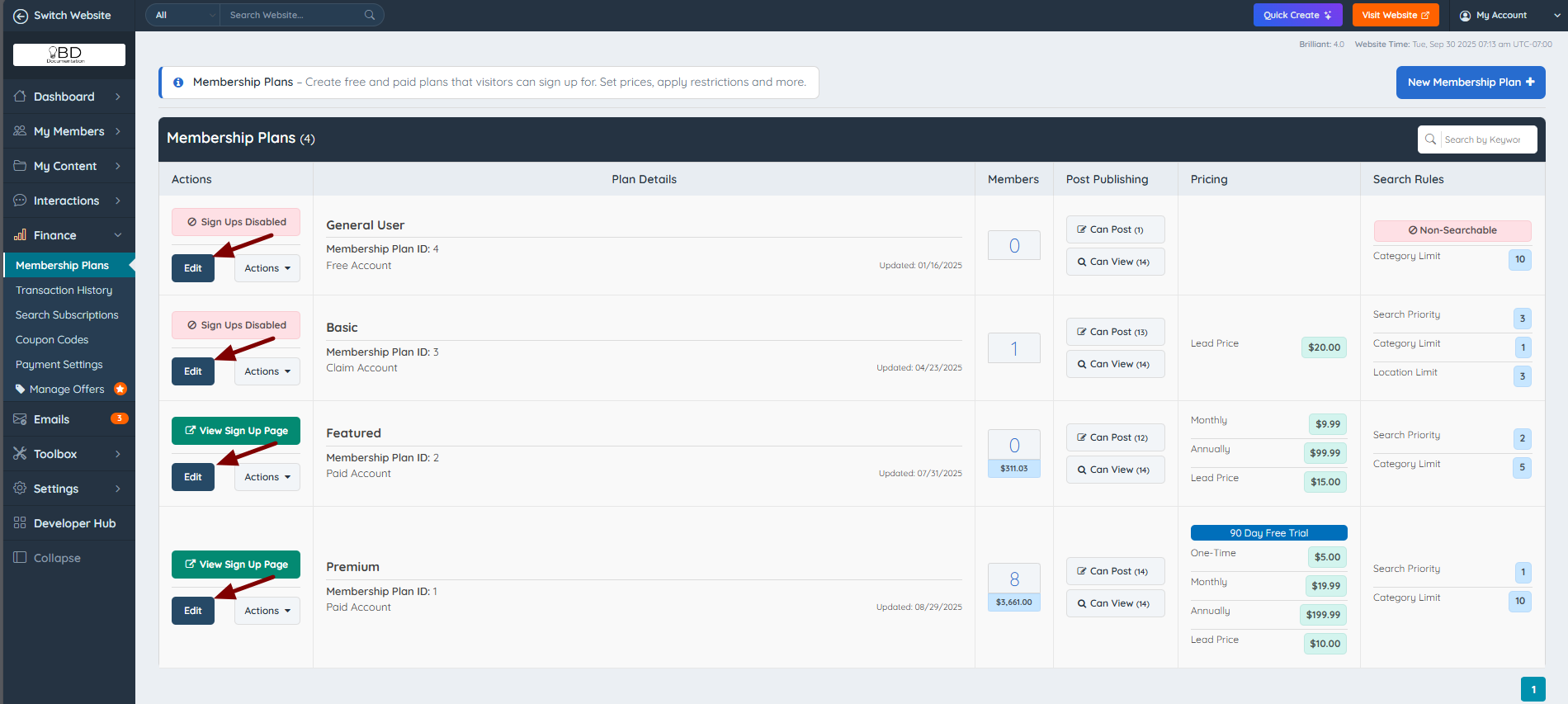
From here, go to "Post Publishing":
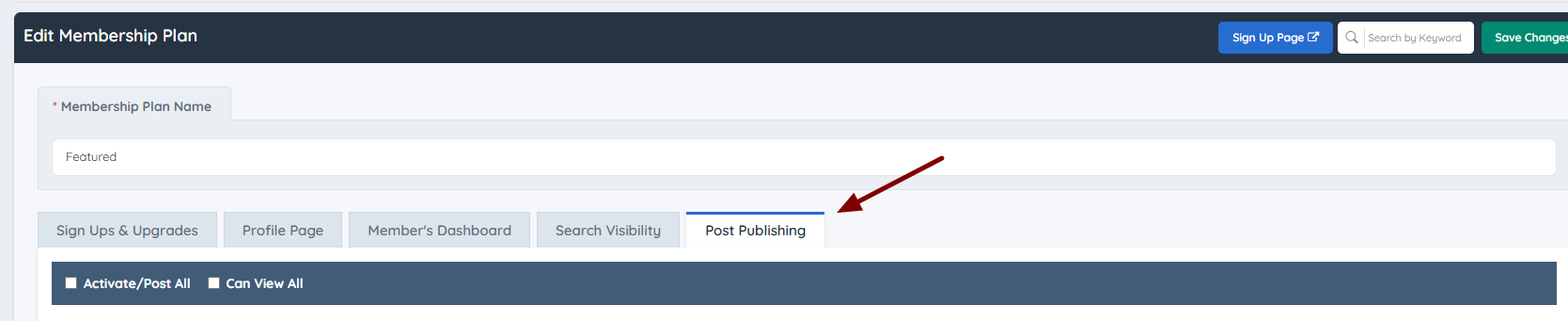
Configuring Post Publishing Rules for Each Post Type
These settings allow the definition of publishing rules and restrictions for each membership plan.
1. CAN POST: If this option is checked, members of this plan will have the ability to publish these types of posts. If this option is not checked, members in this membership plan will not be able to publish these types of posts.
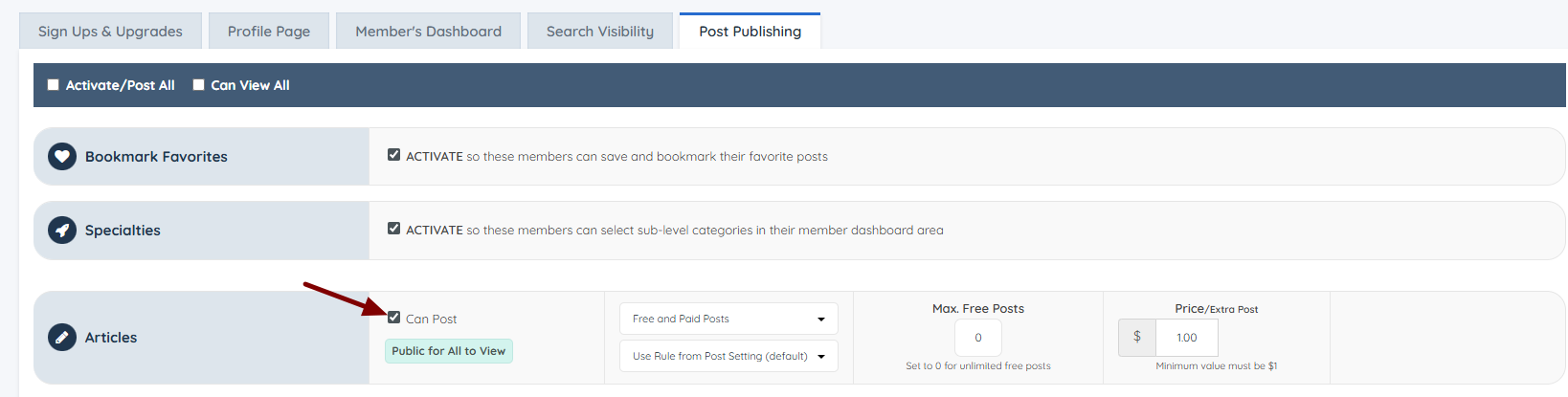

Admin-Only Alert: Some post types display the message “ALERT: Only assign to website admin.” This alert indicates that these posts are restricted and have certain settings that should only be managed by the site administrator. For example, digital products are configured so payments are received by the site admin rather than individual users., making it important that only the admin manages these settings.
2. CAN VIEW: If the Members-Only Content Add-on is active and a post type is restricted to members, ensure that under Content » Edit Post Settings, it is set to an option other than 'Keep Public for All Visitors.'

If the post type is set to "Keep Public for All Visitors," then the "Can View" checkbox will not display, and instead there will be a badge that says "Public For All". It cannot be changed because the posts are public for everyone.
3. Post Moderation setting will overwrite the "Post Approval" option selected under Content » Edit Post Settings, if an option other than "Use Rule from Post Settings (Default)" is selected.
The options are:
- Use Rule from Post Settings (Default): This option won't overwrite the settings selected under Content » Edit Post Settings.
- Member Controls Publish Status
- Admin Moderates all Posts
- Auto-Publish All Posts

4. The Add-On "Limit Posts per Member" can determine the maximum number of posts a member can have published at any given time.
Limit Posts per Member allows the admin set how many articles, albums, classifieds, properties, etc. a member can publish.
Allowing members to contribute content to the website provides them with valuable visibility. Reward paying members by allowing them to publish more posts than lower-tier members.
5. The "Pay Per Post" Add-on sets a price per post type.
These are the three options:
- Only Free Posts. No Paid Posts.
- Only Paid Posts. No Free Posts.
- Free and Paid Posts.
Note: If the "Only Free Posts. No Paid Posts" option is set, the system won't let the admin select how many free posts can be published.
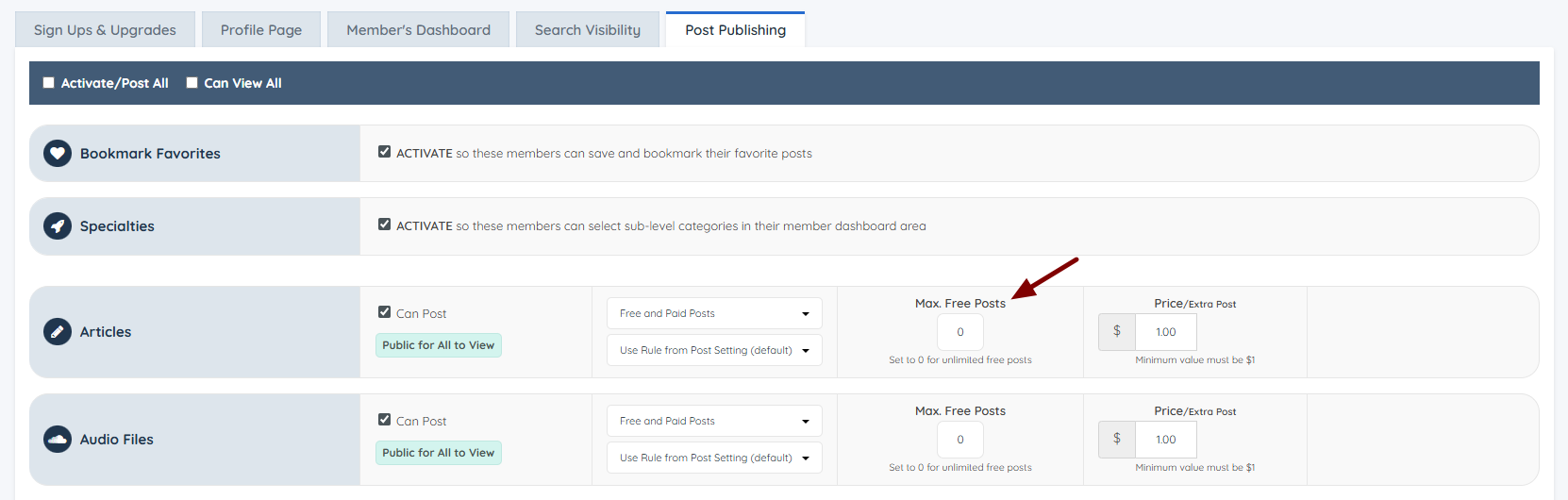
6. Max Free Posts: Set this value to 0 to allow unlimited free posts.
If the maximum number of free articles is set to "1", members in this membership plan will only be able to publish one article for free. If they want to add a second article, they need to pay for it.
7. Price per Extra Post: The minimum value must be 1.
Here, the admin can add the price members will pay per post.
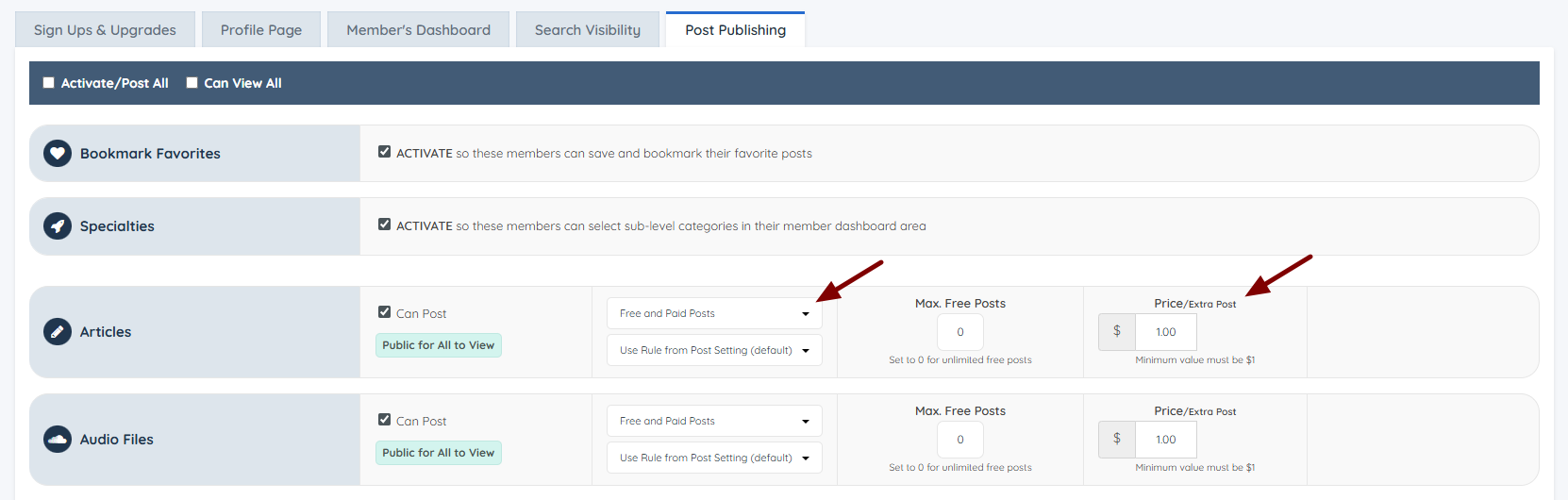
The Pay Per Post add-on allows the owner of the site to charge members a set price each time they publish a piece of content to the website. Pay-per-post prices can be set per membership level.
The Pay Per Post add-on can help generate revenue while encouraging community contributions. The admin can offer free memberships while still generating revenue each time free members publish content.
Note: Keep in mind that if a post type was previously enabled for members and is later disabled within these plan settings, the published posts of the now disabled post type will not show up on the website.
