
We will start this article by explaining how to download invoices (Add-on). If information about editing invoice details is needed, scroll down to the 'Modifying Invoice Information' section.
Downloading Invoices:
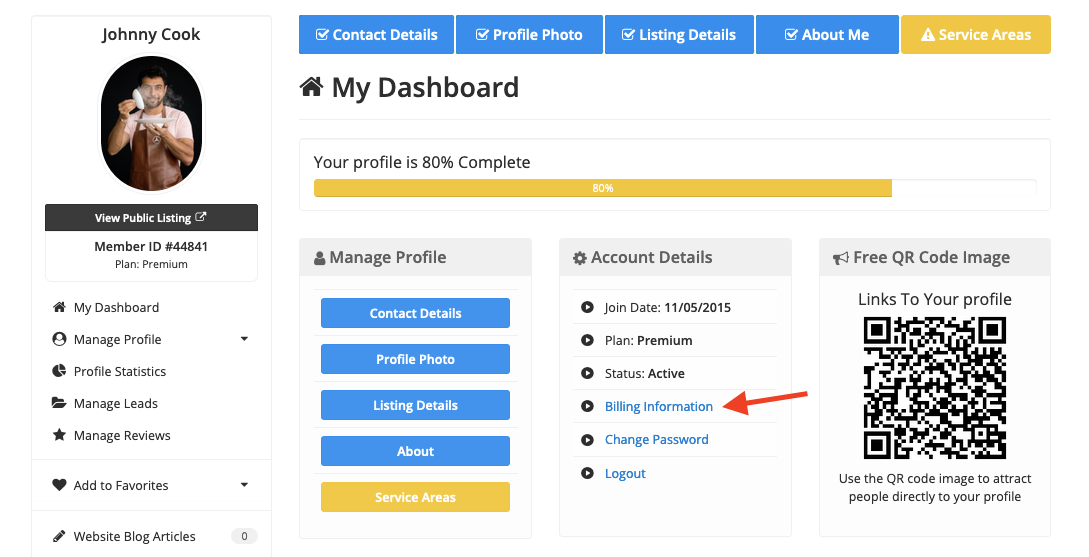
By default, the system does not send invoices automatically after a member pays; however, if the "Downloadable PDF Invoices" add-on is active, members can log in to their account and download the invoices from the Billing Section of their dashboard.
Note: Another add-on is available to send invoices automatically Billing Reminder Emails Add-On.
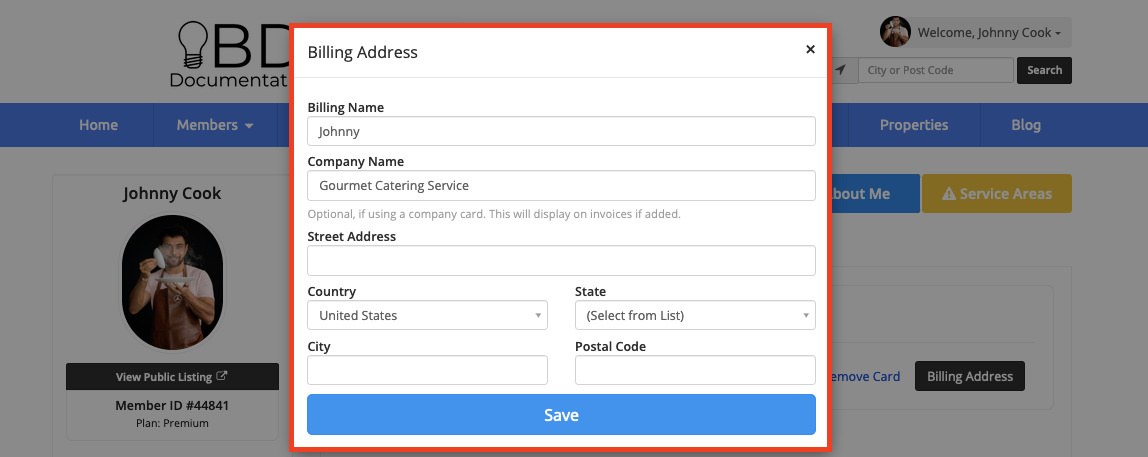
"Invoiced To "Address:
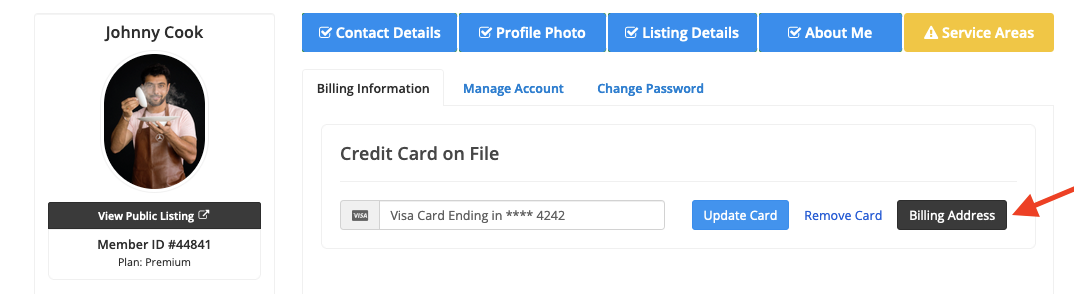
In this section, they can add a billing address. this address will be reflected only on their invoices and it won't modify the listing address.
They can also view the Open and Cancelled Subscriptions:
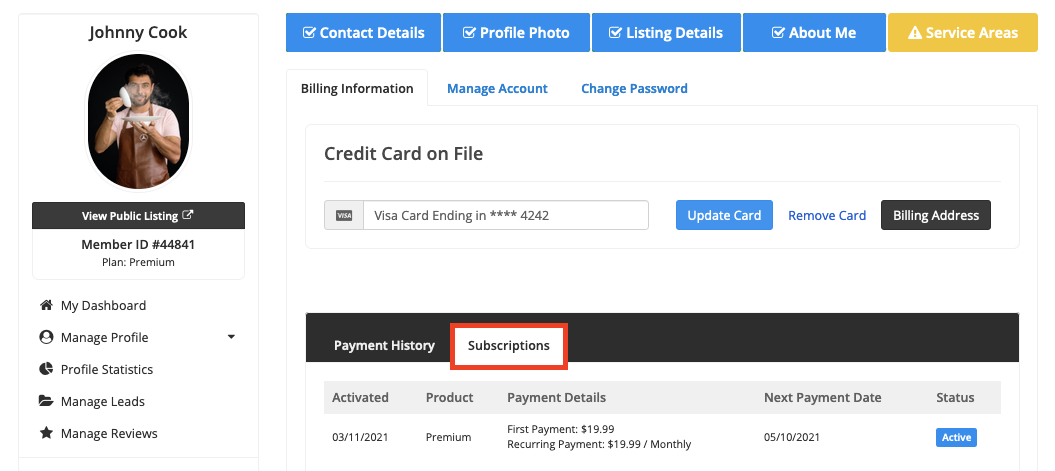
Meaning of Statuses:
Active orders:
This means that this order is still open and if it's recurring, it will auto-renew every 30, 90, 182, or 365 days. If the order (subscription) is "Active" but, it was a One-Time Payment, it won't auto-renew.
Cancelled orders:
This means the order has been cancelled.
When a member is deleted, by default, the system will auto cancel all subscriptions related to the member.
Modifying Invoice Information:
Several invoice elements can be modified or specified.
Invoice "Pay To" Instructions
Usually, the "Pay To" section is empty; if it needs to be added to the site, go to Settings » Advanced Settings » billing_pay_to and add the company information.
The ABN number can be added here to be compliant with Australian tax law or any other VAT number required.
Example:
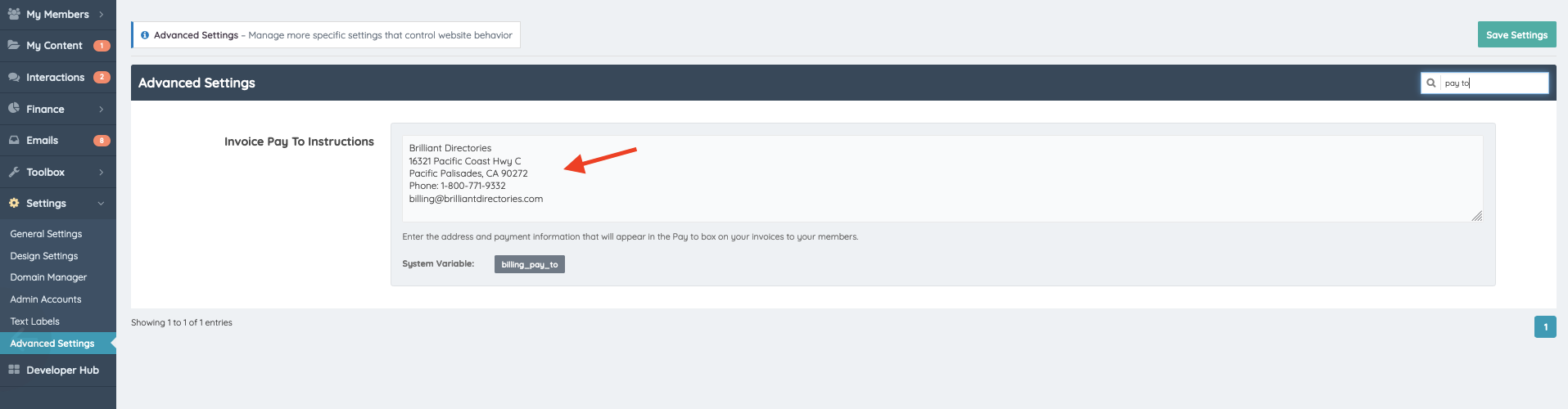
Note: It is not recommended to add more than 5 lines here:
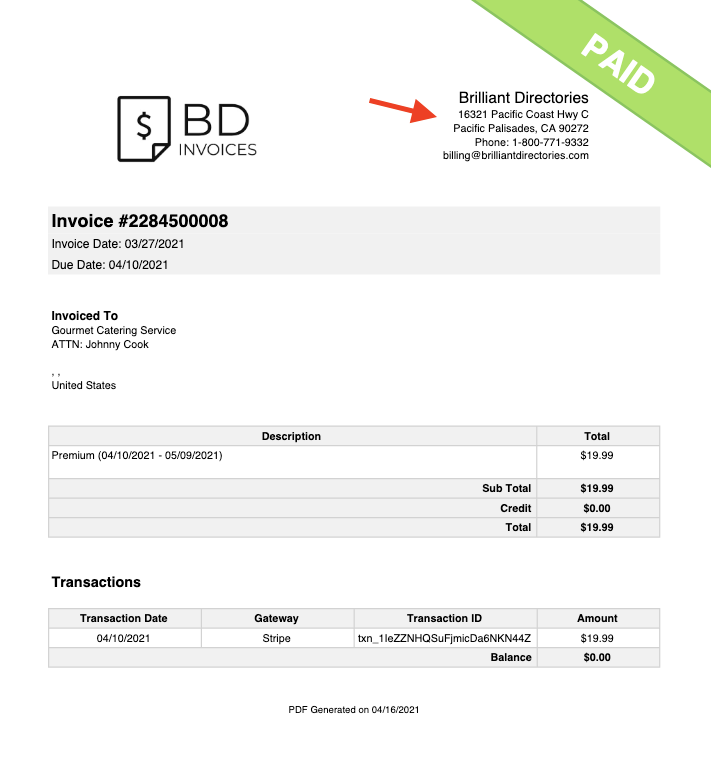
The payment information will be updated automatically by the system, depending on the membership plan, price, or posts purchased.
Important: Once the information is added in the advanced setting, make sure to refresh the website cache to reflect the change on all invoices. See how: Refresh the Cache.
Invoice Language:
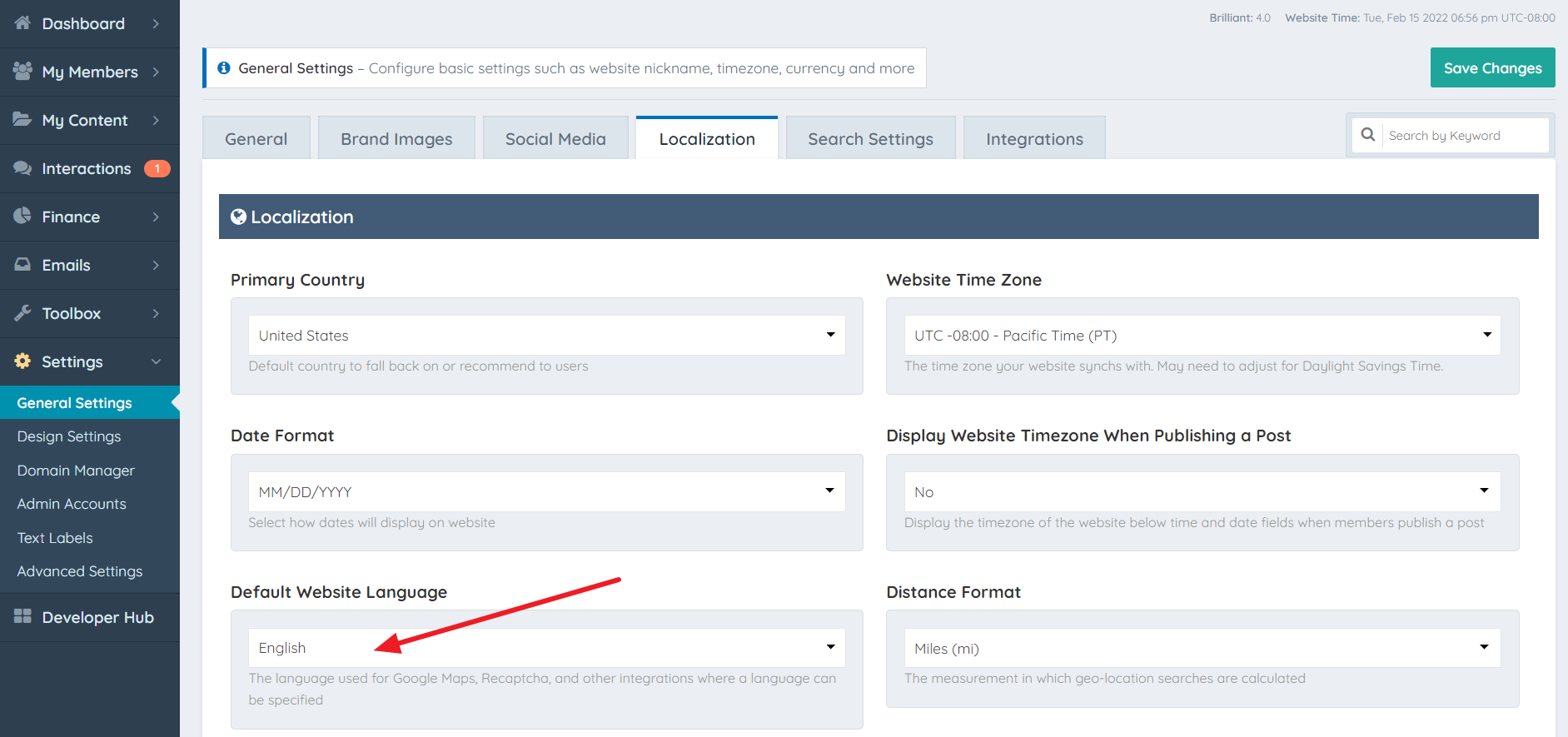
If the language of the PDF invoice needs to be edited go to Settings >> General Settings >> Localization tab >> Default Website Language:
Invoice Logo
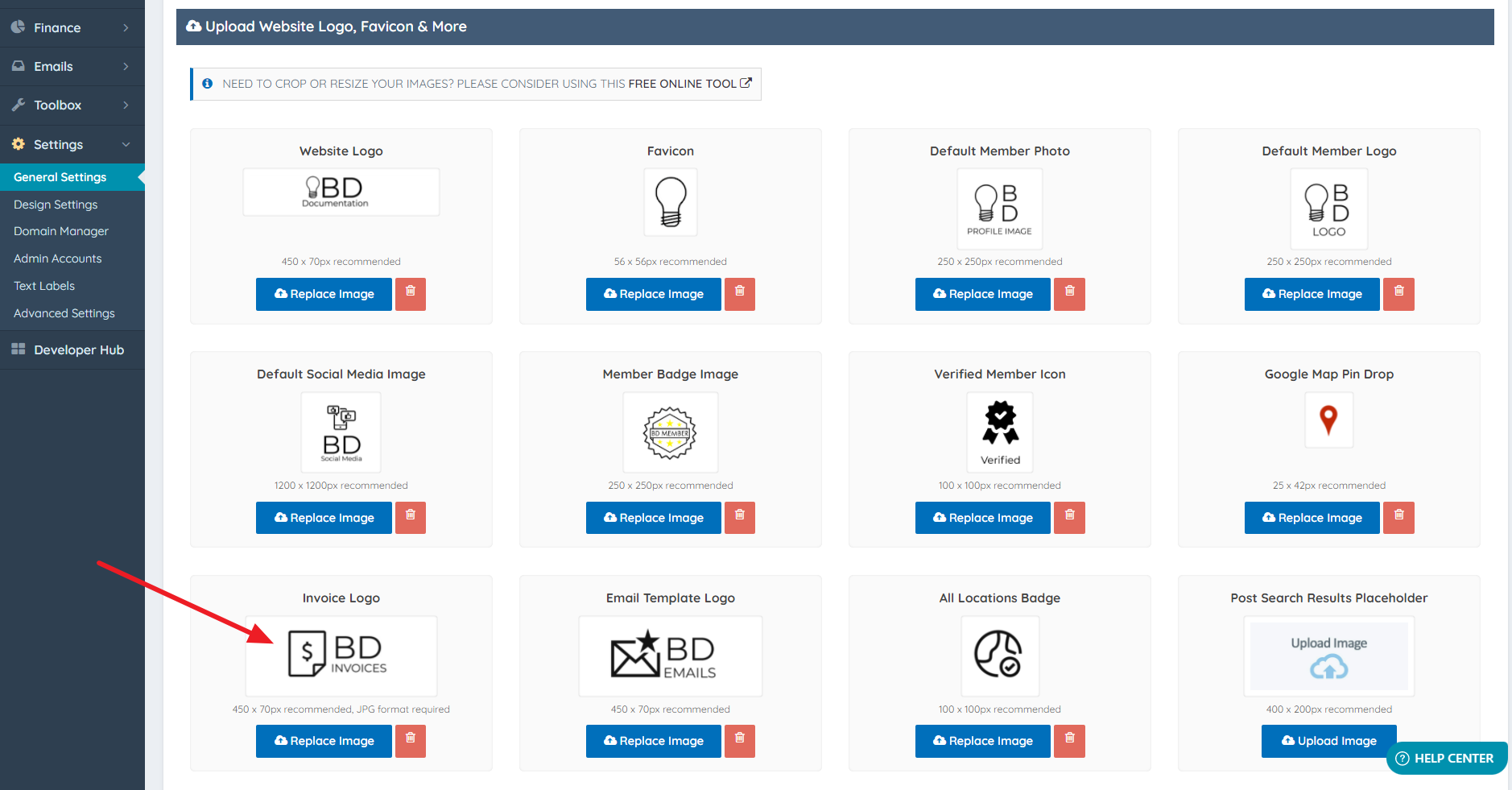
By default, the system will use the "Website Logo" but if it needs to be replaced due that it is too big or a new logo needs to be used, then upload a new "Invoice Logo". The image must be in JPG format..
To upload an Invoice Logo go to: Settings >> General Settings >> Brand Images section.
For more information about downloading invoices, see this article: How To Download Invoices
