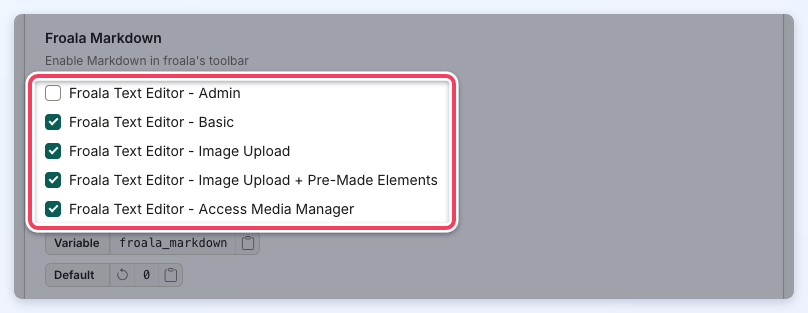
When creating a post, such as a blog article, members write in a Froala Text Editor, which allows changing styles such as the font size, font colors, boldness and more.
There are different text editor versions available that either restrict or allow image uploads and video embeds.
Each version is applied to a form field in the Form Manager, so it can be set individually on the forms used for the members' About Me section and for every post type, such as coupons, properties, classifieds, member articles and website blog articles. This form field type is only supported for forms used within the Member Dashboard.
This controls whether members can add images and video embeds to the text editor fields of their posts and their About Me section.
The Froala Editor currently supports 38 languages. The supported languages are listed here: https://www.froala.com/wysiwyg-editor/languages.
The Froala Editor uses the language set in Settings » General Settings » Localization » Default Website Language.
How To Enable Froala Editors
There are four built-in versions of the Froala Text Editor. Any of them can be added to a form, and each one controls things like whether users can upload images or embed YouTube videos.
For details on where each editor is used throughout the site and what features it includes, see Everything About WYSIWYG Editors.
Available Text Editors
The four versions appear in the Form Manager's Type of Field dropdown as:
- Froala Text Editor - Basic
- Froala Text Editor - Image Upload
- Froala Text Editor - Image Upload + Pre-Made Elements
- Froala Text Editor - Media Manager Access
Froala Text Editor - Basic
No image upload, video embed or source code editor.
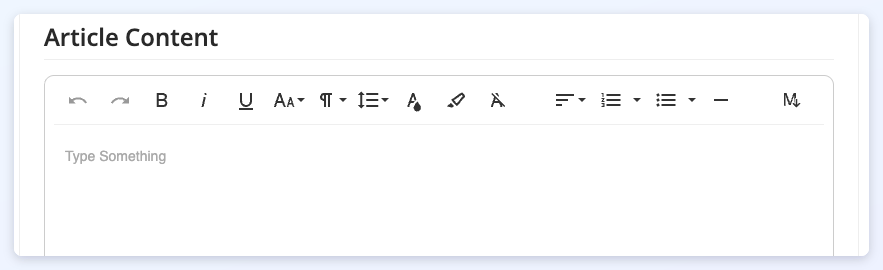
A basic text editor with options to change the font size, colors and styles, and to create bulleted and numbered lists. It includes the following options:
- Undo and Redo
- Bold
- Italic
- Underline
- Font Size
- Paragraph Format
- Line Height
- Text Color
- Background Color
- Clear Formatting
- Align
- Ordered List
- Unordered List
- Insert Horizontal Line
An Insert Link button is added when the advanced setting Allow Live Links in Member About Me Text is on.
With the basic editor, members CANNOT:
- Upload images
- Embed videos
- Edit source code
- Insert a table
Froala Text Editor - Image Upload
Allows image uploads, video embeds and the source code editor.
Allowed image formats: GIF, JPEG, JPG, PNG, SVG and WebP.
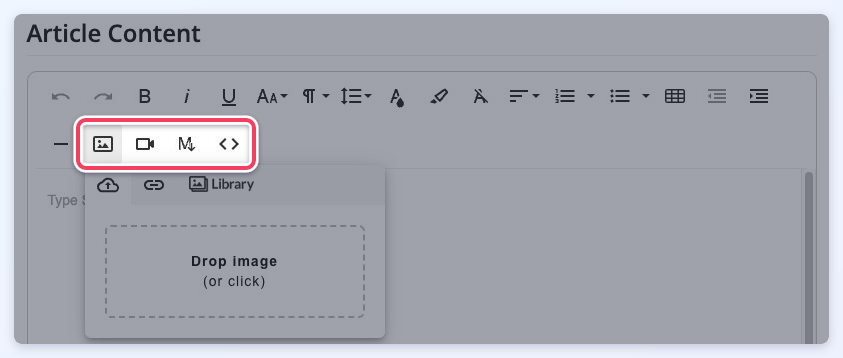
It includes the same styling options as the Basic editor, and adds the ability to:
- Upload images and GIFs
- Embed YouTube videos
- Insert a table
- Edit source code (Code View)
- Decrease or increase indent
Froala Text Editor - Image Upload + Pre-Made Elements
Allows image uploads, video embeds, the source code editor and Pre-Made Elements.
Allowed image formats: GIF, JPEG, JPG, PNG, SVG and WebP.
It includes everything in the Image Upload editor and adds the Pre-Made Elements button.
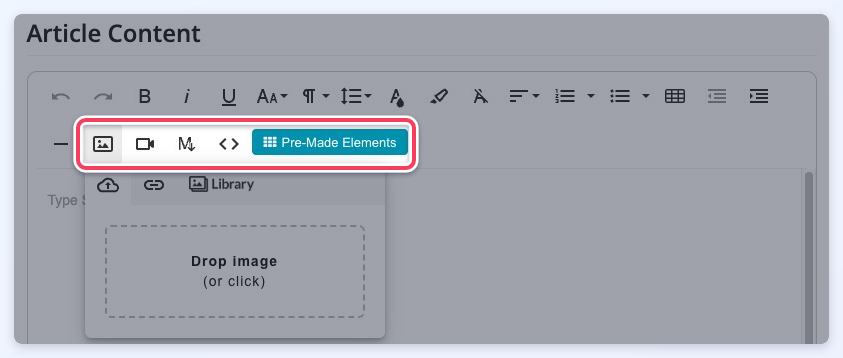
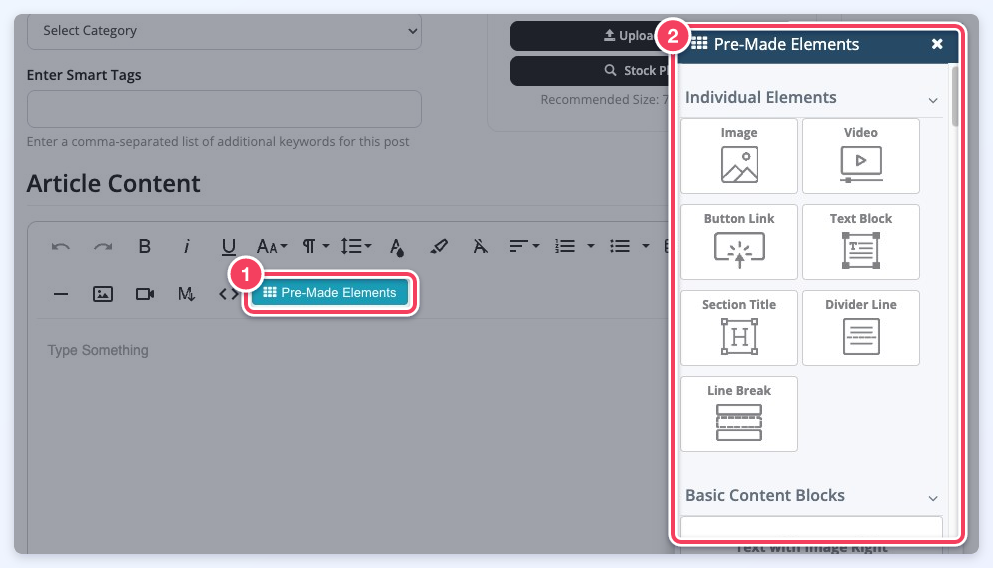
Clicking Pre-Made Elements (1) opens the Pre-Made Elements panel (2), with ready-made blocks such as images, videos, button links, text blocks and section titles:
Froala Text Editor - Media Manager Access
Allows image uploads, video embeds, the source code editor, Pre-Made Elements and browsing previously uploaded images.
This is the editor used by default for Website Blog Articles. It also includes the Font Family option. In the Insert Image menu, it adds a Browse button next to the upload and link buttons:
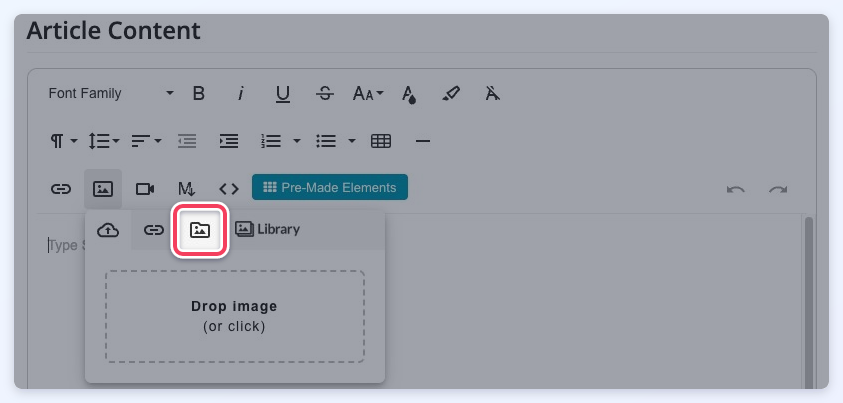
Browse opens the Manage Images window. What that window lists depends on who is using the editor:
- Members see only the images they have uploaded through the text editor themselves. Images a member uploads are stored in a folder of their own, so members never see the website's Media Manager or images uploaded by anyone else.
- Admins using the text editor in the admin area browse the website's shared Media Manager, as before.
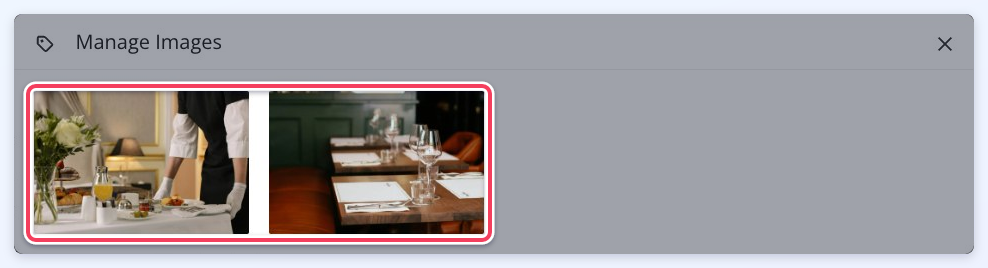
Clicking an image in the Manage Images window and then its plus icon inserts it into the post:
Note: in Settings » Advanced Settings, this editor is listed as Froala Text Editor - Access Media Manager.
Froala Editor Usage
To add any of the Froala Text Editors to a form:
1. Go to Toolbox » Form Manager and click Edit on the form. A form listed under Default Forms must first be customized: open its Actions menu and click Customize, which creates an editable copy under Custom Forms.
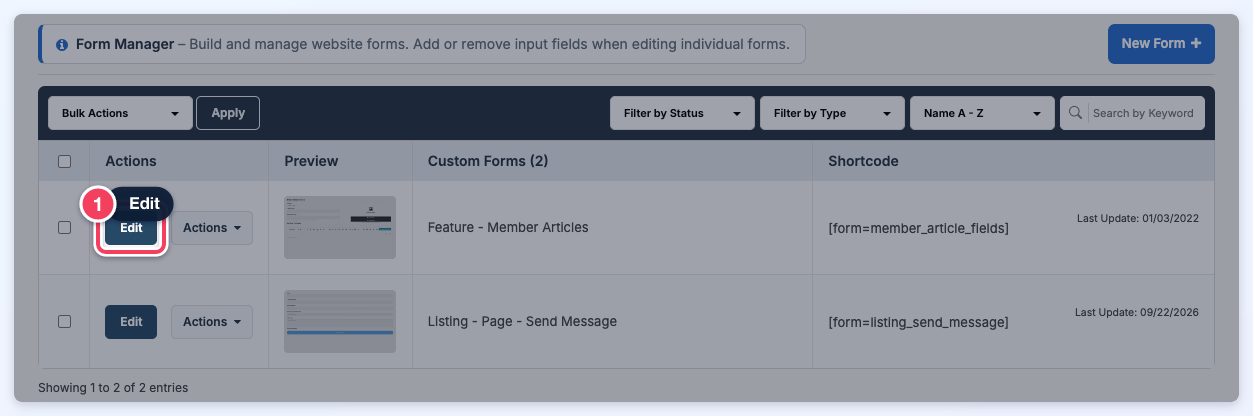
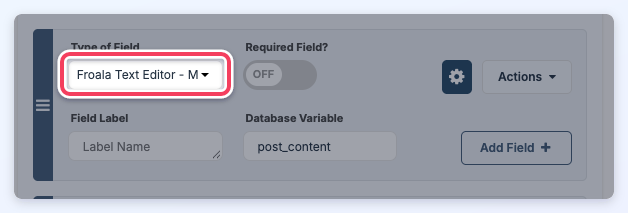
2. On the text editor field, select one of the four Froala Text Editor versions in the Type of Field dropdown:
3. Click Save Changes.
To confirm that the Froala Text Editor - Media Manager Access editor is working, log in as a member who can post to that form and click the Insert Image icon. The Browse button should be displayed, and clicking it opens the Manage Images window with that member's own uploaded images.
Include Images in Website Blog Articles
To add an image inside the body of a website blog article:
1. Log in as a member whose membership plan can post website blog articles.
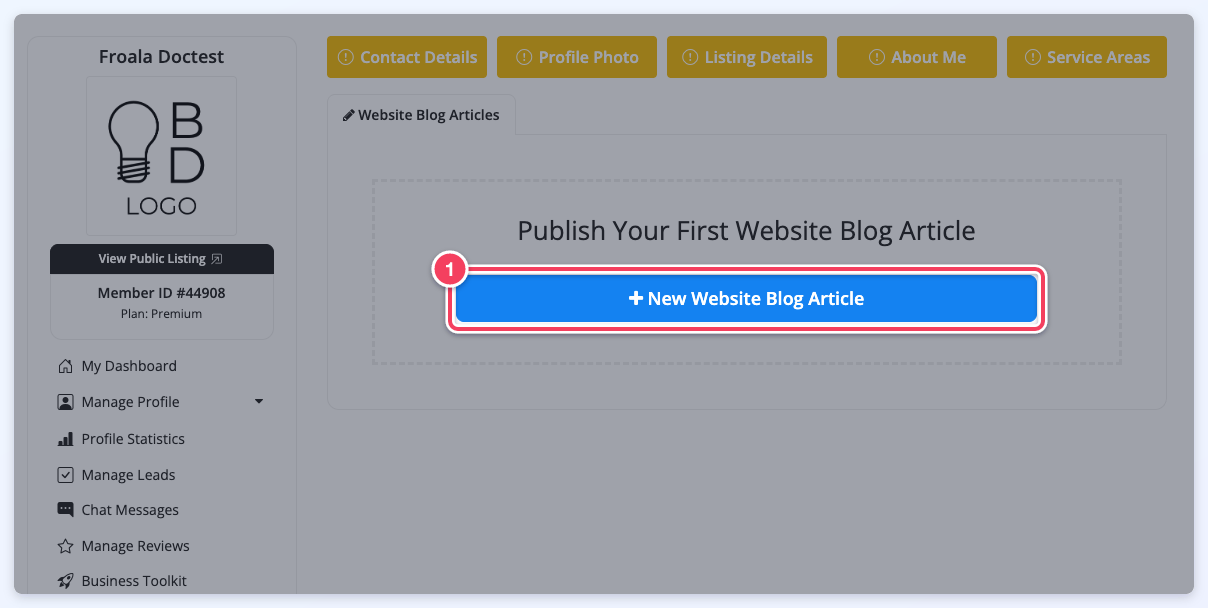
2. Click New Website Blog Article:
3. In the Article Content editor, click the Insert Image icon.
4. Click Drop image (or click), select the image and click Open. The image is uploaded and placed in the article. To reuse an image uploaded earlier, click Browse instead and pick it from the Manage Images window, as shown in the clip above.
Additional Image Options
- Align the image left, center or right
- Add a link to the image and style it
- And much more!
See Everything About WYSIWYG Editors to learn more about the different editor features.
Embedding YouTube and Vimeo Videos
To embed a video in a website blog article:
1. Log in as a member whose membership plan can post website blog articles.
2. Click New Website Blog Article.
3. Click the Insert Video icon.
4. Paste the link to the video. An acceptable format is: https://youtu.be/BoOt6bJNVR8
5. Click Insert. The video now displays in the article.
Adding Embedly to a Froala Editor
An Embed URL (Embedly) button can be enabled on any of the Froala Text Editors used on the front end. The list of Embedly providers is here: https://embed.ly/providers
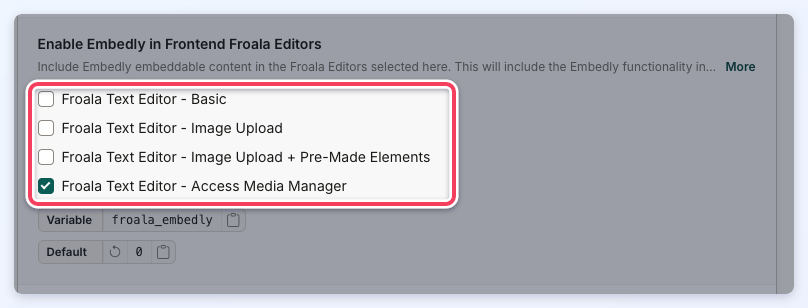
To enable it, go to Settings » Advanced Settings, open the Text Editor tab and tick the editors under Enable Embedly in Frontend Froala Editors, then save the change. The button is added to every editor of each selected type used throughout the website.
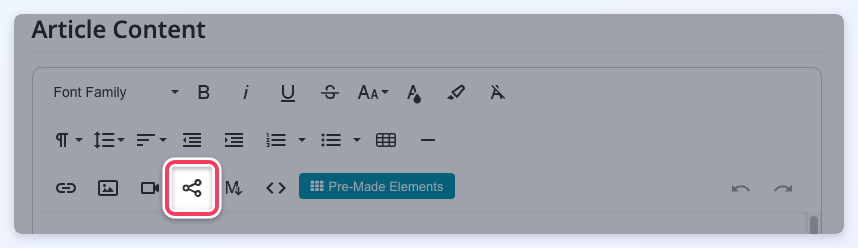
The Embed URL button then shows on the selected editors:
Remove HTML Attributes
The advanced setting Froala Remove Attributes When Pasting Text, on the Text Editor tab of Settings » Advanced Settings, removes the listed HTML attributes when text from another source is pasted into a Froala editor. Enter a comma-separated list, for example 'style', 'id', 'class'.
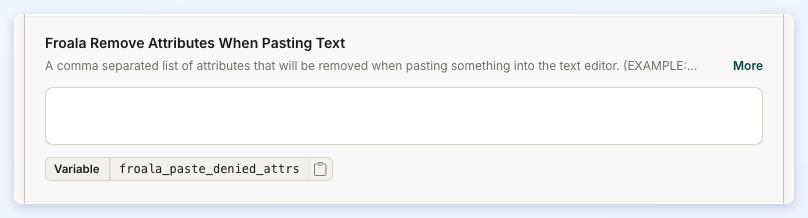
Note: this applies to all Froala editors, including the ones in the admin area.
Froala Markdown
Markdown is an easy-to-use markup language that adds formatting elements (headings, bulleted lists, URLs) to plain text without a formal text editor or HTML tags: https://www.markdownguide.org/
When Markdown is enabled for an editor, a Markdown button is added to its toolbar. Clicking it splits the editor: Markdown is typed on the left and the formatted result shows on the right.
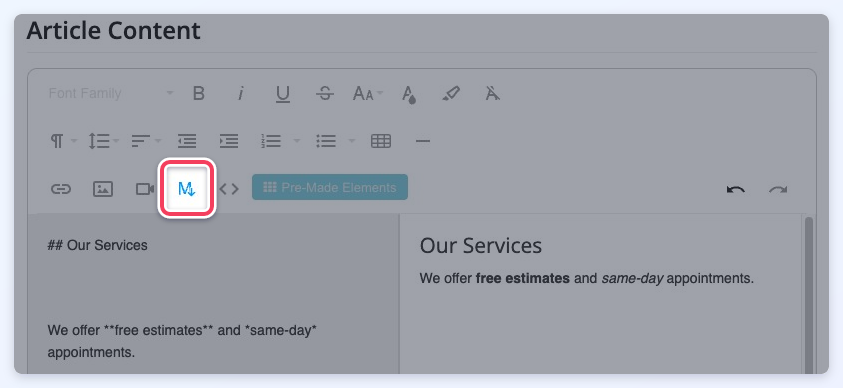
Markdown is enabled per editor with the Froala Markdown setting on the Text Editor tab of Settings » Advanced Settings. It can be turned on for:
- Froala Text Editor - Admin
- Froala Text Editor - Basic
- Froala Text Editor - Image Upload
- Froala Text Editor - Image Upload + Pre-Made Elements
- Froala Text Editor - Access Media Manager