
The Form Manager is a core module of the Brilliant Directories platform, as it contains all forms used throughout the site.
Forms allow members and visitors to submit information, making this the place to create, edit, and customize how data is collected.
How to Access the Form Manager
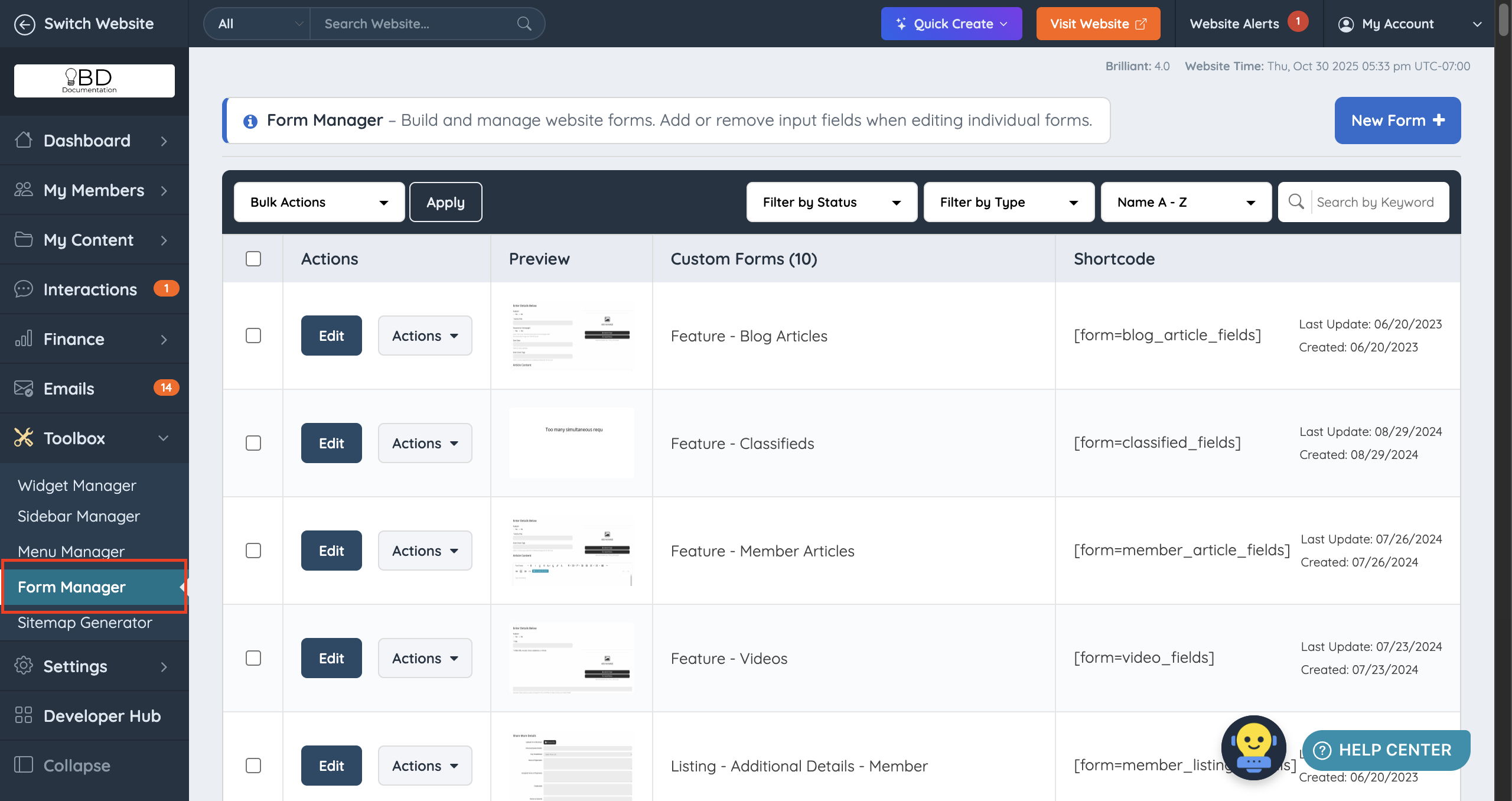
To access the Form Manager, navigate to Toolbox >> Form Manager:
Default Forms
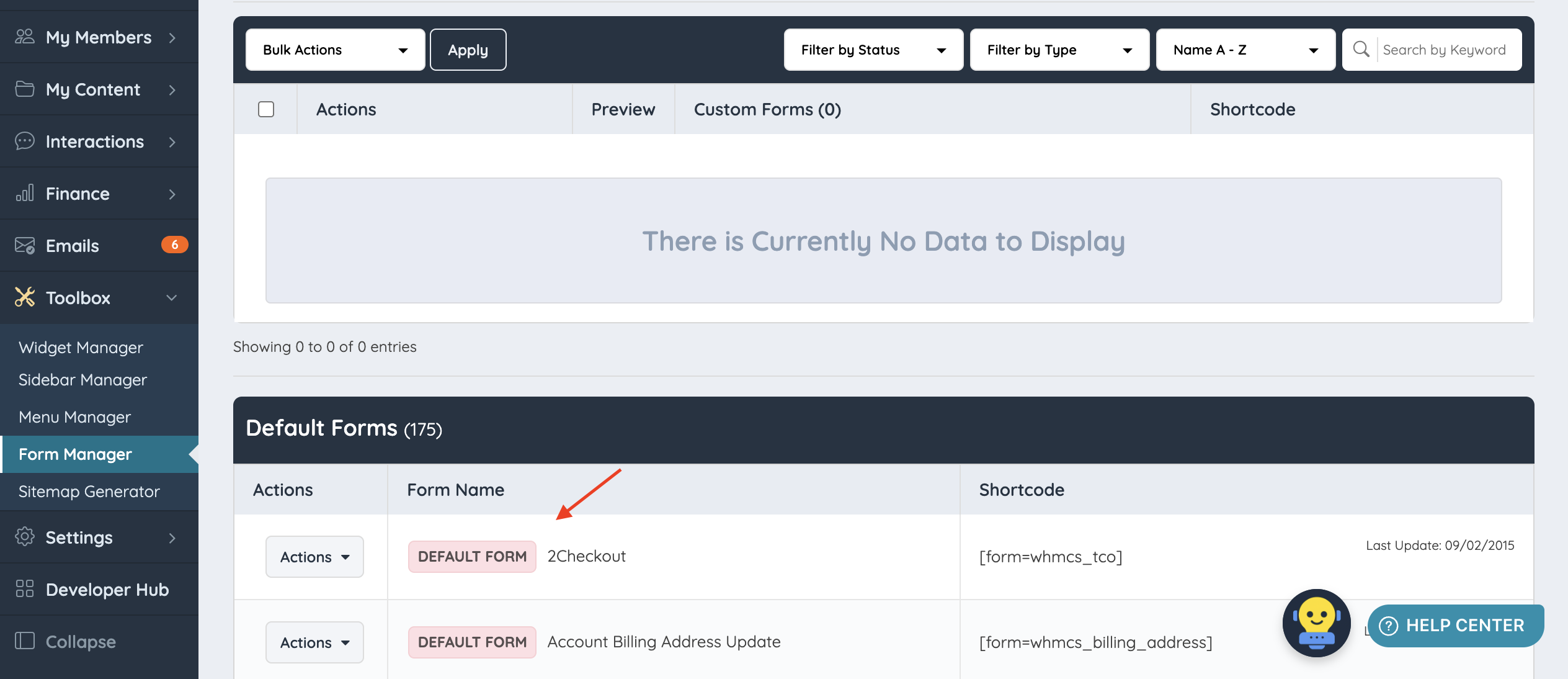
Every Brilliant Directories site includes a set of default forms. These forms are labeled with a DEFAULT FORM tag:
To learn more about default form types, see Default Form Types
Customized Forms
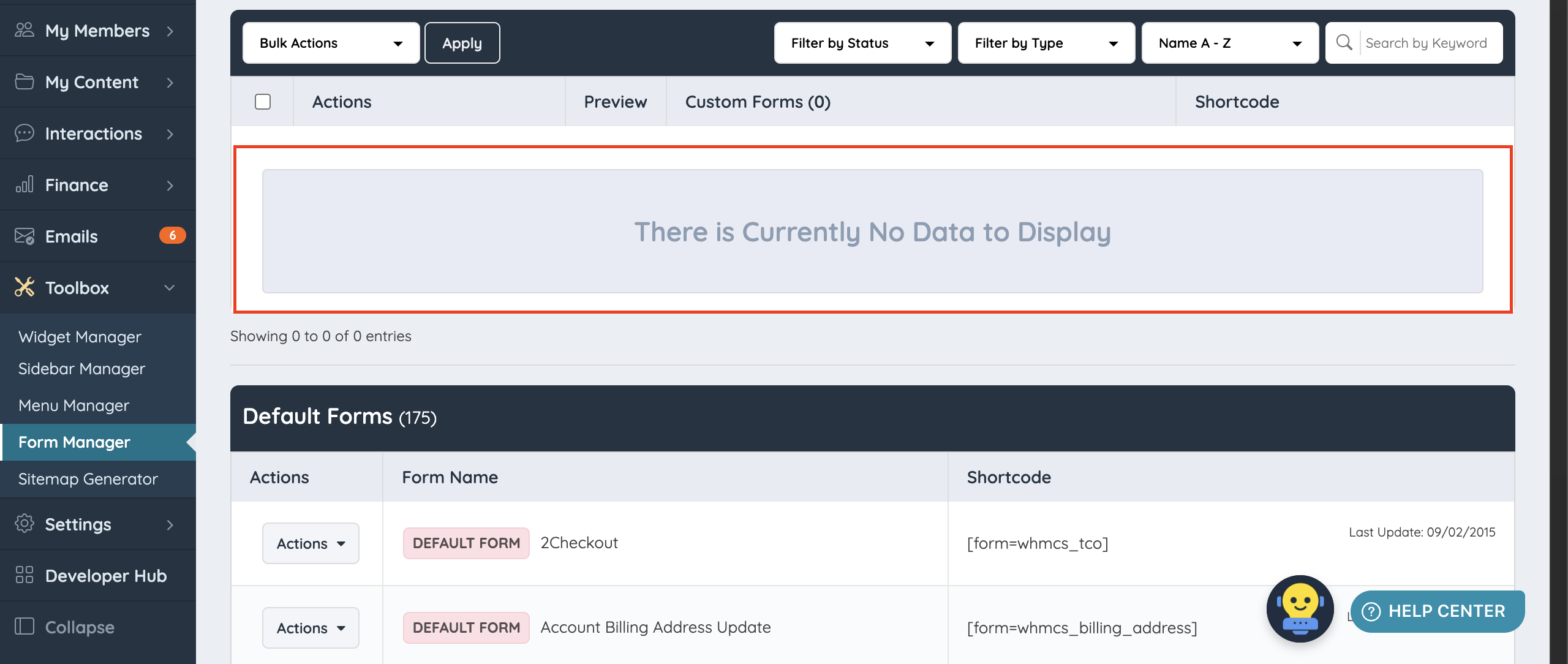
New websites are launched without customized forms:
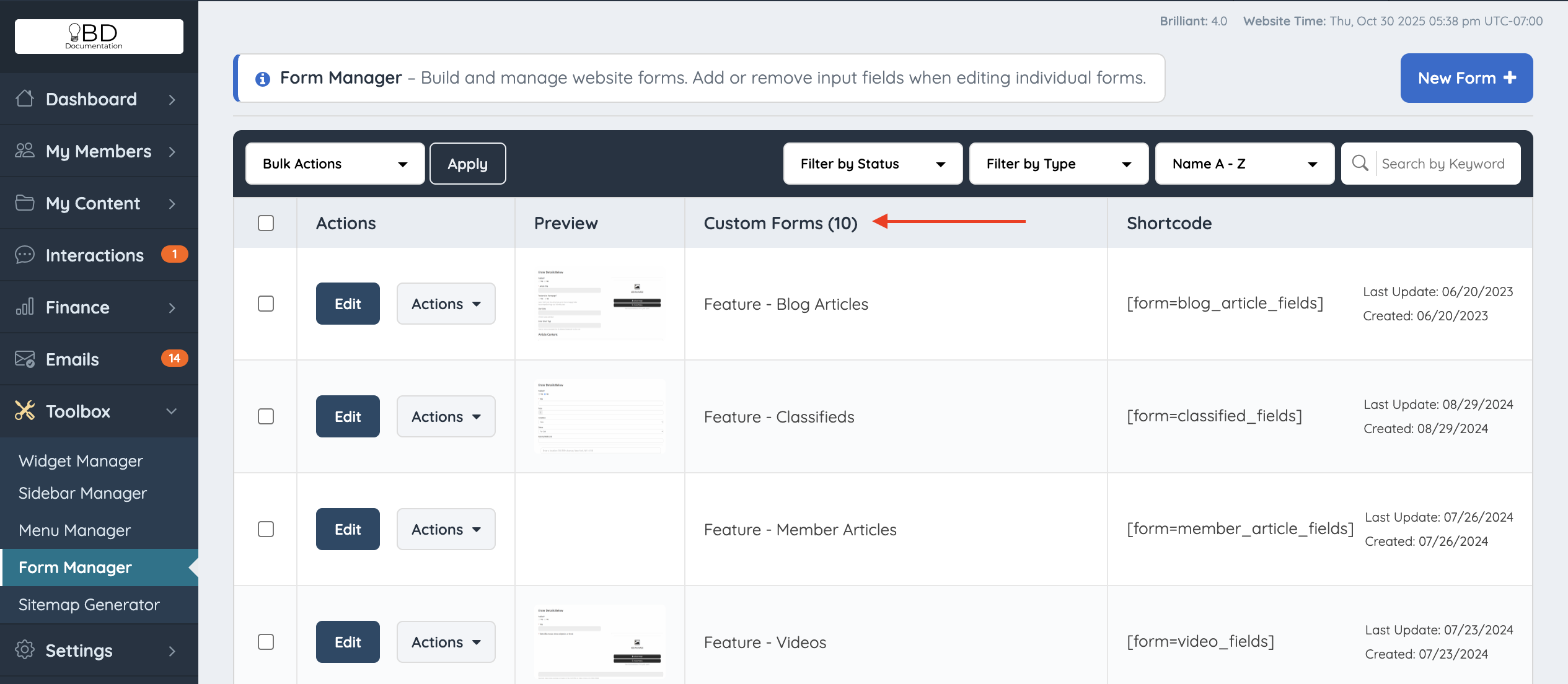
Once a default form is customized, it appears above the Default Forms section:
To learn how to customize a form, see How to Customize a Form
Bulk Actions
Bulk actions are available for custom and newly created forms:
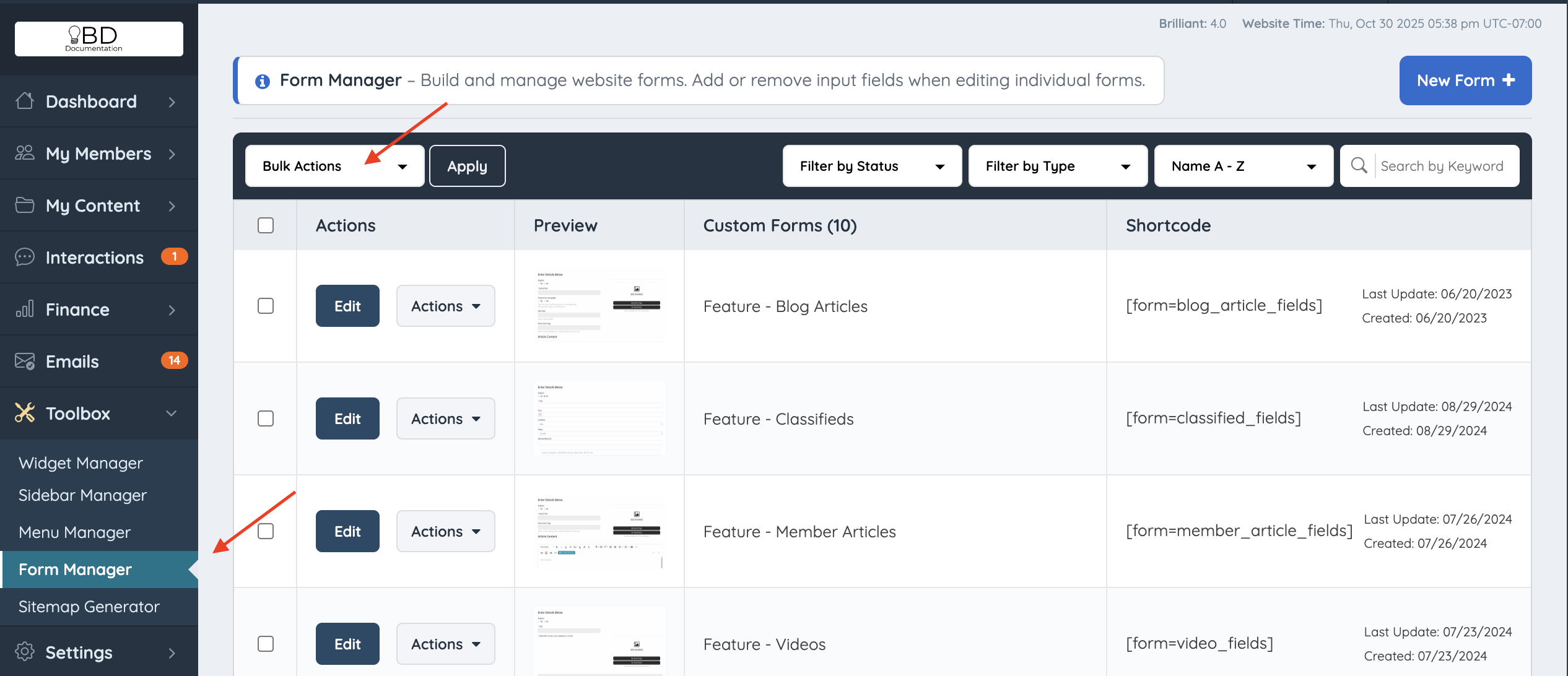
To learn more about bulk actions, see Bulk Actions for Forms
Form Filters
Filters organize forms by status, type, alphabetical order, or last update:
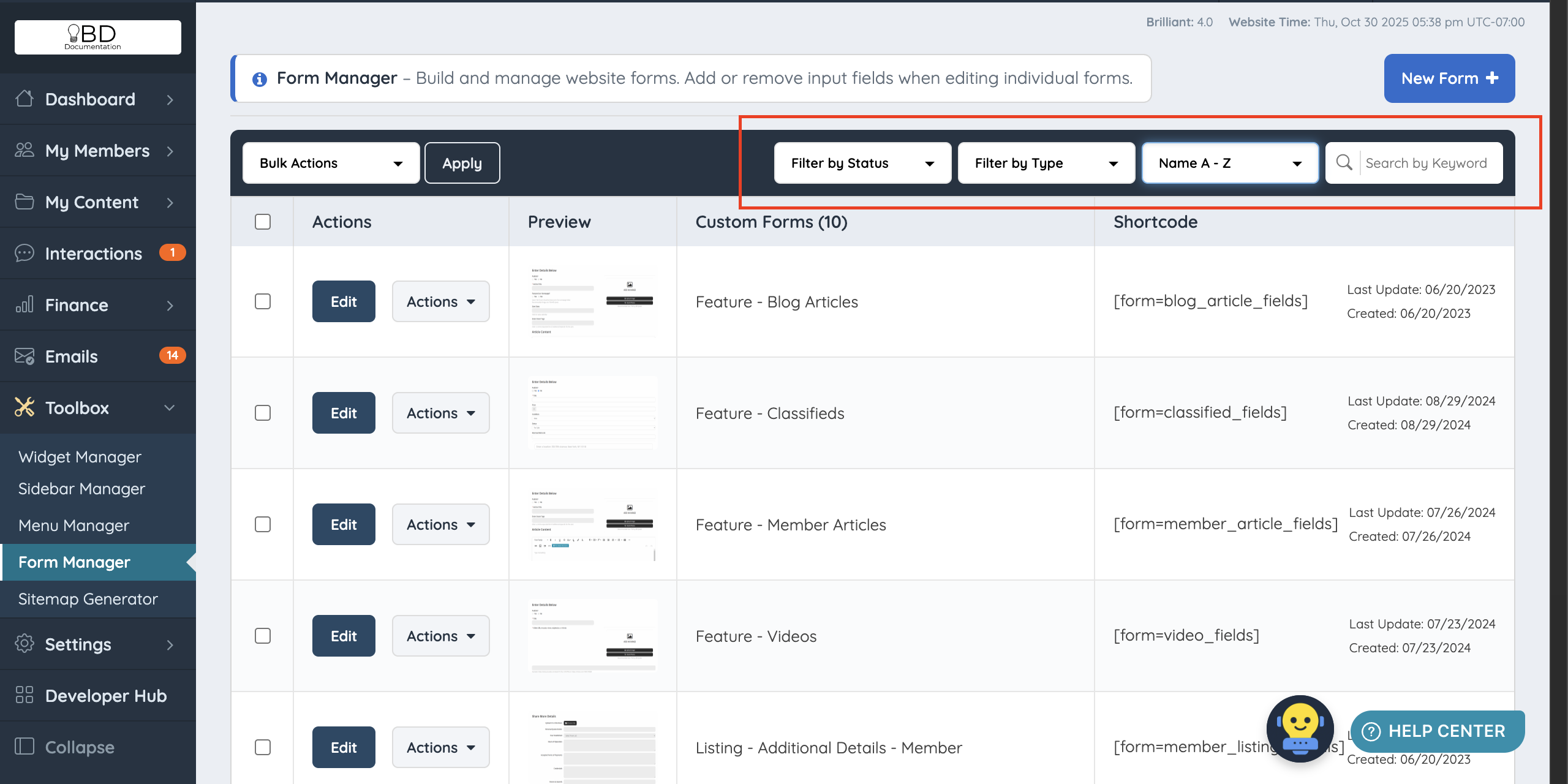
Filter by Status
View forms that are currently active or disabled.
Filter by Type: Member Listings
Forms associated with membership listing sections such as Contact Details, Additional Details, or About.
Filter by Type: Post Types
Forms related to post types such as Classifieds, Albums, or Blog Posts.
Filter by Type: General
Forms not associated with listings or post types.
Allowed Frontend HTML Tags
Site owners can control which HTML elements are allowed in front-end forms.
This setting is located under Settings >> Advanced Settings >> Allowed Frontend HTML Tags:

Note: For security reasons, the following HTML elements are never allowed:
<input>, <textarea>, <link>, <form>, <meta>, <applet>, <frame>, <iframe>, <script>, <style>, <base>, <body>, <html>, <object>, <?>, <?php
Important Information
- Forms cannot be imported or exported.
- Advanced searching and filtering can be performed using SQL queries.
- The Leads Form is tied directly to the Leads System. Most changes should be made in Lead Settings. Keeping the default Get Matched form and only adding new fields is recommended, to avoid conflicts.
